
• Abdul Malik (AM) • misc • 1 min
Qualcomm USB Drivers Download - Latest Version 2025 (FREE)
Qualcomm USB Drivers:
For anyone working with Qualcomm-powered devices, having the correct USB drivers is absolutely essential. These aren’t just any drivers; they’re the critical link that allows your PC to communicate with your smartphone at a low level. Without them, you can’t perform crucial tasks like flashing firmware, fixing a bricked phone, unlocking a bootloader, or carrying out deep-level debugging operations.
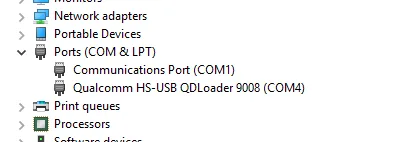
In this definitive guide, we’ll do more than just provide a download link. We’ll walk you through everything you need to know about Qualcomm drivers, from understanding the different modes they connect to”like the critical Qualcomm HS-USB QDLoader 9008 mode (EDL) and Diag Port”to providing a step-by-step installation process for Windows 7, 8, 10, and 11. We’ve also included a comprehensive troubleshooting section to help you resolve common issues.
Understanding Qualcomm Drivers & Connection Modes
Before we dive into the download and installation, it’s crucial to understand what these drivers are and why they are so vital. Qualcomm is the world’s leading manufacturer of mobile chipsets. A Qualcomm device’s ability to communicate with a PC hinges on the correct set of drivers. Different operations require the phone to be in a specific mode, and each of these modes needs a dedicated driver to function properly.
What is EDL Mode (QDLoader 9008)?
EDL stands for Emergency Download Mode. This is a special, low-level boot mode designed by Qualcomm for flashing firmware. When a device is “bricked” (meaning it won’t boot into the Android system or even recovery), this mode is often the only way to revive it. In Device Manager, a phone in this mode is typically recognized as a Qualcomm HS-USB QDLoader 9008 port. The number “9008” is the specific port ID for this emergency state. The driver’s job is to ensure your computer can see and communicate with this port so you can use tools like QFIL or MiFlash to push a new firmware image to the device.
What is Diag Port?
The Diag Port, or diagnostic port, is another critical mode that allows for deep-level device analysis and repair. This mode provides access to the phone’s internal diagnostics, which is often used by service centers and advanced technicians for tasks like IMEI repair, network unlocking, and reading/writing crucial calibration data. The Diag Port driver enables a PC to access these hidden diagnostic functions, making it a powerful tool for professional repair.
The Role of ADB & Fastboot Drivers
While EDL and Diag are for deeper-level operations, ADB (Android Debug Bridge) and Fastboot are your everyday tools for working with your phone in its normal or bootloader state. ADB drivers allow you to push and pull files, install apps, and perform general debugging while the phone is booted into Android. Fastboot drivers, on the other hand, are for when your phone is in the bootloader. This is where you run commands to flash custom recoveries, install new boot images, or unlock the bootloader itself. The Qualcomm drivers we’re talking about here contain the necessary components to ensure your PC properly recognizes your device in these modes as well, providing a complete connectivity solution.
Why You Need Qualcomm USB Drivers
You need these drivers to create a reliable and stable connection for a number of critical operations:
Flashing Firmware: Utilizing tools like QFIL to flash stock firmware, which is often necessary to fix software bugs or unbrick a device.
Unlocking Bootloaders: Establishing a reliable connection for bootloader unlocking processes using tools like Fastboot.
ADB and Fastboot Operations: Ensuring your device is recognized for debugging and command executions while in different modes.
EDL Mode Access: Connecting devices in Emergency Download Mode for unbricking or recovery purposes, especially when the device won’t boot normally.
Diag Port Functions: Accessing diagnostic and calibration data for professional repair tasks like IMEI repair and network unlocking.
Downloading the Latest Qualcomm HS-USB QDLoader 9008 Driver
To get started, you need the latest official Qualcomm USB drivers. This single package contains everything needed for all Windows versions (7, 8, 10, 11) and both 32-bit and 64-bit systems.
| Driver Name | Version | Supported OS |
|---|---|---|
| Qualcomm HS-USB QDLoader 9008 Drivers | Latest Official Release | Windows 7 / 8 / 10 / 11 |
The Download Link
Download the driver package directly from the secure source:
Official Download Link: MEGA
Security Check
| Detail | Value |
|---|---|
| File Size | Approximately 18 MB |
| SHA-256 HASH | ea4cc019ab3edfc30697c86a43267afae5c9e317 |
Always check the SHA-256 hash before downloading any file to make sure it is trusted and safe and has not been changed since it was uploaded.
Installing Qualcomm USB Drivers on Windows
Once you have the driver package downloaded, follow one of the two installation methods below. The automatic method is the most straightforward, but the manual method is a great alternative if you run into any issues.
Method 1: Automatic Installation (Recommended)
Download the Driver: Obtain the setup file from the links provided above. Make sure you extract the ZIP file to a convenient location on your PC.
Run the Installer: Locate the
setup.exefile inside the extracted folder. Right-click on it and select Run as administrator. This is essential to ensure the installer has the necessary permissions to modify system files.Follow Prompts: A wizard will pop up. Click Next to proceed, accept the license agreement, and follow the on-screen instructions. The installer will automatically detect your Windows version (32-bit or 64-bit) and install the correct drivers.
Complete Installation: The installation process should only take a few moments. Once finished, a confirmation message will appear. Click Finish to exit the wizard.
Restart Your PC: It’s a good practice to reboot your computer after installing new drivers. This ensures all changes are properly applied and that the system recognizes the new drivers.
Method 2: Manual Installation via Device Manager
If the automatic installer doesn’t work or you prefer more control, you can install the drivers manually. This method is especially useful when dealing with stubborn devices that aren’t being detected correctly.
Extract Driver Files: Make sure you have the driver ZIP package extracted to a folder on your computer.
Access Device Manager: Right-click on the Windows Start menu (or press Win + X) and select Device Manager from the list.
Identify the Device: Connect your device to the PC. Look for an “Unknown Device” or a device with a yellow exclamation mark under the “Other Devices” or “Ports (COM & LPT)” categories. This is your phone waiting for a driver.
Update Driver: Right-click on the unknown device and select Update Driver.
Browse for Drivers: In the new window, select Browse my computer for drivers. Then, click Browse and navigate to the folder where you extracted the Qualcomm driver files.
Select Driver Folder: Ensure you are in the main driver folder. Windows will automatically find the correct .inf file. Click Next to start the installation. Your computer should now recognize the device.
Troubleshooting Common Driver Installation Issues
Sometimes, things don’t go as planned. Here are some of the most common issues you might face and how to fix them.
Device Still Shows as “Unknown Device” or “QHSUSB_BULK”: This usually means the driver was not installed correctly. Try a different USB cable or a different USB port on your PC. You should also ensure you are using an Administrator account to run the installer.
“Windows Found Drivers but Failed to Install Them”: This error can be a result of Windows’s driver signature enforcement. To fix this, you might need to temporarily disable driver signature enforcement. Search online for a guide on how to do this for your specific Windows version.
Conflicting Drivers: If you’ve previously installed different sets of drivers, they might be clashing. You can try uninstalling them via Device Manager before attempting a fresh installation of the Qualcomm usb drivers.
Not Recognizing the Device in EDL Mode: To confirm the drivers are installed correctly and the device is in the right mode, power off the device completely. Then, press and hold both the Volume Up and Volume Down buttons while connecting it to the PC via USB. This should force the device into EDL mode. Once connected, open Device Manager and check under Ports (COM & LPT) for Qualcomm HS-USB QDLoader 9008 (COMxx). If it appears, you’re good to go.
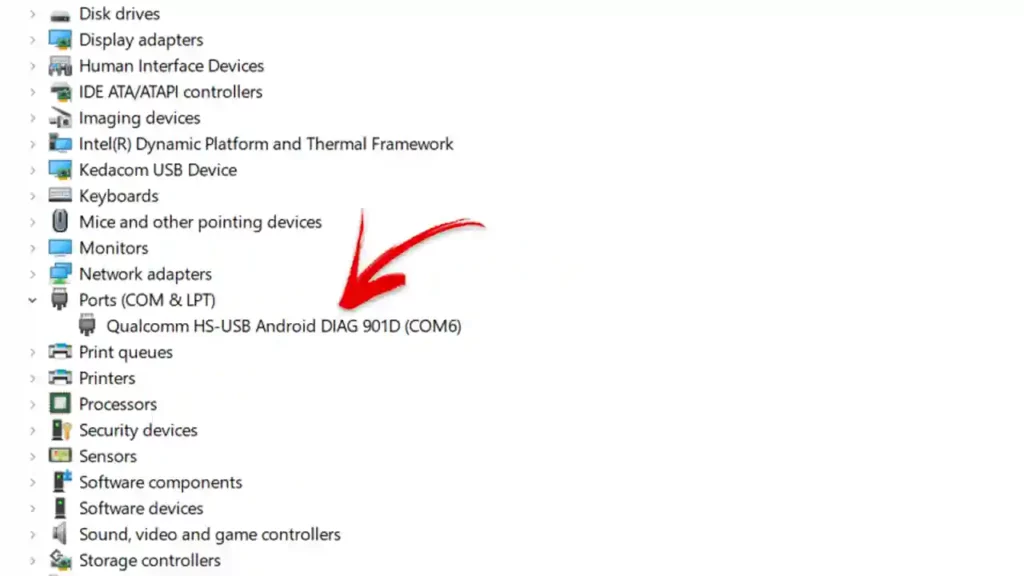
Qualcomm USB Drivers port screen
Video Tutorial
Video Tutorial
Watch this guide for visual instructions
Uploaded: February 16, 2025
Qualcomm USB Drivers Specifications
| Specification | Details |
|---|---|
| Driver Name | Qualcomm USB Drivers 2025 |
| Version | Latest Official |
| File Size | ~18 MB |
| SHA-256 | ea4cc019ab3edfc30697c86a43267afae5c9e317 |
| Windows Support | 7, 8, 10, 11 (32/64-bit) |
| Modes Supported | QDLoader 9008, Diag Port, ADB, Fastboot |
| Chipset Support | All Qualcomm Snapdragon |
| Administrator Required | Yes |
Installation Methods Comparison
| Method | Difficulty | Success Rate | Best For |
|---|---|---|---|
| Automatic (setup.exe) | Easy | 90% | Beginners, quick installation |
| Manual (Device Manager) | Medium | 95% | Troubleshooting, stubborn devices |
| Driver Signature Disabled | Advanced | 99% | Windows 10/11 driver enforcement issues |
This Article Solves Following High-Value Search Queries
If you are stuck on any of these issues, this guide has the direct fix:
- Unbrick phone using QDLoader 9008 driver
- Qualcomm HS-USB QDLoader 9008 Driver Download
- Fix QHSUSB_BULK Error in Device Manager
- Install Qualcomm USB Drivers Windows 11
- Qualcomm Diag Port Driver Download
- EDL Mode Driver Not Working Fix
- How to Force QDLoader 9008 Mode
- Qualcomm Driver Installation Guide Manual
- QFIL Driver Error Fix
- Disable Driver Signature Enforcement for Qualcomm Drivers
- Qualcomm Driver setup.exe not working
- qualcom usb driver download
- diagnostic port driver
- edl 9008 port drivers
- qualcomm usb drivers latest version
Frequently Asked Questions
Are these drivers compatible with the newest Windows 11 systems?
Yes, absolutely. The latest official driver packages are built to support all modern Windows versions, including Windows 11 (64-bit), Windows 10, and older versions like 8 and 7.
Why does Windows recognize the phone as “QDLoader 9008”? What does that number mean?
QDLoader 9008 is the specific technical identifier (the COM port ID) that Qualcomm uses for EDL Mode (Emergency Download Mode). When Windows sees that number, it knows the phone is in the deep, low-level repair state.
What is the Diag Port used for exactly, and why do I need that driver?
The Diag Port (Diagnostic Port) is used for specialized, service-level work. You need Qualcomm USB Drivers if you are planning to read or write complex data like QCN files for IMEI repair or to fix network issues.
Why is my phone stuck and showing up as “QHSUSB_BULK”?
The QHSUSB_BULK name means your PC has recognized the device as a Qualcomm chip but has not loaded the driver yet. It is stuck in a half-recognized state. You need to manually point the driver installer to the correct folder in Device Manager.
Is it better to use the automatic setup.exe or manually install the drivers?
The automatic setup.exe is the simplest way. However, if you are fighting a stubborn error or old driver conflicts, the manual installation via Device Manager is the raw, brute-force method that usually fixes the issue.
Do I need full Administrator rights to install the Qualcomm USB drivers?
Yes, you do. Qualcomm USB Drivers make deep changes to the Windows system files and security settings. Always right-click and run the installer as an Administrator to prevent installation failures.
How do I completely remove old, conflicting Qualcomm USB drivers from my PC?
Go into Device Manager, click View, and select Show hidden devices. Look for the Qualcomm USB drivers under Ports or Universal Serial Bus controllers. Right-click on the old entries and select Uninstall device, making sure to tick the box to Delete the driver software from this computer.
Why would I need to disable Driver Signature Enforcement in Windows?
Sometimes, the driver installer is not perfectly signed, or Windows is overly strict. Disabling Driver Signature Enforcement temporarily lets Windows install the unsigned or custom driver files required for the QDLoader 9008 port.
Do these Qualcomm USB drivers also cover ADB (Android Debug Bridge) and Fastboot connections?
Yes, the complete driver package usually includes the necessary components to establish solid ADB and Fastboot connections when your phone is in those specific operating modes. if you still face any issues you can download latest Android USB drivers from here.
My phone connects and immediately disconnects when I try to enter EDL Mode. Why?
This often points to a bad or weak USB cable. Use a short, high-quality, data-only USB cable. Cheap or long cables fail to keep the power and data signal stable for the QDLoader 9008 connection.
What is the most reliable way to force the phone into EDL Mode (9008)?
Turn the phone completely off. Then, press and hold Volume Up + Volume Down buttons simultaneously, and while holding them, connect the USB cable to the PC. This is the most common raw method to force the 9008 port.
How do I confirm the driver installation was 100% successful?
Put your device into EDL Mode and connect it. Open Device Manager. If you see “Qualcomm HS-USB QDLoader 9008 (COMxx)” listed under the Ports (COM & LPT) section, the installation worked perfectly.
Can my antivirus software block the driver installation or the QDLoader port?
Yes. Antivirus programs can flag or block system-level changes made by the installer. If you have any failure, try temporarily disabling your antivirus and firewall before running the driver setup again.
Will these drivers work for my Xiaomi, OnePlus, or generic Android phone?
If your device uses a Qualcomm Snapdragon chipset, these drivers are the correct foundation. The chip is what matters, not the brand name stamped on the back.
If my old drivers work fine, should I still update to the latest version?
If your old drivers reliably show the QDLoader 9008 port and your flashing tool works, then leave them alone. If it is not broken, do not fix it. Only update if you are facing a new error or using a new version of Windows.
Is the Qualcomm USB Drivers package safe for my PC?
Yes. Provided you download the Qualcomm USB Drivers file from a trusted link, the driver itself is a standard Windows component designed by Qualcomm and is safe to install on all versions of Windows.


Author:
Abdul MalikMobile Software Expert and founder of GSM6.com. Specializes in FRP bypass, IMEI repair, and advanced mobile tools. All tutorials are tested on real devices for accuracy and safety.


