
• Abdul Malik (AM) • android • 1 min
How to Flash Google Pixel via Browser: The Ultimate Guide to Android Flash Tool 2025
How to Flash Google Pixel via Browser:
Is your Google Pixel experiencing software glitches? Perhaps you want to update to the latest Android version without waiting for the over-the-air (OTA) update, or even downgrade to an older Android version that you prefer. Maybe you’re stuck in a boot loop or your device is unresponsive. Whatever the reason, learning how to flash Google Pixel via Browser can be a powerful solution. And the best part? Google provides an official Android Flash Tool that lets you do it all directly from your web browser “ a safe, easy, and efficient method.
This comprehensive guide will walk you through every step of flashing your Pixel phone using the browser-based Android Flash Tool, ensuring a smooth process from start to finish. Say goodbye to complicated command-line interfaces and hello to a user-friendly flashing experience!
Why Would You Need to Flash Google Pixel via browser?
Flashing your Pixel device, essentially reinstalling its operating system, might sound intimidating, but it’s a routine procedure for many Android enthusiasts and a crucial troubleshooting step for common issues. Here are the primary reasons you might consider flashing your Google Pixel:
Software Updates & Upgrades: While most users rely on OTA updates, flashing allows you to immediately install the latest Android firmware or even beta builds, often before they’re officially rolled out to your device. This is perfect for those who want to experience new features right away.
Downgrading Android Version: Sometimes, a new Android version might introduce bugs, performance issues, or break compatibility with essential apps. Flashing allows you to downgrade your Pixel to a previous, stable Android release.
Fixing Software Glitches and Boot Loops: If your Pixel is stuck in a continuous boot loop, freezes frequently, or behaves erratically due to corrupted software, a clean flash of the stock Android firmware can resolve these issues and restore your phone to its factory state. It’s often the last resort before considering hardware repair.
Restoring to Factory Settings: A flash effectively performs a deep factory reset, wiping all data and reinstalling a pristine version of Android. This is useful for selling your device, troubleshooting persistent software problems that a regular factory reset can’t fix, or just getting a completely clean slate.
Preparing for Custom ROMs (Initial Steps): While the Android Flash Tool installs official Google firmware, the initial step of unlocking the Pixel bootloader (a prerequisite for flashing) is also the first step for those interested in installing custom ROMs later.
Introducing the Google Android Flash Tool
The Android Flash Tool is Google’s official, browser-based utility designed to make flashing Pixel devices accessible to everyone. Unlike traditional methods that require downloading complex SDK platforms, setting up environment variables, and running command-line tools, the Android Flash Tool streamlines the entire process.
Key Advantages:
Browser-Based Convenience: No software installation needed on your computer. Simply open a compatible web browser (Chrome or Edge 79+) and navigate to the tool.
Direct from Google: You’re flashing official factory images directly from Google’s servers, ensuring authenticity and reducing the risk of malware or corrupted files. This is the safest way to flash your Pixel.
User-Friendly Interface: The tool guides you step-by-step, making it suitable even for beginners.
Automated Process: Once you select your options, the tool handles downloading the correct firmware, transferring it, and flashing it to your device automatically.
You can access the official tool directly at https://developers.google.com/android/images (which redirects to flash.android.com).
Watch the Video Tutorial: How to Flash Google Pixel via Browser
For a visual guide that walks you through the entire process, including unlocking the bootloader and using the Android Flash Tool, be sure to watch our detailed YouTube video tutorial:
Video Tutorial
Watch this guide for visual instructions
Uploaded: June 30, 2025
The video meticulously demonstrates each step, from enabling developer options to executing ADB commands and navigating the online flashing utility.
Essential Preparations Before You Begin
Flashing your Google Pixel is a powerful process, but it requires careful preparation to avoid potential issues. Follow these crucial steps to ensure a smooth and successful flash:
Backup Your Data: EXTREMELY IMPORTANT! Flashing your device, especially unlocking the bootloader, will wipe all data from your phone, including photos, videos, apps, and contacts. Ensure you have a complete backup of everything important.
Google One Backup: The easiest way is to use Google One for cloud backup of apps, photos, messages, and call history.
Manual Backup: Transfer important files to your computer or an external drive.
Cloud Services: Ensure photos are synced to Google Photos, and documents to Google Drive or similar services.
Charge Your Pixel Device: Ensure your Pixel phone has at least 80% battery charge to prevent it from shutting down unexpectedly during the flashing process, which could lead to irreversible damage.
Enable Developer Options on Your Pixel: This step unlocks advanced settings required for bootloader unlocking and USB debugging.
Go to
Settings > About phone.Tap on “Build number” seven times rapidly. You’ll see a toast message saying, “You are now a developer!”
Enable OEM Unlocking and USB Debugging: These options are found within the newly enabled Developer Options menu.
Go to
Settings > System > Developer options.Toggle on “OEM unlocking.” If this option is greyed out, connect your device to the internet and let it check in with Google’s servers. Sometimes, entering
*#*#CHECKIN#*#*(*#*#2432546#*#*) in the dialer app (no SIM required, no need to press call) can force a check-in. If it remains unavailable, your device might be carrier-locked and its bootloader cannot be unlocked.Toggle on “USB debugging.” Confirm the prompt allowing USB debugging.
Install Compatible USB Drivers on Your PC: Your computer needs the correct drivers to communicate with your Pixel phone in various modes (normal, fastboot, ADB). While Google provides its own USB drivers, generic Android USB drivers often work.
- Download and install the drivers from: https://gsm6.com/samsung-android-usb-drivers-download-link/ (Even though it says Samsung, these often include or are compatible with universal Android drivers needed for various devices, including Pixels. If issues persist, search for “Google USB Driver” specific to your Windows version).
Download Android Platform Tools (ADB & Fastboot): Although the Android Flash Tool automates most of the process, you’ll need ADB (Android Debug Bridge) and Fastboot tools installed on your computer specifically for the bootloader unlock step.
Download the platform tools from: https://gsm6.com/android-platform-tools/
Extract the downloaded ZIP file to an easily accessible location (e.g.,
C:\platform-tools).
Ensure a Stable Internet Connection: Since the Android Flash Tool operates online and downloads the firmware directly, a stable and fast internet connection is crucial to prevent interruptions during the flashing process.
Use a Reliable USB Cable and Port: A high-quality USB-C to USB-A or USB-C to USB-C cable (depending on your computer) is essential. Avoid cheap, damaged, or excessively long cables. Try different USB ports on your computer, especially direct ports on the motherboard (rear ports on desktops) rather than USB hubs or front panel ports, which can sometimes cause connectivity issues.
Temporarily Disable Antivirus/Firewall: Occasionally, security software can interfere with the USB connection or file transfers. If you encounter issues, temporarily disable your antivirus or firewall during the flashing process. Remember to re-enable them afterward.
Step-by-Step Guide: Unlocking the Bootloader
Before you can flash any firmware, your Pixel’s bootloader must be unlocked. Be aware that unlocking the bootloader will erase all data on your phone.
Connect Your Pixel to Your PC: Using a reliable USB cable, connect your Pixel phone to your computer.
Open Command Prompt/PowerShell (or Terminal on Mac/Linux): Navigate to the directory where you extracted the Android Platform Tools (e.g.,
cd C:\platform-tools).Verify ADB Connection: Type
adb devicesand press Enter. You should see your device listed with a serial number. If it prompts for “Allow USB debugging,” accept it on your phone. If your device isn’t listed, revisit the USB driver installation and USB debugging steps.Reboot Your Pixel into Bootloader Mode (Fastboot Mode): Type
adb reboot bootloaderand press Enter. Your phone will reboot and display the Fastboot Mode screen (usually with Android robot lying down or specific text about Fastboot).Unlock the Bootloader: Once in Fastboot Mode, type
fastboot flashing unlockand press Enter.Important: Your phone’s screen will display a warning about unlocking the bootloader, stating that it can void your warranty and allow custom software. Use the Volume keys to navigate to “Unlock the bootloader” and the Power button to select it.
Your device will now perform a factory reset as part of the bootloader unlock process.
Confirm Bootloader Status: After the device reboots (it might go through a setup screen), you can reboot it back into Fastboot Mode (
adb reboot bootloader) and check the bootloader status. It should now show “Device state: unlocked” or similar text.
You have successfully unlocked your Pixel’s bootloader! Now, you’re ready to proceed with flashing the firmware using the Android Flash Tool.
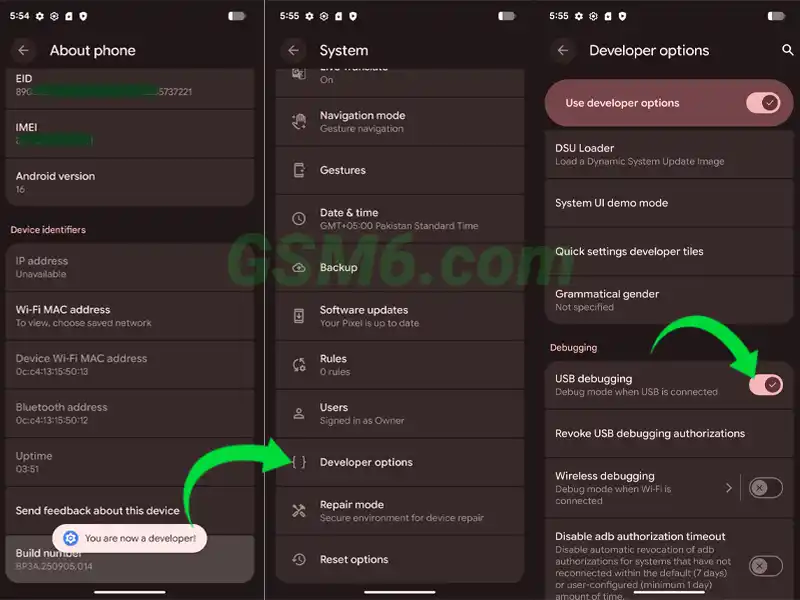
enable usb debugging - screen
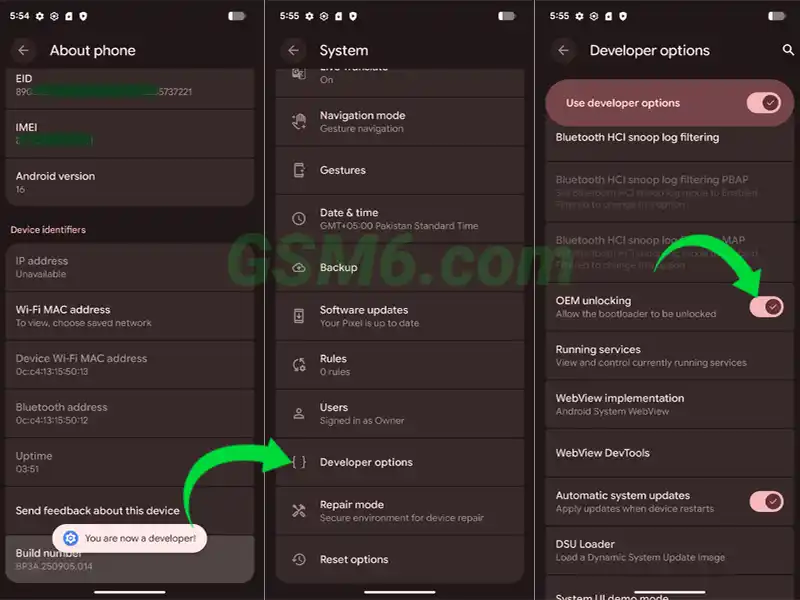
enable oem unlocking - screen
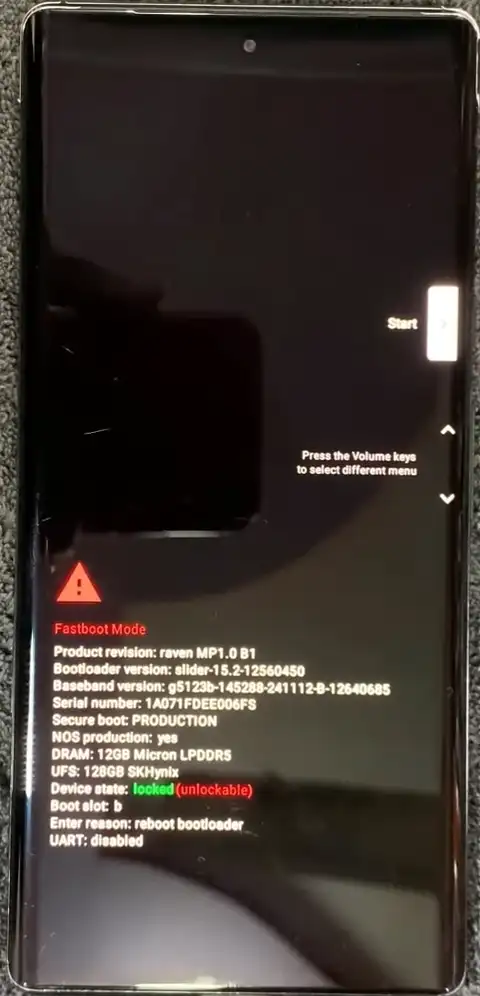
fastboot mode with locked bootloader screen
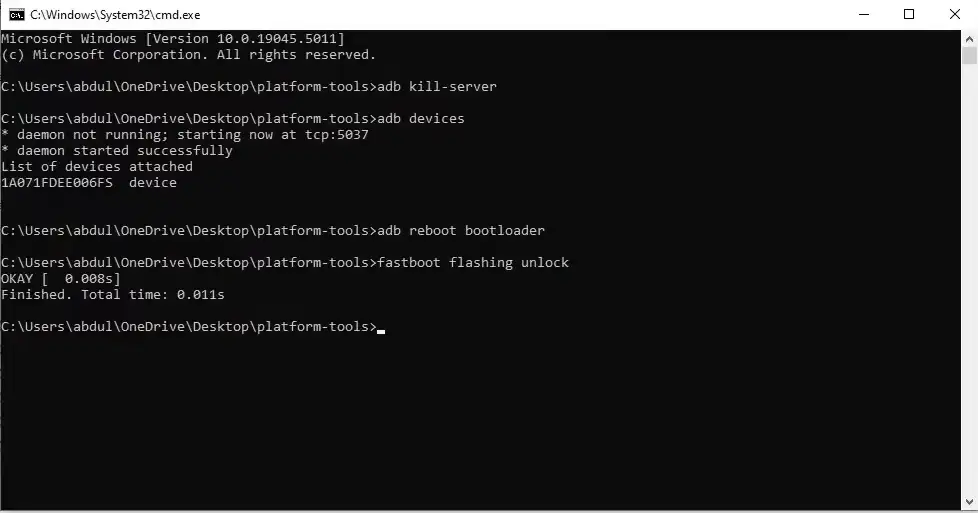
bootloader unlock command
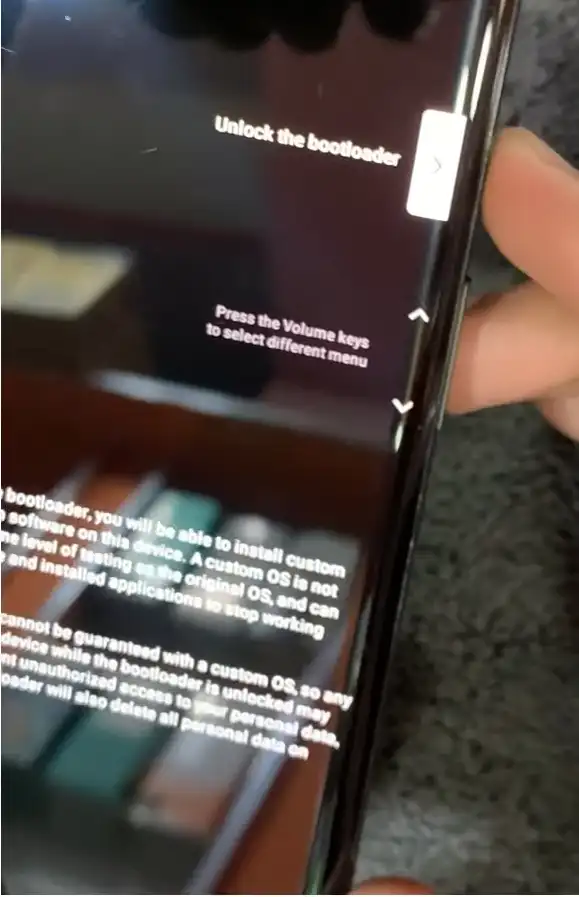
use volume keys to choose bootloader unlock
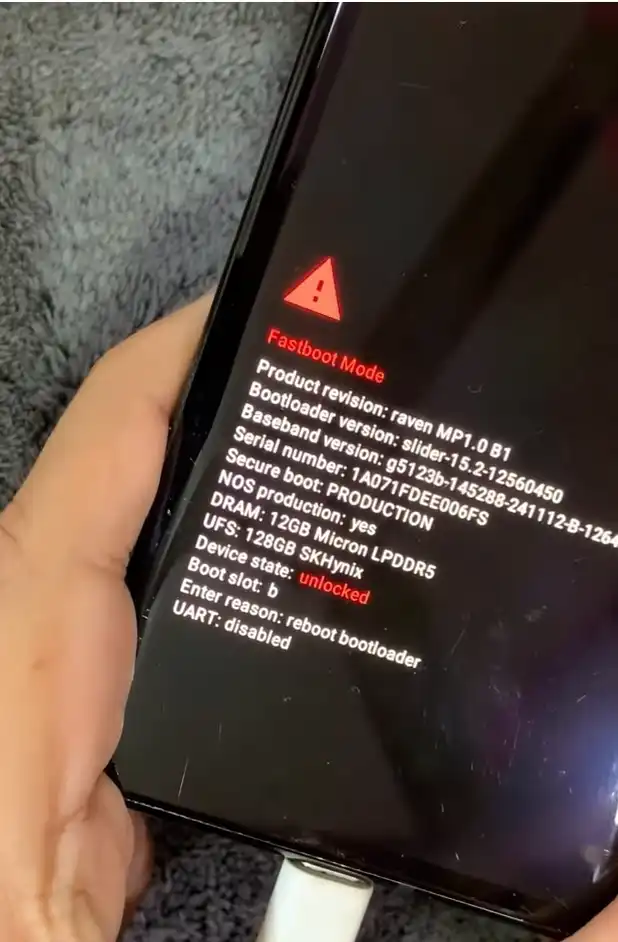
bootloader unlocked screen
Step-by-Step Guide: How to Flash Google Pixel via Browser
This is where the magic happens with Google’s official tool.
Access the Android Flash Tool: Open your compatible web browser (Chrome or Edge 79+) and navigate to the official Android Flash Tool website: https://developers.google.com/android/images (which redirects to
flash.android.com).Allow ADB Access: The webpage will prompt you to “Allow ADB access” to communicate with your device. Click “Allow ADB access” and grant the necessary permissions.
Add New Device: Click the “Add new device” button. A pop-up window will appear, listing detected Android devices. Select your Google Pixel phone from the list and click “Connect.”
Authorize USB Debugging (if prompted): On your phone’s screen, you might receive a “Allow USB debugging?” prompt. Check “Always allow from this computer” and tap “OK.”
Select Your Build: Once connected, the tool will display various firmware builds compatible with your Pixel.
Choose the Right Build: Carefully select the desired Android version (e.g., latest stable release, a specific beta, or an older version for downgrading).
Configuration Options:
“Wipe Device”: This is usually selected by default and performs a factory data reset, which is highly recommended for a clean flash.
“Lock Bootloader”: DO NOT SELECT THIS OPTION YET! Relocking the bootloader immediately after flashing can potentially brick your device if the new software isn’t perfectly stable or if you have any modifications. It’s recommended to boot into the new OS first, verify everything works, and then relock the bootloader manually later if desired for security.
“Force Flash All Partitions”: Generally leave this enabled for a complete and clean flash.
Review and Confirm: The tool will show a summary of the selected build and the operations it will perform. Read this carefully to ensure everything is correct.
Start Flashing: Click the “Install” button to begin the process. The tool will:
Download the selected firmware image. This can take some time depending on your internet speed.
Your phone will automatically reboot into Fastboot mode if it isn’t already.
The tool will then start flashing the various partitions (bootloader, radio, system, vendor, etc.) to your device. You’ll see progress updates on your computer screen and often on your phone’s screen as well.
Your device may reboot several times during this process. Do NOT disconnect your phone until the process is fully complete and the tool indicates it’s safe to do so.
Flashing Complete: Once “Flash Complete” appears on your browser, you can safely disconnect your Google Pixel. Your phone will then boot into the newly flashed Android operating system. The first boot after flashing can take longer than usual.
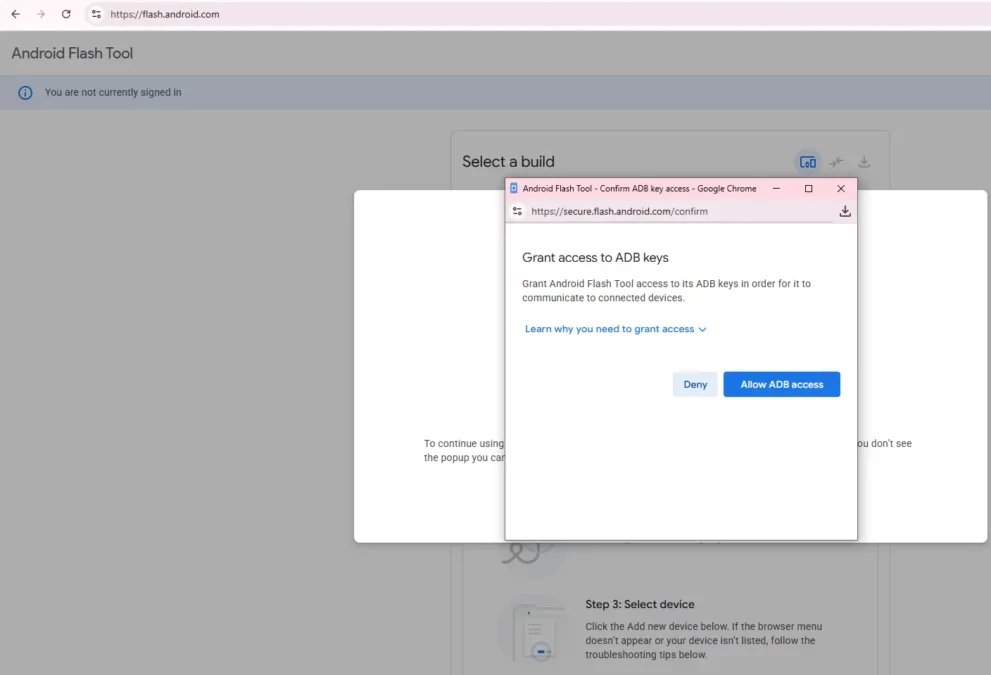
google pixel flash online
Post-Flashing Steps
After a successful flash, your Pixel will boot up as if it’s a brand new device.
Initial Device Setup: Go through the Android setup wizard, connecting to Wi-Fi, signing into your Google account, and restoring your backup if you created one.
Relocking the Bootloader (Optional, but Recommended for Security): While the bootloader should remain unlocked after flashing to confirm stability, it’s generally recommended to relock it for security purposes once you’re confident the new firmware is stable and working correctly.
Warning: Relocking the bootloader on a device with non-stock or modified software (e.g., a custom recovery or rooted kernel) can hard-brick your device. Only relock if you are running official, untampered Google factory images.
To relock, enable “OEM unlocking” and “USB debugging” again in Developer Options (if they disabled themselves).
Reboot your phone into Fastboot Mode (
adb reboot bootloader).In your computer’s command prompt/terminal, type:
fastboot flashing lockand press Enter.On your phone, confirm the action using the Volume keys and Power button. This will again wipe your device.
Relocking the bootloader enhances your device’s security, prevents unauthorized flashing, and allows for verified boot, ensuring your software hasn’t been tampered with.
Troubleshooting Common Issues
While the Android Flash Tool simplifies the process, you might still encounter some common hiccups:
“Device Not Found” or Connection Issues:
USB Drivers: Ensure correct USB drivers are installed (https://gsm6.com/samsung-android-usb-drivers-download-link/).
USB Debugging: Verify USB debugging is enabled on your phone and authorized.
USB Cable/Port: Try a different, high-quality USB cable and a different USB port on your computer. Avoid USB hubs.
ADB Server: Sometimes the ADB server can get stuck. In your command prompt, type
adb kill-serverthenadb start-serverand try again.Antivirus/Firewall: Temporarily disable security software.
Flashing Failed / “Error Transferring Data”:
Internet Stability: Ensure your internet connection is stable.
Browser: Try a different compatible browser (Chrome, Edge).
Outdated Platform Tools: Make sure your ADB and Fastboot tools are up-to-date (https://gsm6.com/android-platform-tools/).
Cable/Port: Again, a faulty cable or port is a common culprit.
Boot Loop After Flashing:
This usually indicates a corrupted flash. Try flashing the firmware again, ensuring “Wipe Device” is selected.
Double-check that you selected the correct firmware version for your specific Pixel model.
OEM Unlocking is Greyed Out: This typically means your device is carrier-locked, and the bootloader cannot be unlocked. There’s no workaround for this unless your carrier provides an unlock service.
If you continue to face issues, refer to the comments section of the linked YouTube video or consult official Google Pixel support forums.
Need Help?
start a thread in our community.. i Reply to everyone.
Click Here to join GSM6 Community!
Related thread: https://forum.gsm6.com/viewtopic.php?p=51#p51
Conclusion:
Flashing your Google Pixel phone via your browser using the official Android Flash Tool is an incredibly powerful, yet straightforward, method for managing your device’s software. Whether you’re looking to perform a Pixel firmware update, downgrade Android, or fix software problems like a boot loop, this guide provides all the steps you need. By following these instructions carefully, ensuring all prerequisites are met, and understanding the implications of unlocking the bootloader, you can confidently take control of your Pixel’s operating system, directly from the comfort of your web browser. Embrace the power of official Google tools and keep your Pixel running smoothly!
Frequently Asked Questions
Is the Android Flash Tool safe to use?
Yes, absolutely. The Android Flash Tool is the official, browser-based utility provided by Google. It flashes authenticated, unmodified factory images directly from Google’s servers. This is considered the safest and most user-friendly way to manage your Pixel’s software.
Will flashing my Pixel phone void my warranty?
Yes, potentially. While simply flashing a stock factory image using the official tool might not always void your warranty, the prerequisite step of unlocking the bootloader almost certainly will. Google clearly warns you of this during the bootloader unlock process.
What is a “boot loop,” and how does flashing fix it?
A boot loop is when your phone gets stuck continually restarting without fully loading the operating system. It usually happens due to corrupted system files or a faulty software update. Flashing fixes this by performing a clean install of a fresh, uncorrupted version of the entire Android operating system, replacing the damaged files.
I successfully flashed my phone. Can I relock the bootloader now?
Yes, but with caution. You should relock the bootloader for enhanced security after confirming that the new OS is 100% stable and working correctly. Crucial Warning: You must be running an official, untampered Google factory image. Relocking the bootloader on a device with a custom ROM, custom recovery, or a rooted kernel will almost certainly hard-brick your device.
How long does the entire flashing process take?
The duration can vary significantly based on your internet speed and the size of the factory image. Firmware Download: Can take 10 to 30 minutes or more. Actual Flashing: Typically takes 5 to 10 minutes. Bootloader Unlock/Relock Wipes: These steps involve a factory reset, which takes a few minutes. Plan for at least 45 to 60 minutes to complete the entire process safely and smoothly, including the initial setup of the new OS.
What should I do if the “OEM Unlocking” option is greyed out in Developer Options?
This usually means your Google Pixel is carrier-locked (e.g., to Verizon, if you bought it from them). If the option remains unavailable after connecting to the internet and letting the device “check in” with Google, your bootloader is likely permanently locked by the carrier, and you cannot proceed with flashing that requires bootloader unlocking.


Author:
Abdul MalikMobile Software Expert and founder of GSM6.com. Specializes in FRP bypass, IMEI repair, and advanced mobile tools. All tutorials are tested on real devices for accuracy and safety.


