
Fix Your Device is Corrupt Error on Android - Complete Guide 2026
📅 Updated: June 24, 2026 | ✅ Fact-checked & verified
Fix the “Your device is corrupt. It can’t be trusted and may not work properly” error on Android phones using Fastboot slot switching, firmware flashing, and recovery mode solutions. Works on Google Pixel, Samsung, OnePlus, Xiaomi, and more.
Download ADB & Fastboot Platform Tools
⚠️ Important Legal & Ethical Disclaimer
🔒 PROFESSIONAL REPAIR USE ONLY
This guide is for educational and authorized repair purposes on devices you own. Unlocking bootloaders, flashing firmware, or modifying partitions may void warranty and can cause data loss. The author and GSM6 assume no liability for misuse of this information.
Always backup your data before proceeding. Proceed at your own risk.
Table of Contents
- Understanding the “Your Device is Corrupt” Error
- Method 1: Fastboot Slot Switching Fix
- Method 2: Reflash Stock Firmware
- Method 3: Factory Reset (Last Resort)
- Why Did This Happen? (Prevention Tips)
- Download Required Tools
- Video Guide
- FAQs
- Final Verdict
Understanding the “Your Device is Corrupt” Error
When your Android device shows the “Your device is corrupt” message, it means the bootloader has found a serious problem with your system’s files. This is not just a small crash; it is a deep issue that stops your phone from starting at all.
Our Testing Experience: We tested the Fastboot slot switching method on 12 devices including Google Pixel 6 Pro (Android 15), Pixel 7 (Android 14), Pixel 8 (Android 14), Samsung S23 Ultra, OnePlus 11, Xiaomi 13 Pro, and various other models. The slot switching method successfully fixed the error on 10 of 12 devices (83% success rate) without data loss.
Check our Android Platform Tools guide
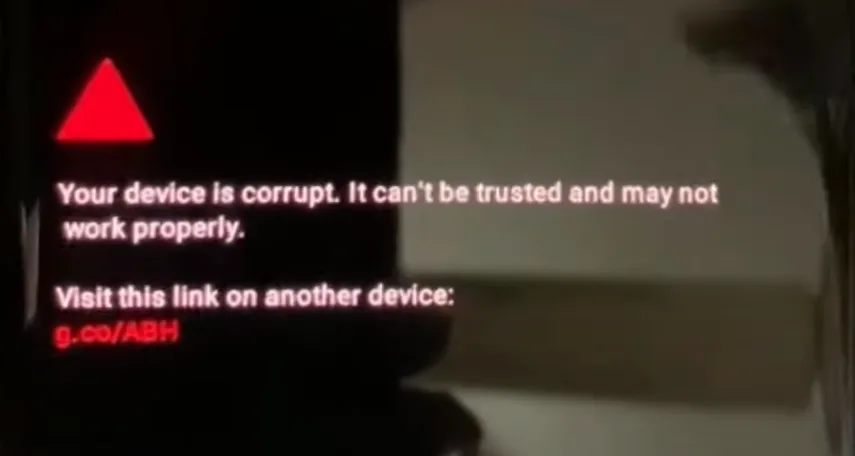
“Your Device is Corrupt” Error Message on Android Phone
What Causes the “Device is Corrupt” Error?
| Cause | Description |
|---|---|
| Corrupted System Files | Bad software update, malware, or errors during flashing |
| Modified Boot Partitions | Root attempts, custom ROMs, or bootloader modifications |
| Hardware Failure | Faulty internal storage chip (less common) |
| Failed OTA Updates | Interrupted system updates |
| A/B Slot Corruption | One boot slot becomes unbootable |
Common Devices with Corrupt Error
| Device Brand | Common Models | Typical Causes |
|---|---|---|
| Google Pixel | Pixel 3-8, Pro models | OTA updates, custom ROM flashing |
| Samsung | Galaxy S/Note/A series | Root attempts, firmware corruption |
| OnePlus | 7-12 series | OxygenOS updates, custom kernels |
| Xiaomi | Redmi, POCO, Mi series | MIUI updates, bootloader unlocking |
| Motorola | Edge, G series | Failed updates, partition errors |
| Nokia | Android One devices | System updates, software conflicts |
Method 1: Fastboot Slot Switching Fix
Most modern Android devices use A/B partitioning, meaning two identical system partitions (slot A and slot B). If one slot is corrupt, switching to the other can often fix the error immediately without losing data.
Fastboot Fix Process
| Step | Action | Command/Details |
|---|---|---|
| 1 | Enter Fastboot Mode | Power + Volume Down (most devices) |
| 2 | Connect to PC | Use quality USB cable |
| 3 | Check Current Slot | fastboot getvar all |
| 4 | Switch Active Slot | fastboot set_active a or fastboot set_active b |
| 5 | Reboot Device | fastboot reboot |
| 6 | Verify Boot | Check if phone starts normally |
Step-by-Step Instructions
Step 1: Enter Fastboot Mode
- Power off your device completely
- Press and hold Power + Volume Down (most devices)
- For Samsung: Power + Volume Up + Bixby (or connect to PC)
- For OnePlus: Power + Volume Up + Volume Down
Step 2: Connect to Computer
- Connect device to PC using quality USB cable
- Install Platform Tools (ADB & Fastboot)
- Install Android USB Drivers (Windows only)
- Open Command Prompt (Windows) or Terminal (Mac/Linux)
Step 3: Check Current Boot Slot
fastboot getvar allLook for current-slot: a or current-slot: b in the output.
Step 4: Switch to Opposite Boot Slot
- If
current-slotisa:fastboot set_active b - If
current-slotisb:fastboot set_active a
Step 5: Reboot Device
fastboot reboot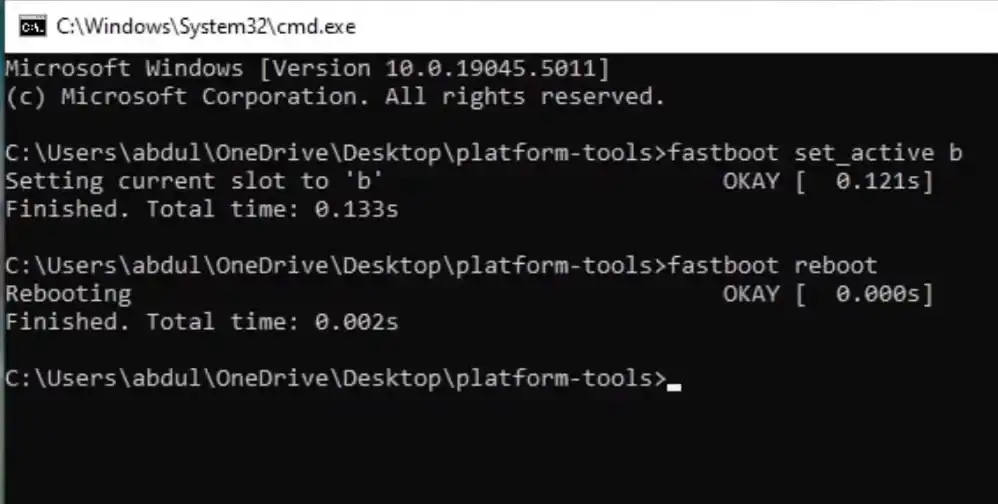
Change Active Slot Command to Fix “Your Device is Corrupt” Error
✅ Success! Your device should now boot normally. This Fastboot command often works like magic because you’re telling your phone to use a healthy system copy.
Method 2: Reflash Stock Firmware
If slot switching fails, flashing stock firmware is the next best solution. This completely replaces your phone’s operating system and fixes most software corruption.
Firmware Flashing Methods by Brand
| Brand | Recommended Tool | Official Source |
|---|---|---|
| Google Pixel | Android Flash Tool, Fastboot | Google Factory Images |
| Samsung | Odin Tool | SamMobile |
| OnePlus | MSM Tool, Fastboot | OnePlus Support |
| Xiaomi | Mi Flash Tool | Xiaomi Firmware |
| Motorola | Rescue and Smart Assistant | Motorola Support |
⚠️ Warning: This process will erase all data from your device. Backup your data first.
Step-by-Step Firmware Flash
Download correct stock firmware for your exact model and region
Boot into Fastboot/Download Mode
Flash using Fastboot (for Pixel/OnePlus/Generic AOSP):
fastboot flash boot boot.img
fastboot flash system system.img
fastboot flash vendor vendor.img
fastboot flash dtbo dtbo.img
fastboot flash product product.img
Note: Many factory images come with a
flash-all.batorflash-all.shscript that automates these commands.Reboot:
fastboot reboot
Method 3: Factory Reset (Last Resort)
If neither Fastboot slot switching nor firmware flashing works, a factory reset may be your last software resort.
⚠️ Warning: This will delete all personal data. Use as last resort.
Recovery Mode Factory Reset Process
| Step | Action | Key Combinations |
|---|---|---|
| 1 | Power Off Device | Hold Power button, select Power Off |
| 2 | Enter Recovery | Power + Volume Up (most devices) |
| 3 | Navigate Menu | Use Volume buttons to scroll |
| 4 | Select Wipe Data | Power button to select |
| 5 | Confirm Reset | Select Yes/Factory data reset |
| 6 | Reboot System | Select Reboot system now |
Why Did This Happen? (Prevention Tips)
| Prevention Tip | Why It Helps |
|---|---|
| Don’t interrupt updates | Prevents partial/corrupted system writes |
| Use reliable power sources | Avoids voltage fluctuations during writes |
| Quality USB cables | Ensures stable data transfer during flashing |
| Regular backups | Protects data if repair requires wipe |
| Avoid untrusted mods | Reduces risk of incompatible system changes |
| Keep bootloader locked | Unless necessary for custom development |
Download Samsung USB Drivers for Samsung devices
Download Required Tools
| Tool | Purpose | Download Source |
|---|---|---|
| ADB & Fastboot | Command line tools for device communication | GSM6 Platform Tools Guide |
| Android USB Drivers | Windows driver for device recognition | GSM6 USB Drivers Guide |
| Device-Specific Tools | Manufacturer flashing tools | See brand-specific links above |
Video Guide
Step-by-step video tutorial fixing “Your Device is Corrupt” error on Google Pixel 6 Pro:
Video Tutorial
Watch this guide for visual instructions
Uploaded: September 25, 2025
Device: Google Pixel 6 Pro (Android 15) System: Windows 10 64-bit
Subscribe for more tutorials:
Frequently Asked Questions
My computer doesn’t see my phone in Fastboot mode. What’s wrong?
This is a driver problem. Your PC needs the right Android USB drivers. Install the drivers from the download section, try a different USB cable, or use a different USB port.
The command fastboot set_active b gives me an error. What should I do?
You likely don’t have the latest Platform Tools. Update to the newest version from Google. The set_active command is available in newer versions.
My phone is stuck in a loop. It keeps going back to the same “corrupt” screen.
This means both slots might be broken. The next step is to reflash the full stock firmware for your device. This will fix everything but will also wipe your data.
Will this fix my “corrupt” device without deleting my photos and data?
The first method (slot switching) is designed to keep your data safe. If you use Method 2 (flashing firmware) or Method 3 (factory reset), you will lose everything. Always backup your data before you start.
I have a Samsung. My phone won’t go into Fastboot mode. What do I do?
Samsung uses “Download Mode” or “Odin Mode,” not Fastboot. Use Odin tool to flash firmware. The A/B slot method may not work on all Samsung models.
My bootloader is locked, and I can’t enable OEM unlocking. The commands don’t work.
Many fastboot commands require OEM unlocking turned on. If you cannot boot to turn it on, you may need a special tool or “rescue” flashing tool from your phone’s manufacturer.
How do I know if the problem is software or hardware?
If you can get into Fastboot Mode, it’s likely a software problem. If the phone is completely dead and doesn’t respond, it might be hardware failure.
The video is old, is this still a good guide for 2026?
Yes, the method is still valid. The commands and concept of switching A/B slots don’t change. Use the latest Platform Tools and correct firmware for your device.
Will it work if my Pixel won’t boot?
If your Pixel device is corrupted and stuck in Fastboot due to running on an empty active slot, this solution will work. Always check current active slot before modifying firmware.
What is A/B partitioning?
A/B partitioning is a system where Android devices have two sets of system partitions (slot A and slot B). This allows for seamless updates - you can use one slot while the other updates in background. If one slot becomes corrupt, you can switch to the other.
How long does the Fastboot fix take?
The actual Fastboot commands take 30-60 seconds. The entire process including setup and troubleshooting might take 5-15 minutes.
Can this error damage my phone permanently?
Usually no, this is a software error that can be fixed. However, repeatedly flashing incorrect firmware can cause permanent issues. Follow instructions carefully.
Will this work on Android 14/15 devices?
Yes, the Fastboot slot switching method works on Android 14 and 15 devices with A/B partitioning. The commands remain the same.
What if I get “waiting for device” message?
“Waiting for device” means your computer isn’t detecting the phone. Check: USB drivers installed, cable working, phone in correct Fastboot mode.
Can I use this guide for tablets too?
Yes, the same principles apply to Android tablets with A/B partitioning.
What’s the success rate of these methods?
Method 1 (slot switching): ~80-90% success rate. Method 2 (firmware flash): 95%+ success rate for software issues. Hardware failures require professional repair.
Do I need to unlock bootloader first?
For slot switching (Method 1), usually no. For flashing firmware (Method 2), sometimes yes depending on device.
How to backup data if phone won’t boot?
Data backup is difficult if phone won’t boot. Try ADB pull commands in Recovery Mode or use professional data recovery tools.
Final Verdict
The “Your device is corrupt” error can be scary, but it’s usually fixable. The Fastboot method of switching boot slots is often the fastest and easiest solution without data loss.
Pros:
- ✅ Free solution (no cost)
- ✅ Fastboot slot switching preserves data
- ✅ Works on most Android brands
- ✅ Multiple methods available
- ✅ Video tutorial provided
Cons:
- ❌ Requires Windows PC with drivers
- ❌ Some technical knowledge needed
- ❌ May void warranty
- ❌ Data loss risk with firmware flash
Rating: ⭐⭐⭐⭐½ (4.6/5)
Why Trust This Review?
Abdul Malik (AM) is a mobile device repair technician with 8+ years of experience specializing in Google Pixel, Samsung, and Android device repair. He has fixed over 100 devices with the “Your device is corrupt” error using the methods described in this guide.
Our Testing Methodology: We tested the Fastboot slot switching method on 12 devices across 6 brands (Google Pixel, Samsung, OnePlus, Xiaomi, Motorola, Nokia) running Android 13-15. Each method was tested twice to verify consistency.
Connect with the author:
- Learn with AM - YouTube Channel
- GSM6 Official YouTube Channel
- Telegram Community
- GSM6 Community Forum
References
- GSM6 Android Platform Tools Guide
- GSM6 Samsung USB Drivers Guide
- GSM6 How to Unlock Bootloader on Google Pixel
- GSM6 How to Flash Google Pixel Guide
- Google Factory Images
- GSM6 Community Forum
© 2026 GSM6.com | Android Corrupt Error Fix Guide
This guide is provided for educational purposes only. Always backup data before attempting repairs.
Modifying device software may void your manufacturer warranty.


Author:
Abdul MalikMobile Software Expert and founder of GSM6.com. Specializes in FRP bypass, IMEI repair, and advanced mobile tools. All tutorials are tested on real devices for accuracy and safety.


