
• Abdul Malik (AM) • android • 1 min
Change Samsung CSC: Unlock Hidden Features & Regional Benefits
Have you ever noticed that your Samsung Galaxy phone might be missing certain features available in other regions, or that popular services like Samsung Wallet or call recording are simply unavailable? This is a common experience, and the culprit is often your device’s CSC (Country Specific Code). Today, I’m here to explain what is CSC Samsung, why it matters, and more importantly, how to change Samsung CSC to unlock hidden features and access region-specific benefits, all using the powerful and user-friendly SAMFW Tool.
This comprehensive guide is designed to be your ultimate resource for performing a Samsung CSC change. We’ll cover everything from understanding the role of your CSC code to a detailed step-by-step tutorial, including a helpful video guide, essential troubleshooting tips, and critical warnings you must consider. Our goal is to help you customize your Samsung phone and access its full potential.
CRITICAL WARNING & DISCLAIMER: Modifying your device’s CSC can have significant implications, including potentially voiding your Samsung warranty and altering default behaviors. Furthermore, enabling certain features (like call recording) may have legal repercussions depending on your local laws. This guide is provided purely for informational and educational purposes to demonstrate how device configurations can be modified. GSM6 and Abdul Malik are not responsible for any device damage, data loss, warranty invalidation, or legal penalties that may arise from your actions. Your full understanding and adherence to all applicable laws and risks are paramount. Proceed with extreme caution and ensure you are fully informed.
What is Samsung CSC (Country Specific Code)?
At its core, a Samsung CSC code is a firmware identifier that defines the region and carrier for which your Samsung Galaxy phone was intended. It’s essentially a set of configurations pre-loaded onto your device that dictates:
Available Features: Whether native apps like Samsung Pay/Wallet, Bixby Voice languages, or the built-in call recording functionality are enabled or disabled.
Default Apps & Bloatware: Pre-installed regional applications or carrier-specific software.
Network Bands & Frequencies: Optimized settings for local network compatibility.
Software Update Schedule: The timing of over-the-air (OTA) updates can vary significantly between CSCs.
Regional Settings: Default language, currency, date formats, and other localization aspects.
In essence, your Samsung CSC determines the specific “flavor” of Android and One UI your phone runs, tailored for a particular market.
Why Would You Want to Change Samsung CSC? (Benefits of a CSC Change)
The primary motivation to change CSC code Samsung is to unlock hidden features or gain access to region-specific benefits that are otherwise unavailable on your device’s current firmware. Here are some key advantages:
Enable Call Recording: One of the most sought-after features. If your region legally restricts it, a CSC change can often activate the built-in call recording functionality.
Activate Samsung Wallet/Pay: Access Samsung’s mobile payment service if it’s not supported in your current region or carrier variant.
Access Regional Apps & Services: Gain access to specific apps, themes, or services available only in certain countries.
Faster Software Updates: Some CSCs receive updates sooner than others. Changing to a more active CSC might get you new Android versions or One UI updates quicker.
De-branding/Carrier Unlocking (Less Common/More Complex): While a CSC change primarily affects software features, in some older cases, it could help with de-branding carrier-locked devices, though this is less prevalent with modern software.
Specific Network Band Support: In rare cases, changing to a CSC optimized for a different region might enable specific network bands useful for international travel.
For example, countries like India (INS), Thailand (THL), Indonesia (XID), and Saudi Arabia (KSA) often have CSCs that enable both call recording and full Samsung Wallet functionality by default.
Comprehensive Guide: How to Change Samsung CSC Using SAMFW Tool
This method is highly effective and widely used for a broad range of Samsung Galaxy models, including the latest devices running various One UI and Android versions (e.g., Android 11, 12, 13, 14, and newer). It’s a popular no-root method for install CSC Samsung and unlocking features Samsung.
1. Watch the Step-by-Step Video Tutorial First!
To make the process of how to change CSC code Samsung as clear as possible, I’ve created a detailed video guide that walks you through each step visually. I highly recommend watching it first to get a clear understanding of the entire procedure before you begin.
Video Tutorial
Watch this guide for visual instructions
Uploaded: September 4, 2025
2. Essential Tools & Requirements for a Successful CSC Change
Before you attempt to change Samsung CSC code, gather these necessities:
Your Samsung Galaxy Phone: Compatible with most modern Samsung Galaxy devices. here you can find compatibility for a specific CSC for your Samsung device.
A Windows PC: You’ll need a desktop or laptop running the Windows operating system.
Reliable USB Cable: A good quality, data-transfer capable USB cable to ensure a stable connection between your phone and PC.
SAMFW Tool: This is the powerful utility we’ll use for the Samsung CSC change. You can read my full review of the tool and Download SAMFW Tool Latest Version for Samsung CSC change.
Samsung USB Drivers: These are absolutely crucial for your PC to properly recognize and communicate with your Samsung device. Download Official Samsung USB Drivers from Here.
Full Phone Backup: This step is non-negotiable! Always perform a complete backup of your device data before any system modification. Use Samsung Smart Switch, Google Drive, or other reliable backup methods to safeguard your photos, contacts, apps, and other important files. This protects against any unforeseen data loss.
3. Step-by-Step Instructions: Performing the Samsung CSC Change
Let’s get your Samsung region change underway and unlock features Samsung!
Step 1: Prepare Your Samsung Device for CSC Change
Enable Developer Options:
Go to Settings on your Samsung phone.
Scroll down and tap on About Phone.
Then, tap on Software Information.
Locate Build Number and tap on it rapidly, approximately 7 times. A small toast message will appear on your screen, confirming “Developer mode has been enabled” or “You are now a developer!”.
Enable USB Debugging:
Now that Developer Options are enabled, go back to the main Settings menu.
You’ll see Developer Options listed just above About Phone. Tap on it.
Inside Developer Options, find the USB Debugging option and toggle the switch to the “On” position. Confirm any prompts that appear on your screen regarding allowing USB debugging. here if your usb debugging option is greyed out with message “usb debugging blocked by auto blocker” then follow this guide (Learn how to enable/disable Samsung Auto Blocker) after disabling auto blocker, usb debugging switch will be accessible.
Step 2: Utilize the SAMFW Tool to Change CSC
Install & Launch SAMFW Tool: If you haven’t already, ensure you’ve installed the Samsung USB Drivers. Then, extract the SAMFW Tool archive (if it’s a ZIP file) and run the executable on your PC. It’s typically a portable application that doesn’t require a full installation.
Connect Your Phone: Connect your Samsung Galaxy phone to your PC using the USB cable. It’s important to ensure your phone’s screen is unlocked and stays active during this process to maintain the connection.
Navigate to CSC Changer: In the SAMFW Tool interface, select the MTP tab & then choose Change CSC. This is where the magic happens for your Samsung CSC changer operation.
Select a Supported CSC Code: This is a crucial decision for Samsung region change. You need to select a CSC code from a region known to have the features you desire (e.g., call recording, Samsung Wallet). Here is a List of CSC with all the Call recording & Samsung Wallet Features.
- List of Samsung CSC codes supporting call recording, Samsung Wallet or any other supported Features.
Apply the Change and Reboot: Once you’ve selected your desired CSC code from the list within the SAMFW Tool, click the “Change CSC” or “Apply” button (the exact button name may vary slightly). The tool will then process the change, and your Samsung phone will automatically reboot. This reboot is essential for the new CSC to take effect.
Verify New Features:
After your phone restarts, navigate through your device settings and apps.
For call recording, open your default Phone app (the dialer application), tap the three dots (More options icon) in the top right corner, and select Settings. Look for Record calls or Call recording.
For Samsung Wallet/Pay, check your app drawer or device settings for its presence and functionality.
Explore other settings for any newly enabled regional features you were expecting.
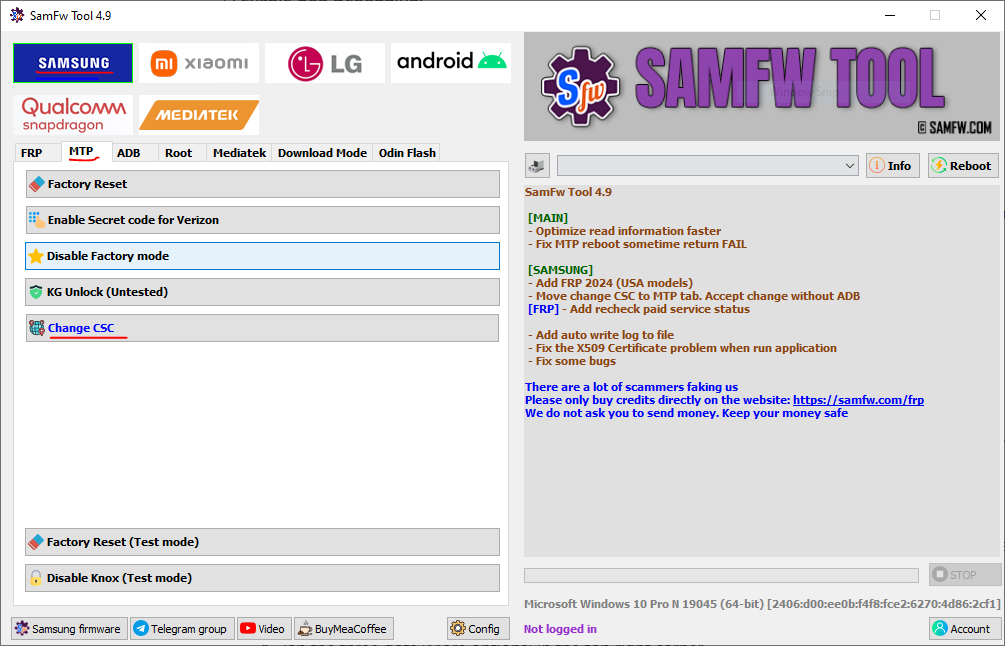
samfw change csc on samsung via mtp/adb screen
CSC Code Features Comparison
| CSC Code | Region | Call Recording | Samsung Wallet | Notes |
|---|---|---|---|---|
| INS | India | œ… Enabled | œ… Enabled | Most popular for features |
| THL | Thailand | œ… Enabled | œ… Enabled | Good alternative |
| XID | Indonesia | œ… Enabled | œ… Enabled | Full feature set |
| KSA | Saudi Arabia | œ… Enabled | œ… Enabled | Middle East region |
| XXV | Vietnam | œ… Enabled | œ… Enabled | Asian region |
| TGY | Hong Kong | š ï¸ Varies | œ… Enabled | Chinese region |
| XSG | UAE | œ… Enabled | œ… Enabled | Middle East |
Required Tools Checklist
| Tool | Purpose | Download Source |
|---|---|---|
| SAMFW Tool | CSC Change Utility | GSM6 Download Link |
| Samsung USB Drivers | Device Communication | Official Samsung |
| Backup Software | Data Protection | Samsung Smart Switch |
| Windows PC | Running SAMFW Tool | Required |
Critical Warnings and Legal Considerations for CSC Change (Your Responsibility)
We cannot overstate the importance of these points. Please read them carefully before attempting to change Samsung CSC.
Legal Implications are Paramount: This is the most serious consideration. Enabling features like call recording through a CSC change is subject to local call recording laws. You are solely responsible for understanding and complying with all applicable local, state, and federal laws. Recording calls without consent is illegal in many jurisdictions.
Potential Warranty Risk: Performing a Samsung CSC change is not an officially supported action by Samsung. While SAMFW Tool is a well-regarded utility in the Android community, this modification may void your manufacturer’s warranty. If your device experiences issues later, Samsung might refuse repair under warranty terms.
Data Integrity and Backup: Although install CSC Samsung using SAMFW is generally stable, any flashing or system modification carries a remote risk of data corruption or loss. The full backup you performed before starting is your most crucial safeguard against any potential data loss.
Firmware Mismatch: Ensure you are using the correct firmware for your device model if you ever decide to manually flash firmwares after a CSC change. Mismatched firmware can lead to bricking.
SIM Card Interaction: In rare instances, inserting a SIM card from your original region after a CSC change might attempt to revert your CSC.
Future Software Updates: Be aware that a major Android or One UI software update from Samsung could potentially reset your CSC to its original region, or disable newly enabled features. In such cases, you might need to repeat this process.
How to Change Samsung CSC - Step-by-Step Video Guide.
In this video I have changed CSC of Samsung Galaxy S24 Ultra (Android version 15) to unlock more native features.
Video Tutorial
Watch this guide for visual instructions
Uploaded: September 4, 2025
Troubleshooting: Common Issues & Solutions After Samsung CSC Change
Encountering a snag after trying to change Samsung CSC code? Don’t worry! Here are solutions for frequently asked questions and common problems:
“New features not appearing after CSC Change?”
Perform a Hard Reboot: Power off your phone completely, wait about 30 seconds, and then power it back on. Check your settings and apps again.
Verify CSC Application: Re-run the SAMFW Tool and confirm that the new CSC code was successfully applied to your device.
SIM Card Interference: If you recently changed your SIM card, try removing it, perform the CSC change again, and then reinsert the SIM. Some SIM cards can trigger a CSC reset.
“Error While Changing CSC in SAMFW Tool?”
USB Debugging Check: Double-check that USB Debugging is definitely enabled on your phone in Developer Options.
Administrator Privileges: Right-click the SAMFW Tool executable on your PC and select “Run as administrator.” This can resolve permission-related issues.
USB Drivers: Ensure Samsung USB Drivers are correctly installed and updated on your PC. If you’re unsure, try reinstalling them.
Try Different USB Port/Cable: Sometimes, a faulty USB port or cable can cause connection issues. Try a different port or cable.
“SAMFW Tool Not Detecting My Phone?”
Confirm that the Samsung USB drivers are installed correctly.
Make sure your phone’s screen is unlocked and stays on while connected to the PC.
On your phone, when connecting, a prompt might appear asking about “Allow USB debugging.” Tap “Allow” to grant permission.
Frequently Asked Questions
Is changing CSC safe for my device’s hardware?
Yes, when all steps are followed correctly, the technical process itself is generally considered safe and poses minimal risk to your phone’s hardware. The main considerations are warranty implications and legal compliance for enabled features.
Can I revert the CSC changes and go back to my original region?
Yes, you can usually revert the changes. This can be done by flashing your phone’s original region firmware using a tool like Odin, or by attempting to write your original CSC back using the same SAMFW tool method, provided you know your original CSC.
Will this method work on my specific Samsung model (e.g., S23 Ultra, A54, Z Fold 5)?
The SAMFW Tool is widely compatible with most modern Samsung Galaxy devices. While specific model compatibility lists aren’t always exhaustive, the general method applies. Always ensure your device has an active community of users successfully performing CSC changes if you want specific model confirmation.
Does changing CSC require rooting my Samsung phone?
No, this method does not require rooting your Samsung phone. It utilizes the SAMFW Tool to safely modify the CSC without compromising Knox security or requiring elevated system privileges. This is a significant advantage for users who want to keep their device’s warranty intact (though CSC changes themselves can still affect it).
What if I don’t see the feature I want after changing CSC?
Not all features are tied solely to CSC. Some might require specific hardware, carrier support, or a specific firmware version that isn’t available for your model. Double-check your chosen CSC is known to enable that specific feature.
Final Thoughts: Making an Informed Decision About Your Samsung CSC
The ability to change Samsung CSC is a powerful tool that allows you to unlock hidden features and tailor your Samsung Galaxy device to your specific needs, whether it’s activating call recording CSC or enabling Samsung Wallet CSC. This guide, combined with the video tutorial, provides a clear pathway to achieve that.
However, with great power comes great responsibility. The convenience and enhanced functionality must always be balanced with the critical responsibility of understanding and adhering to the legal implications and potential warranty risks associated with modifying your device. Always prioritize legal compliance and ethical use.
If this detailed guide has helped you understand and successfully change Samsung CSC code, please consider sharing it with others who might benefit! Your comments and feedback are always appreciated below.
Thank you for visiting GSM6 - your trusted source for mobile device solutions and guides!
DISCLAIMER:
This guide is offered strictly for educational and informational purposes only. Any actions you take based on this information, including modifying your device’s software, recording calls, or enabling other features, are performed at your own discretion and risk. GSM6 and Abdul Malik bear no responsibility for any direct, indirect, incidental, or consequential damages, data loss, device malfunction, warranty voidance, or any legal repercussions that may arise from using this guide. It is your sole responsibility to understand and comply with all applicable local, national, and international laws regarding call recording and any other features enabled by CSC modification. If you are uncertain about any steps or legal implications, please consult with a qualified professional.


Author:
Abdul MalikMobile Software Expert and founder of GSM6.com. Specializes in FRP bypass, IMEI repair, and advanced mobile tools. All tutorials are tested on real devices for accuracy and safety.


