
• Abdul Malik (AM) • apple • 1 min
how to Bypass iCloud Free on your iPhone and iPad Using UnlockTool
Look, if you are holding an iPhone or an iPad that you picked up cheap, and it’s just sitting there on that cold, blue “Activation Lock” screen, you know the rage. It is a brick. It is useless. That iCloud security feature is the best thing Apple ever did for thieves and the worst thing they ever did for honest technicians and second-hand buyers. That lock is a wall, but you are not going to throw that device away. You have found the only real, raw, straight-up way to fix it.
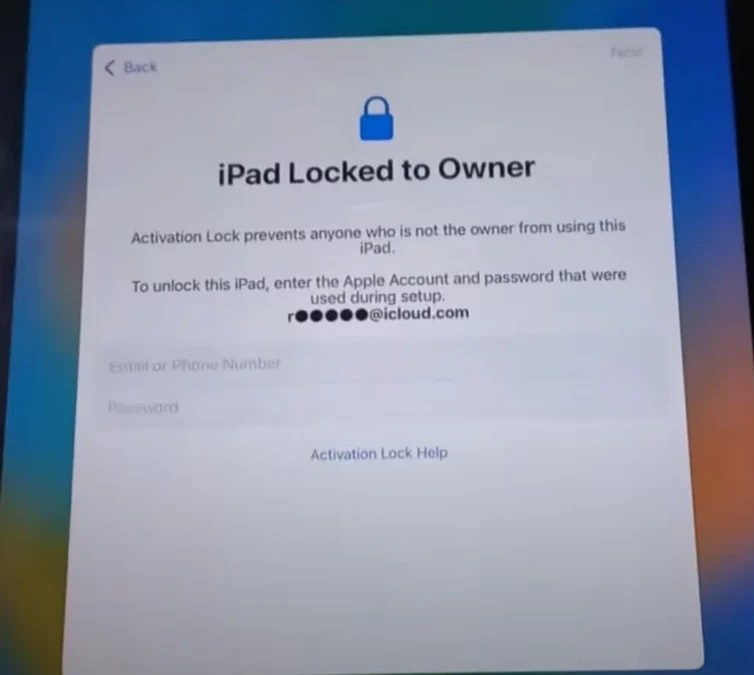
This is the comprehensive, long, and dirty guide on how to use a professional tool”the UnlockTool”to permanently bypass the iCloud Activation Lock for absolutely nothing. We are going deep into the Serial Number (SN) method, the trick that service centers have tried to keep secret for years. This is a legitimate, permanent, non-tethered bypass. That means you can reboot the phone, factory reset it a thousand times, and the lock will never come back. This is not a temporary glitch fix; this is rewriting the device’s identity at the hardware level.
To do this, you do not need to be a coding genius. You need to follow the steps exactly, you need a specific cable, and you need the right tool that talks to the phone at the lowest possible level. This guide is your step-by-step master key. When you are done, that device goes from a paperweight to a fully working Wi-Fi device. Read every word.
READ THIS BEFORE YOU PROCEED: YOU ARE RESPONSIBLE FOR YOUR ACTIONS.
This entire guide, including all information, files, links, and tutorials provided by AM, GSM6.com, and Learn With AM, is published strictly for EDUCATIONAL and REPAIR PURPOSES ONLY.
This is a technical document intended to help experienced mobile repair technicians and legally qualified individuals RESTORE devices they have legitimate, legal ownership of. This guide is specifically for users who have legally purchased a device but have lost access due to a forgotten password, a previous owner’s error, or software corruption that resulted in an iCloud Activation Lock on a legally owned device.
1. LEGAL OWNERSHIP IS MANDATORY: You MUST be the legal owner of the iPhone or iPad you are attempting to bypass. You must have the original proof of purchase (receipt, invoice, or legal transfer documents) proving you own the device.
2. ILLEGAL ACTIVITY IS PROHIBITED: DO NOT use this information or the UnlockTool for any illegal or fraudulent purpose. DO NOT use this guide to unlock, bypass, or tamper with lost, stolen, or illegally obtained devices. Tampering with stolen property or attempting to change the IMEI or Serial Number of an illegally acquired device is a SERIOUS CRIME in most jurisdictions.
3. NO GUARANTEE AND NO LIABILITY: The methods described are high-risk, low-level hardware procedures. You proceed ENTIRELY AT YOUR OWN RISK.
Risk of Damage: Following this guide can permanently BRICK or damage your device, its baseband, or its internal memory (NAND chip).
Waiver of Liability: AM, GSM6.com, and any associated platforms or entities take ZERO RESPONSIBILITY and waive all liability for any loss, damage, legal consequences, criminal charges, or loss of data that may result from your use or misuse of the information and tools provided here.
BY PROCEEDING WITH THIS GUIDE, YOU ACKNOWLEDGE AND ACCEPT FULL, SOLE RESPONSIBILITY FOR YOUR ACTIONS AND ALL OUTCOMES.
What is UnlockTool and How Does It Work for iCloud Bypass?
Do not confuse the UnlockTool with the endless stream of garbage, fake websites, or little cracked apps that promise to “unlock iCloud” in 5 minutes. Those are scams designed to steal your money or your data. UnlockTool is professional-grade software. It is a massive, all-in-one suite used by every serious mobile repair shop around the world. It does a dozen things, from removing FRP (Google lock) on Androids to flashing complex firmware.
For our specific problem”the iCloud Lock”UnlockTool provides a dedicated feature that leverages a deep, hardware-level exploit. This exploit allows the tool to talk directly to the non-volatile memory (the NAND chip) where the device’s identity is stored.
Think of it this way: The Activation Lock is a piece of code on an external server, and it checks your phone’s ID card”the Serial Number (SN). If the SN is on the “locked list,” the server says NO. UnlockTool, with the right cable, slips past the phone’s operating system and goes straight to the ID card, erasing the old, locked SN and writing a brand new, clean one in its place. When the phone tries to activate again, it presents this new, clean ID to Apple’s server. The server checks the list, finds nothing, and says YES. The phone is activated. The lock is gone forever because you wrote the new identity to the hardware itself.
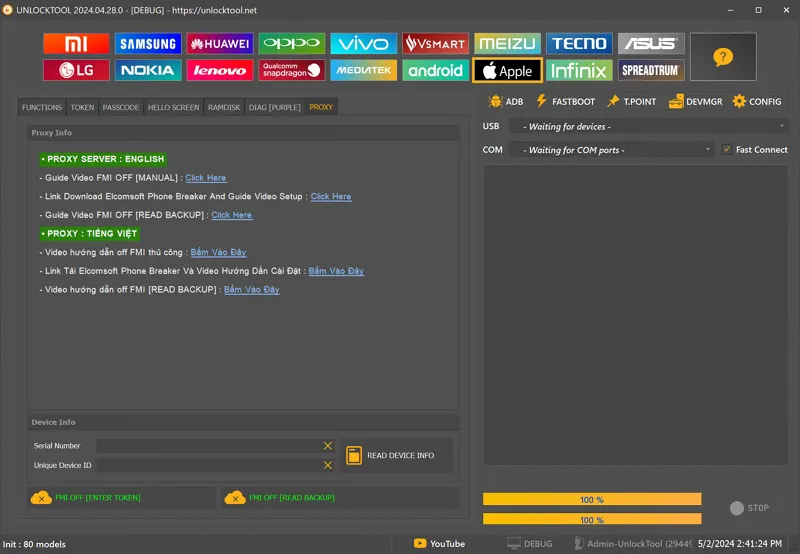
Step 1: launch unlock tool & choose Apple TAB
The Science Behind the SN Method
Every single iPhone and iPad is born with a unique identifier”the Serial Number (SN), the Wi-Fi Address, and the Bluetooth Address. These three codes are written onto the NAND flash memory chip, the main storage chip inside the device. When you link an Apple ID to the device, Apple’s servers make a record: Serial Number XYZ is locked to Apple ID ABC.
The SN Method is not about hacking the server; it is about changing the ID card on the device.
Low-Level Access: We use the DCSD cable (we will talk about this beast in a minute) to bypass the regular USB interface and hit the iPhone’s low-level service port. This is the port factories use for testing and writing data.
Exploit Injection: The tool uses an initial exploit (often based on Checkm8 on these older chips) to put the phone into a specific hardware mode where the NAND memory partition is temporarily writable.
Data Overwrite: UnlockTool injects a command that overwrites the original, locked Serial Number with a new, clean serial number that you provide. This clean SN is a known good number that has never been registered or locked to any Apple ID.
Permanent Activation: The phone reboots, presents its new identity (the clean SN), and is activated by Apple’s servers. The activation status is now linked to the new SN, which is stored permanently on the NAND chip.
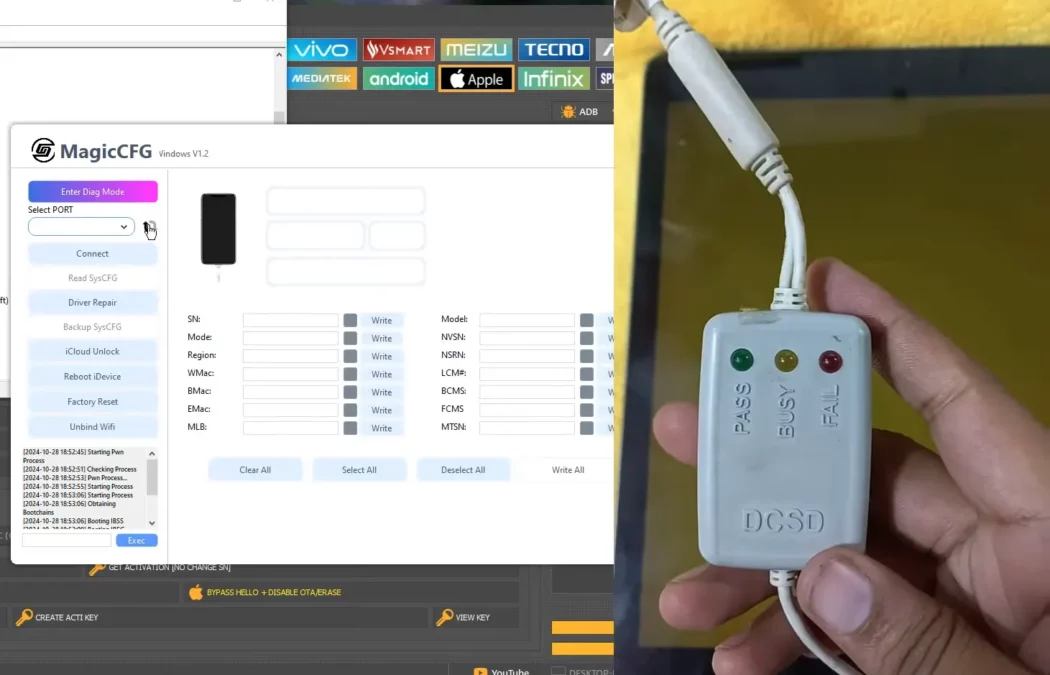
Step 2. change SN by using DCSD Cable (check video for better guide)
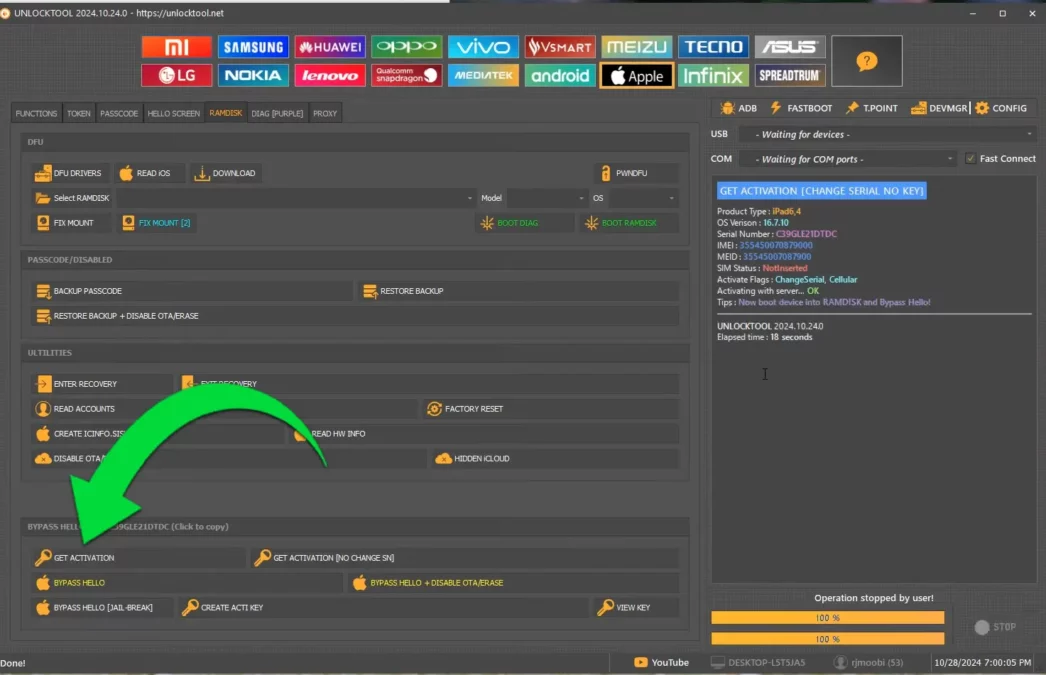
Step 3. Get Activation [Change SN] Method]
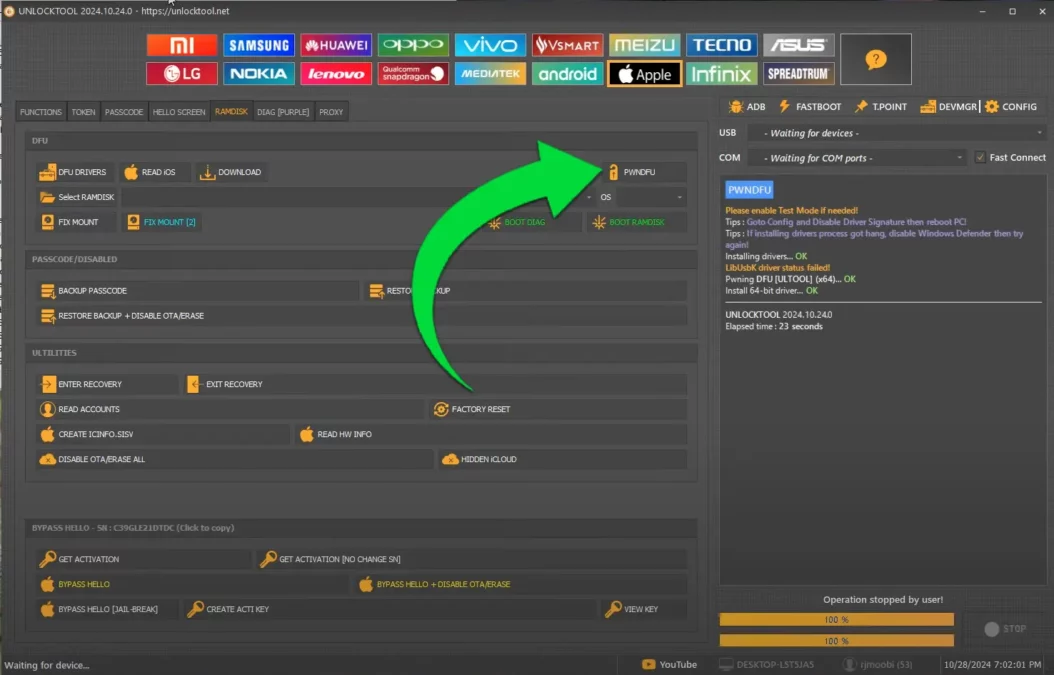
Step 4. enter in PWNDFU mode by using unlocktool
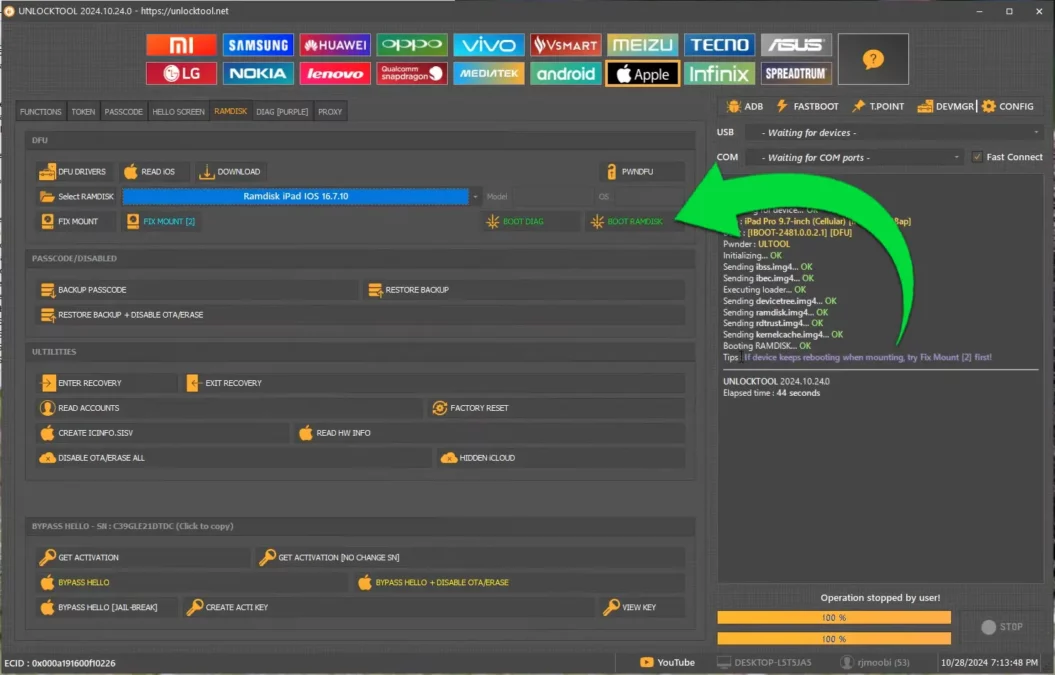
Step 5. boot into the Ramdisk mode by using Unlocktool
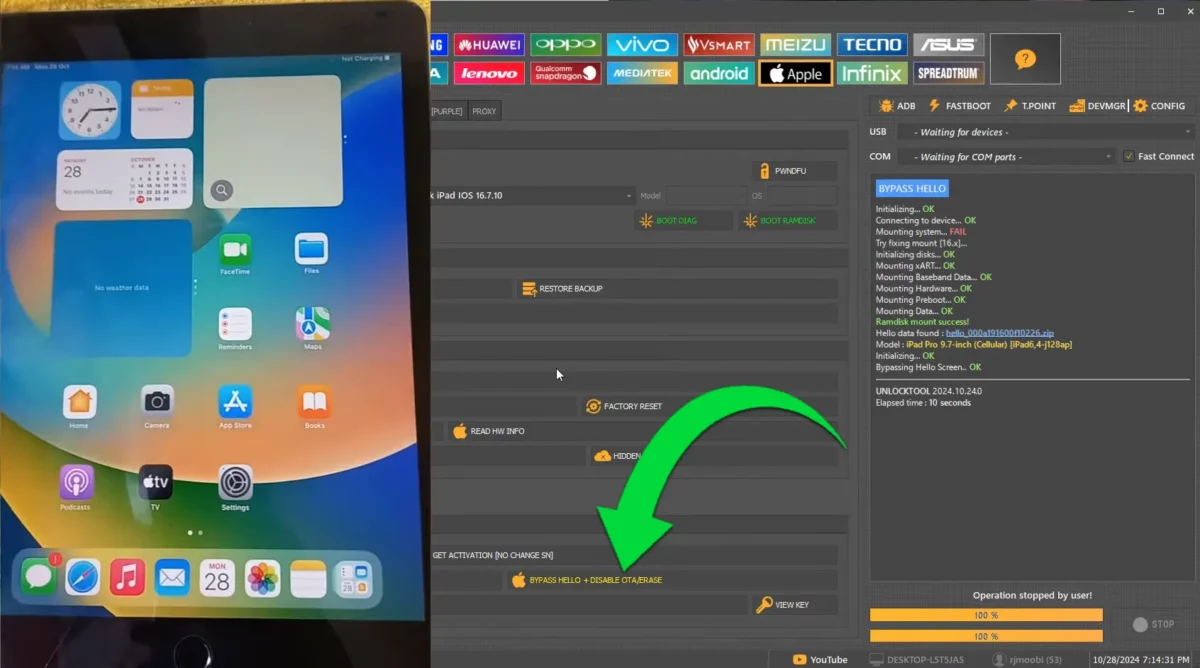
Step 6. once phone in ramdisk mode, choose bypass hello & it will be done.. this is final screen.
UnlockTool SN Method Specifications
| Feature | Details |
|---|---|
| Method | Serial Number (SN) Overwrite |
| Works on iOS | iOS 15, 16, 17 and below |
| Cost | 100% Free (Tool feature) |
| Bypass Type | Untethered Permanent |
| Cellular After | Wi-Fi Only (No Service) |
| Hardware Required | DCSD Cable (Mandatory) |
| Supported Chips | A7 to A11 Bionic |
Supported iPhones and iPads for iCloud Bypass Free with UnlockTool
This method is powerful, but it relies on a hardware vulnerability found in older chipsets. The newer phones are locked down too tight. If your phone is not on this list, this free method will not work.
Supported Devices Table
| Device Type | Models Supported | Chipset | iOS Support |
|---|---|---|---|
| iPhone | 6S, 6S Plus | A9 | iOS 9-15 |
| iPhone | 7, 7 Plus | A10 Fusion | iOS 10-15 |
| iPhone | 8, 8 Plus | A11 Bionic | iOS 11-16 |
| iPhone | X | A11 Bionic | iOS 11-16 |
| iPad | Air (1st Gen) | A7 | iOS 7-12 |
| iPad | Mini 2/3 | A7 | iOS 7-12 |
| iPad | 5th-7th Gen | A9-A10 | iOS 10-15 |
| iPad Pro | 1st/2nd Gen | A9X-A10X | iOS 9-16 |
Unsupported Devices (DO NOT ATTEMPT)
| Device Type | Models | Reason |
|---|---|---|
| iPhone | XR, XS, 11, 12, 13, 14, 15 | Hardware patched |
| iPad | 8th Gen and newer | A12+ chips secured |
| iPad Air | 3rd Gen and newer | A12+ chips secured |
| iPad Pro | 3rd Gen and newer | A12X+ chips secured |
Step-by-Step Guide to Bypass iCloud Free Using UnlockTool
Before you touch the software, you need two physical things:
DCSD Cable: This is a non-negotiable tool. It is a special data cable that acts as a serial adapter, giving the PC deep access. You must find a reliable one. A regular charging cable will not work.
Clean Serial Number (SN): You need a 12-character SN that is not iCloud locked. You can buy these from certain online services for a small fee, or sometimes technicians share valid, used ones. This new SN is your new ID card.
Once you have your clean SN and the DCSD cable, we go to work.
Step 1: Download & Install UnlockTool
The journey starts with the main weapon.
Find the Source: Head straight to the official UnlockTool download area. Do not mess around with links from random, unknown forums. Always use a trusted source to avoid malware.
Download: Get the latest version. It is a heavy file because it is packed with a thousand drivers and functions.
Install and Run: Install it on your Windows PC. (The tool is PC-only.) You may have to disable your antivirus, because some security programs flag these types of low-level system tools as suspicious. It is safe, but this is a common problem with deep repair utilities.
Log In: When you first run it, it might ask you to log in. You may need to create a free account to get access to the bypass features. Do not worry about paid activation; the features we need are often left open for general use. Run the tool, get past the initial screen, and make sure it is ready and waiting.
Step 2: Connect Your iPhone or iPad in DFU Mode Using a DCSD Cable
This is the hardest physical step. You must use the DCSD cable. This cable has a chip inside that activates the debug serial communication protocol, which is what UnlockTool uses.
Cable First: Plug the DCSD cable into a clean, stable USB port on your PC.
DFU Mode: You have to put your device into DFU (Device Firmware Update) mode. This is a state where the phone is on but the OS is not loaded, waiting for a firmware signal. This is the required access point for the low-level exploit.
iPhone 6S/6S Plus: Hold Power + Home Button for 8 seconds, then release the Power button while holding the Home button for another 5 seconds.
iPhone 7/7 Plus, 8/8 Plus, X: Hold Power + Volume Down for 8 seconds, then release the Power button while holding the Volume Down button for another 5 seconds.
The screen should remain completely black. If you see the Apple logo, the “Connect to iTunes” screen, or the lock screen, you failed. Try again.
Connect the Device: With the phone now in a pitch-black DFU state, connect it to the DCSD cable.
Driver Check: Wait for Windows to make the connection noise. UnlockTool should immediately recognize the device. The status area of the tool will change from “Device Not Connected” to showing the hardware ID or Chipset Type of your device. This is the moment you know the DCSD cable is working and the exploit path is open.
Step 3: Change the Serial Number (SN Method) in UnlockTool
Now, we use the tool to change the device’s ID card. This is where the magic happens.
Navigate to the Section: In UnlockTool, look for the “iCloud” tab, the “Service” tab, or specifically the “Bypass” section. Within that area, you will find the required function, usually labeled “Write SN”, “Change Serial Number”, or “Write NVRAM”.
Select Your Device: Make sure you select the correct model number in the tool interface.
Enter the New SN: A small input box will appear. This is the crucial step. You must enter the 12-character clean serial number you sourced earlier. Type it in exactly. Do not add any spaces or special characters.
Execute the Write: Click the “Write SN” or “Change SN” button. The tool will display a stream of raw text commands, often running a progress bar. It is sending the exploit, gaining access to the NAND chip, and overwriting the locked serial number with the new one. This process is usually extremely fast”less than 15 seconds.
Success Confirmation: Wait for the tool to give you a clear, unambiguous “Write SN Success” or “Operation Complete” message. If you get an error here, the SN was bad, or the connection failed. Do not proceed until you see the success message.
Step 4: Erase the Device and Bypass the iCloud Lock
The new serial number is written to the hardware, but the old operating system is still running its old locked files. We need to wipe it clean so it boots up with its new, permanent identity.
Full Wipe Command: Still inside the UnlockTool interface, look for the final command, often labeled “Factory Reset”, “Erase Device”, or “Wipe Data”.
Execute the Wipe: Click this button. This command is different from a regular iTunes restore. It tells the phone to completely reset itself, reading its identity from the freshly written NAND memory.
The Reboot: The phone will reboot itself. This process will take longer than a normal boot. The Apple logo will appear, and you will eventually see the “Hello” screen in multiple languages”the standard setup screen.
Activation Test: Proceed through the normal setup steps (language, Wi-Fi connection, etc.). When the phone connects to Apple’s activation server, the iCloud Activation Lock screen will NOT appear. The server recognizes the new, clean SN and allows you to continue to the Home Screen.
Final Check: You can now create a brand new Apple ID on this device or log in with your own account. The lock is bypassed, and the device is yours.
Troubleshooting Common Problems: When the Process Goes Rough
This is a deep-level technical process. It will not always be a clean run. Here is how you troubleshoot the most common headaches.
Problem 1: The Device Does Not Connect/Not Recognized
The tool is failing to talk to the phone. This is a driver or cable failure.
The Cable is the Suspect: Most cheap DCSD cables fail. Try a different cable if you have one.
Driver Failure: You must install the correct, specific Apple Mobile Device drivers. Even if iTunes is installed, sometimes the low-level DFU drivers are corrupt. You may need to manually update the drivers in Windows Device Manager. Look for the device showing up as an unknown USB device or a generic DFU mode device.
Port Check: Use a different USB port, preferably a USB 2.0 port if your PC has one. Sometimes, the advanced USB 3.0/3.1 controllers mess up the raw data transfer of the DCSD cable.
DFU Mode Check: Go back to Step 2. You might not be in the right mode. A phone in Recovery Mode (iTunes logo) will not work. It must be in the black, deep DFU Mode.
Problem 2: “Write SN Failed” or “Invalid Serial Number” Error
The tool connected, but the writing part failed.
Bad SN: This is the most common failure. The serial number you are trying to write is either invalid (a fake number that Apple never issued) or it is already locked (a number from another device that is also iCloud locked). You must get a guaranteed clean, valid SN. Do not try to guess or use random strings.
Tool Timeout: Sometimes the exploit fails. Close UnlockTool, reboot your PC, put the phone back in DFU mode, and try the Write SN step again immediately. A fresh start often solves temporary timeout issues.
Problem 3: “No Service” or “Searching” After the Bypass
You got to the Home Screen, but the phone does not detect a SIM card, cannot make calls, or constantly says “No Service.”
This is NOT a Problem; It is a Permanent Consequence: You must understand this limitation. When we changed the Serial Number (SN), we changed the phone’s main system identity. However, we did NOT change the modem’s unique identity, the IMEI (International Mobile Equipment Identity).
Identity Mismatch: The phone’s system identity (SN) does not match the cellular modem’s identity (IMEI). Apple’s servers detect this mismatch and flag the device, permanently blocking its cellular function.
The Final Truth: The device is now a Wi-Fi ONLY device. It works perfectly for all apps, games, and browsing, but it cannot connect to a mobile network. There is no free fix for this. The only way to fix this is to use specialized, expensive hardware programmers (like a NAND programmer) to physically rewrite the paired Wi-Fi/Bluetooth/IMEI data”a process that is not part of this free software bypass. Accept the device as a high-end iPod Touch or Wi-Fi iPad.
Problem 4: Device is Stuck on the Apple Logo (Bootloop)
This happens when the new identity is written, but the final factory reset was incomplete.
Forced Wipe: Re-enter DFU Mode (the black screen). Now, use UnlockTool again and select the “Erase Device” function immediately.
Full Restore: If UnlockTool still fails, use a reliable flashing tool (like 3uTools or even the latest iTunes) to download a fresh, new copy of the iOS firmware for your specific model and perform a full DFU restore. This will wipe the device clean, and since the SN is already fixed, it should boot up clean and activate.
Important Notes About This Free iCloud Unlock Method
This method is raw, it is effective, and it has rules.
Wi-Fi ONLY Forever: Repeat it to yourself: You are creating a Wi-Fi-only device. This is the trade-off for getting a free, permanent bypass on the toughest security feature. Do not expect to put a SIM card in it and get cellular service.
It is for Specific Chips: The list of supported devices (iPhone X and older) is non-negotiable. The hardware exploit required for the DCSD cable to work simply does not exist on the newer A12, A13, and later chips. Do not waste your time trying.
For Legal Use: This guide is a technical document for a repair process. You must only use this on a device you legally own”perhaps one you bought with the lock forgotten, or a device from a relative who passed away. Using this to unbrick or bypass a stolen phone is a federal offense in many parts of the world. Do the honest work.
Why UnlockTool iCloud Bypass is the Best Free Method?
There is too much noise in the unlocking world. The reason the SN Method with UnlockTool cuts through all the junk is simple: It is a full, hardware-level solution.
No Tethering Drama: Other free methods require a constant connection to a computer or only last until the next reboot. This is useless. The UnlockTool method is permanent. Once the SN is written, the phone is clean for life.
Wide Device Support: It handles years of iPhones and iPads, giving you the ability to save a massive number of devices from the scrap heap.
Professional Reliability: Because UnlockTool is the daily driver for service technicians, the writing process is robust. It is not some hastily coded crack; it is an official tool that has been repurposed to perform a deep-level factory function.
This is your guide. Follow the steps, respect the limitations (Wi-Fi only!), and you will beat the iCloud lock.
Watch the Full Video Tutorial “ iCloud Bypass iOS 17/16
Sometimes, a visual guide is better than a text guide. For a complete step-by-step video of the entire process, including DFU mode entry and a live demonstration of UnlockTool, watch my YouTube video:
Video Tutorial
Watch this guide for visual instructions
Uploaded: September 1, 2025
Frequently Asked Questions
Q: What is the UnlockTool iCloud Bypass Serial Number (SN) Method?
This is the most powerful and permanent free method available for unlocking the Activation Lock on older iPhones and iPads (models up to the iPhone X). It is not a software hack that just hides the lock screen. The UnlockTool SN method is a hardware-level repair that physically changes the locked serial number inside the device’s NAND memory chip to a clean, unlocked serial number. This is done using the professional UnlockTool software and a special DCSD cable to gain low-level access in DFU mode. Because the device’s identity is permanently rewritten, Apple’s activation servers see a brand new, clean device, allowing you to bypass the iCloud Activation Lock forever. The lock will not return after a full factory reset or an iOS update to newer versions like iOS 17 or iOS 16. This makes the device fully usable, though it will be limited to Wi-Fi connectivity.
Q: Does the UnlockTool SN Method work on iPhone 11, 12, 13, 14, or 15?
No, this free UnlockTool SN Method does not work on any newer iPhone models starting from the iPhone XR, iPhone XS, and all the way up to the latest iPhone 15 series. The method relies on a specific hardware vulnerability (often linked to the Checkm8 exploit) found only in Apple devices with chipsets from the A7 up to the A11 Bionic chip (which powers the iPhone X). Newer devices have tighter security and a different hardware structure that completely blocks the low-level serial communication needed by the DCSD cable and the UnlockTool exploit. If you own an iPhone 11, 12, or newer, you will need to search for a completely different paid solution, or use Apple’s official method with proof of purchase. Do not waste time trying this free UnlockTool guide on unsupported hardware.
Q: Is the UnlockTool iCloud bypass permanent, or is it a tethered temporary solution?
The UnlockTool SN Method provides Untethered iCloud bypass. This is the biggest selling point and why the method is so valuable. Tethered methods are those that require you to run a piece of software every single time the phone reboots, otherwise the lock returns. The UnlockTool method is non-tethered because it rewrites the Serial Number directly into the NAND flash memory, which is the phone’s hardware storage. This change survives everything: reboots, battery drain, & power off. Once you change the SN and activate the device on the clean identity, the iCloud Activation Lock is gone for good, turning your device into a reliable, permanent, Wi-Fi-only tablet or phone.
Q: What is a DCSD cable and why do I absolutely need it for the iCloud bypass?
The DCSD cable (Device Serial Communication Data cable) is a special kind of data cable that is absolutely mandatory for this specific UnlockTool SN Method. It is not a standard charging cable. A regular cable only allows communication through the normal iOS operating system or the standard recovery modes. The DCSD cable, however, has special circuitry that allows the PC to communicate with the device’s deep, low-level serial port, which is normally only used by factory testing and repair engineers. This low-level access bypasses the locked security protocols, enabling the UnlockTool to successfully inject the exploit and rewrite the crucial serial number data onto the device’s memory chip while it is in DFU Mode. Without this specialized cable, you cannot get the required deep access to modify the NAND, and the bypass will fail at Step 2.
Q: Why do I get a “No Service” or “Searching” error after a successful UnlockTool iCloud bypass?
The “No Service” or “Searching” error is an expected side-effect and a permanent limitation of the UnlockTool SN method bypass, and it is crucial you understand this. The bypass works by changing the device’s primary identity, the Serial Number (SN), to trick the Apple activation server. However, this process does not, and cannot, change the separate identity of the cellular modem chip, which is the IMEI (International Mobile Equipment Identity). When the device tries to connect to a mobile network, the system detects a mismatch between the phone’s new SN and the original, fixed IMEI. Apple’s servers instantly block the device from connecting to a mobile carrier. Therefore, any device bypassed using the UnlockTool SN method becomes permanently limited to Wi-Fi functionality only, working like an iPod Touch or a Wi-Fi-only iPad.


Author:
Abdul MalikMobile Software Expert and founder of GSM6.com. Specializes in FRP bypass, IMEI repair, and advanced mobile tools. All tutorials are tested on real devices for accuracy and safety.


