
• Abdul Malik (AM) • android • 1 min
How to Enable Samsung Test Mode (*#0*#) 2025 - Auto Blocker Fix Guide
Ultimate Guide: How to Enable Samsung Test Mode (*#0*#) by Disabling Auto Blocker
The ability to test every part of a smartphone is a powerful tool for technicians, developers, and even for regular users who want to know if their device is working perfectly. On Samsung Galaxy phones, there is a hidden menu known as the Test Mode or Diagnostic Menu. This secret feature lets you perform a complete hardware check on your device, from the screen and speakers to the sensors and cameras.
However, many users find that the classic code to access this mode, *#0*#, does not work. This is because of modern security features like Samsung Auto Blocker. In this very long and detailed guide, we will explain everything about Test Mode, its important features, why it is necessary to enable it, and the simple, effective method to get it working again by disabling Auto Blocker.
What is Samsung Test Mode (*#0*#) and Why is it Necessary to Use it?
Samsung Test Mode is a special, hidden menu that gives you instant access to a full suite of hardware diagnostic tools. Think of it as a doctor’s office for your phone. You can test if your screen has dead pixels, check if your speakers and microphone are working, or see if your camera is taking clear pictures. For technicians, this mode is necessary to quickly find and fix problems. For a regular user like you, it is important for a simple reason: before you buy a used phone or after a repair, you need to know if every part of your device is fully functional. Without Test Mode, a broken sensor or a faulty camera can go unnoticed.
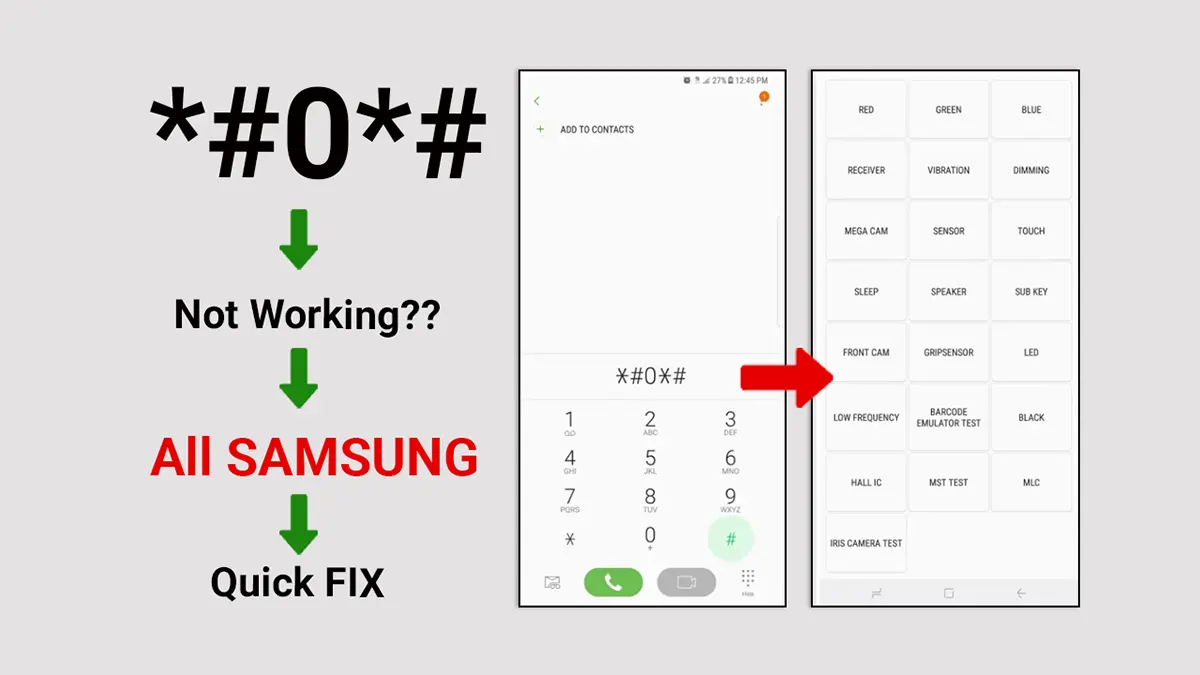
enable samsung test mode by dialing code #0#
Samsung Test Mode Features and Tests
Complete Test Mode Functions
| Test Option | What It Checks | Why It’s Important |
|---|---|---|
| Red, Green, Blue | Screen for dead pixels | Detect display defects |
| Receiver | Earpiece speaker | Call audio quality |
| Vibration | Vibration motor | Notifications & haptic feedback |
| Dimming | Screen brightness control | Display uniformity |
| Mega Cam | Main rear camera | Photo quality & focus |
| Sensor | Accelerometer, Proximity, Light | Auto-brightness, rotation |
| Touch | Full touchscreen coverage | No dead zones on screen |
| Speaker | Main loudspeaker | Media playback volume |
| Front Cam | Selfie camera | Video call quality |
| TSP FW Update | Touchscreen firmware | Technical diagnostics |
| GRIP Sensor | Side grip sensors | Edge touch functionality |
How to Enable Samsung Test Mode by Disabling Auto Blocker
On older Samsung phones, you could just open the phone dialer and type *#0*# to open the Test Mode menu. But with the release of new Android versions and One UI, Samsung introduced a security feature called Auto Blocker. This feature is designed to protect your phone from harmful apps and accidental changes by blocking the use of secret codes.
This is why, if you type the code and nothing happens, it is not because the code is wrong. It is because Auto Blocker is preventing it from working. The simple solution is to turn off this security feature temporarily.
Here is the step-by-step method to disable Auto Blocker and access Test Mode.
Step 1: Disable Auto Blocker
First, you need to go into your phone’s settings and turn off this security feature.
Go to your phone’s Settings.
Scroll down and tap on Security and privacy.
Look for the Auto Blocker option.
Tap on it and turn the switch off. You may have to enter your password or PIN to confirm.
Step 2: Enter the Test Mode Code
Now that Auto Blocker is off, the secret code will work again.
Open your phone’s dialer app, the same one you use to make calls.
Type in the code:
*#0*#You do not need to press the “Call” button. & Samsung Test Mode menu should appear on your screen automatically.
Step 3: Test Your Phone’s Hardware by using samsung TEST Mode
Inside the Test Mode menu, you will see a list of different tests you can perform. Each one checks a different part of your phone. Here is what you can check:
Red, Green, Blue: This is for checking your screen. If you see any black dots or spots that do not change color, it means you have dead pixels. You must tap the screen to exit each color.
Receiver: This test plays a high-pitched sound. It helps you check if the top earpiece speaker is working correctly.
Vibration: This makes your phone vibrate continuously. It is useful for checking if the vibration motor is working properly.
Dimming: This test changes the brightness of the screen to check for any screen flickering or uneven light. It switches between three colors: red, green, and blue.
Mega Cam: This is for testing your main camera. You can take a picture to see if it focuses and takes a clear photo.
Sensor: This is one of the most important tests. It lets you check the accelerometer, proximity sensor, light sensor, and gyroscope. For example, if you cover the top of your phone with your hand, the proximity sensor will turn the screen green. This is essential for knowing if the screen will turn off during a call.
Touch: This test allows you to check every single part of your touchscreen. You must draw a line to connect all the boxes on the screen to pass the test. This is very important to make sure there are no “dead spots” on your screen.
Speaker: This test plays music to check if your phone’s main speaker is working.
Front Cam: This opens your front-facing selfie camera. You can use it to take a picture and see if the camera is working correctly.
TSP FW Update: This tests the firmware of your touchscreen panel. It is mostly for technicians.
GRIP Sensor: This test checks if the grip sensors on the sides of your phone are working.
After you have finished using Test Mode, you should go back into your phone’s settings and re-enable Auto Blocker to protect your device from security threats.
Troubleshooting Test Mode Issues
| Problem | Solution | Notes |
|---|---|---|
| Code not working | Disable Auto Blocker | Primary fix for most users |
| No response | Check carrier restrictions | Some carriers block codes |
| Menu appears then closes | Update software | Could be firmware bug |
| Limited tests shown | Device model limitation | Not all models have full tests |
| Auto Blocker missing | Older software version | Feature introduced in One UI 6.0+ |
Alternative Methods if #0# Doesn’t Work
Method 1: Samsung Members App
- Download “Samsung Members” from Galaxy Store
- Open app > Get Help > Diagnostics
- Run built-in hardware tests
Method 2: Other Secret Codes
#0#(Alternative format)##0##(Some carrier variants)- Use Samsung Service Mode apps
How to enable Test Mode on Samsung by dialing Secret Code #0# Step-by-Step Video Guide (Short)
Video Tutorial
Watch this guide for visual instructions
Uploaded: August 20, 2025
For more detailed information about Samsung Auto Blocker, including pros and cons of enabling or disabling it, read our complete guide: Samsung Auto Blocker Complete Guide
Why This Method is a Must-Know for Your Mobile Software Technicians
For a professional mobile software expert, understanding how to bypass modern security features like Auto Blocker is critical. When a user comes to you with a problem, you must have the knowledge and tools to solve it. This article gives you that power. It not only explains the *#0*# code but also provides a clear, simple solution for when the code does not work.
Join our community for more tech solutions & discussions: https://forum.gsm6.com
Security Considerations
| Action | Security Impact | Recommendation |
|---|---|---|
| Disable Auto Blocker | š ï¸ Reduced protection | Temporary only for testing |
| Use Test Mode | œ… Safe, read-only | No data modification |
| Leave codes enabled | š ï¸ Potential vulnerability | Re-enable after use |
| Share secret codes | š ï¸ Risk if misused | Use responsibly |
Frequently Asked Questions
What is the purpose of the #0# test mode?
The #0# test mode is a secret menu on Samsung phones. It is used to test different parts of your phone’s hardware. This menu was made for phone makers and technicians to quickly check if a phone’s screen, sensors, cameras, and speakers are working correctly. It is a quick way to find problems with your phone.
Is the #0# test mode safe to use?
Yes, the #0# test mode is safe to use. It is a tool for checking things. It will not delete your data, change your settings, or harm your phone in any way. However, you should be careful with other secret codes, because some can do things like factory resets. The #0# code is just for testing.
Why is the #0# code not working on my Samsung phone?
The code might not work for a few reasons: Your phone company: Some phone companies, like Verizon in the US, block this code. Your phone model: Some newer or older Samsung phones might not have this feature enabled. Software updates: Samsung can remove or change the code in new software updates (like One UI). Security settings: A setting called “Auto Blocker” might stop the code from working. You can turn this off in your phone’s Security settings and try the code again.
Can I use a different method if the #0# code doesn’t work?
Yes, you can. Samsung has a special diagnostic tool built into the Samsung Members app. This tool is a modern and official way to do the same tests. The Samsung Members app is safer and easier to use. It can test your battery, NFC, SIM card, and other things. It can also help you send an error report to Samsung if something is not working.
What are some of the tests I can run using this code?
The #0# menu lets you test many things on your phone. Some of the most common tests are: Red, Green, Blue: To check for dead pixels on your screen. Touch: To check if the whole touchscreen is working. Sensor: To test sensors like the accelerometer and proximity sensor. Vibration: To check if the phone vibrates correctly. Speaker: To check if the main speaker is playing sounds. Front Cam / Mega Cam: To check the front and back cameras.


Author:
Abdul MalikMobile Software Expert and founder of GSM6.com. Specializes in FRP bypass, IMEI repair, and advanced mobile tools. All tutorials are tested on real devices for accuracy and safety.


