
• Abdul Malik (AM) • misc • 1 min
SamFlash v4.1 - Bypass FRP Free on Samsung Devices | 2025
The Ultimate FREE Samsung FRP Bypass Solution for 2025
Are you facing a Factory Reset Protection (FRP) lock on your Samsung Galaxy smartphone? Has a factory reset left you locked out, demanding a previous Google account you no longer have access to? Look no further! SamFlash v4.1 has emerged as the most powerful and FREE FRP bypass tool for Samsung devices in 2025. This comprehensive guide, developed by GSM6.com experts, reveals everything you need to know about using SamFlash to remove Google account verification from your locked Samsung phone, regardless of its chipset (Qualcomm or MediaTek).
Disclaimer:
This guide is intended for educational purposes only and to unlock your own devices.
Understanding SamFlash v4.1: Your FREE Samsung FRP Bypass Tool
What exactly is SamFlash v4.1? It’s a professional-grade, yet user-friendly, software tool specifically engineered for Samsung FRP removal. It empowers users and technicians to bypass Google account verification on locked Samsung smartphones, effectively unlocking devices that are otherwise rendered unusable due to forgotten credentials after a factory reset.
Key Capabilities of SamFlash v4.1:
FRP Bypass: The core function “ efficiently removes Factory Reset Protection.
Google Account Verification Removal: Bypasses the Google account lock screen.
Broad Chipset Support: Compatible with both Qualcomm Snapdragon and MediaTek (MTK) chipsets, covering a vast majority of Samsung devices.
Wide Android Version Support: Successfully works on Samsung devices running Android 9, Android 10, Android 11, Android 12, and even the latest Android 13/14 security patches.
Data Preservation (Often): In many cases, SamFlash can bypass FRP without requiring a full data wipe, saving your device’s existing information.
Supports Various Samsung Models: From budget-friendly A-series to flagship S-series, it offers wide coverage.
Supported Chipsets (Examples):
Qualcomm Snapdragon Series: Snapdragon 888, 865, 750G, 690, 8 Gen 1, 8 Gen 2, etc. (Covers most recent and past flagships/mid-rangers).
MediaTek (MTK) Series: Dimensity 1200, Helio G95, P65, G35, Dimensity 9000, etc. (Covers many A-series, M-series, and some F-series Samsung models).
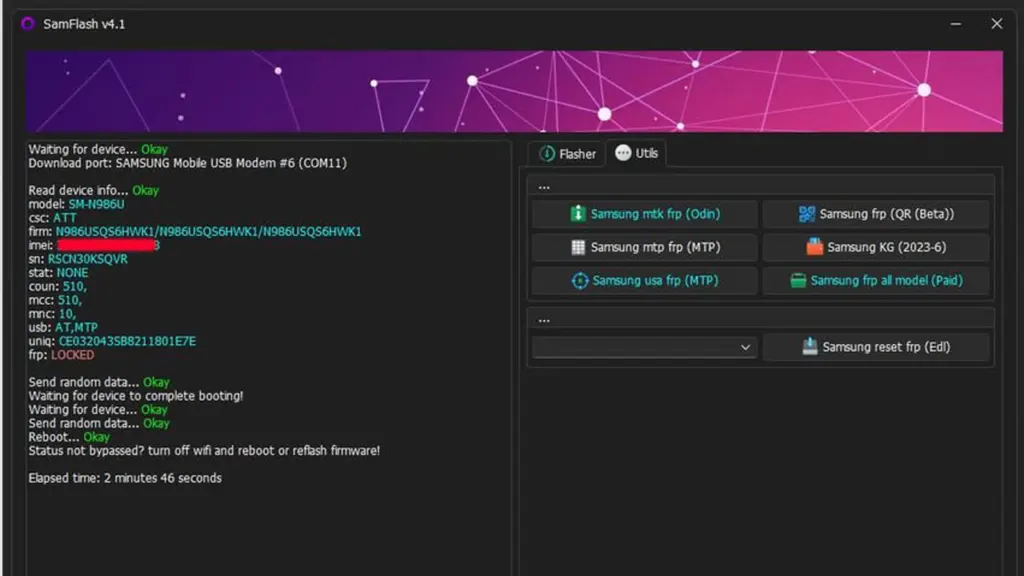
samflash v4.1
SamFlash v4.1 Download & Essential Installation Guide
Access the latest, verified version of SamFlash and ensure your PC is ready for the FRP bypass process.
- Latest Version: SamFlash v4.1.0224 (February 2024 Update) - Still fully functional for 2025 FRP bypass methods.
Included in the SamFlash v4.1 Package:
SamFlash v4.1 Application: The main executable tool for FRP bypass.
Odin Fixed Version: A specially modified Odin tool (often necessary for Qualcomm methods).
Essential Drivers (if not pre-installed): Links or installers for required Samsung USB Drivers.
ReadMe/Instructions: Basic setup guidance.
System Requirements for SamFlash v4.1:
Operating System: Windows 10 or Windows 11 (64-bit recommended for optimal performance).
USB Port: USB 2.0 Port (recommended for stable connection; USB 3.0 can sometimes cause issues).
Drivers: Samsung USB Drivers must be installed correctly on your PC before starting. (Download Official Samsung USB Drivers if you don’t have them).
Mediatek USB drivers for Samsung MTK devices. Download From Here
Antivirus: Temporarily disable your antivirus software before running SamFlash to prevent false positives or interference.
Internet Connection: Required for initial download and potential updates, but not for the bypass itself.
How to Use SamFlash v4.1 - Step-by-Step Samsung FRP Bypass Guide
This section outlines the two primary methods for FRP bypass using SamFlash v4.1, catering to both Qualcomm and MediaTek Samsung devices. Choose the method that corresponds to your Samsung phone’s chipset.
Method 1: Qualcomm Snapdragon FRP Bypass (Often via Download Mode/Modified Firmware)
This method is commonly used for Samsung flagships and many mid-range devices powered by Qualcomm Snapdragon processors.
Prepare Your Samsung Device:
Ensure your Samsung device is powered off completely.
Boot device into Download Mode: Press and hold Volume Up + Volume Down buttons simultaneously. & insert Data Cable. Release when you see a warning screen, then press Volume Up to confirm while connecting USB.
Connect your Samsung phone to your PC using a high-quality USB cable.
Launch SamFlash v4.1 & Odin:
Open the extracted SamFlash folder and run
SamFlash.exeas Administrator.Locate the patched Odin tool included in the SamFlash package and launch it as Administrator.
Load Patched Firmware in Odin:
In the Odin interface, ensure your device is detected (you’ll see a blue “ID:COM” box).
In SamFlash, select the “Qualcomm FRP Remove” option. This might automatically prepare files for Odin or guide you on which patched firmware to load.
Load the modified/patched firmware file (often a
BL,AP,CP,CSCor a singleAPfile) as instructed by SamFlash or the included documentation into the corresponding slots in Odin. Do NOT load your device’s full original firmware. This patched firmware is specifically designed to bypass FRP.
Initiate Flashing:
In Odin, click the “Start” button.
The flashing process will begin. Monitor the progress in Odin.
Once Odin shows “PASS!”, the modified firmware has been successfully flashed.
Reboot & Verify:
Your device will automatically reboot.
Once it restarts, the FRP (Google account verification) should be successfully removed. You can now proceed with the initial setup without needing the previous Google account.
Method 2: MediaTek (MTK) FRP Unlock (Often via Meta Mode/Auth Bypass)
This method is suitable for many Samsung A-series, M-series, and other devices utilizing MediaTek chipsets.
Prepare Your Samsung Device:
Ensure your Samsung device is powered off completely.
Enter Download Mode: This varies by model. A common method is to press and hold Volume Up + volume down Button simultaneously while connecting the USB cable to your PC.
Connect your Samsung phone to your PC using a high-quality USB cable.
Launch SamFlash v4.1:
- Open the extracted SamFlash folder and run
SamFlash.exeas Administrator.
- Open the extracted SamFlash folder and run
Select MTK Option & Start Process:
In the SamFlash interface, select the “MTK Auth Bypass” or “MediaTek FRP Unlock” option.
Ensure your device is detected by SamFlash (it might show a COM port).
Click the “Start Process” or “Unlock” button.
SamFlash will now communicate with your device to perform the FRP bypass.
Device Reboot & Verification:
Allow the process to complete. SamFlash will indicate successful completion.
Your device will then automatically reboot.
Upon restarting, the FRP lock should be removed, allowing you to complete the setup process without Google account verification.
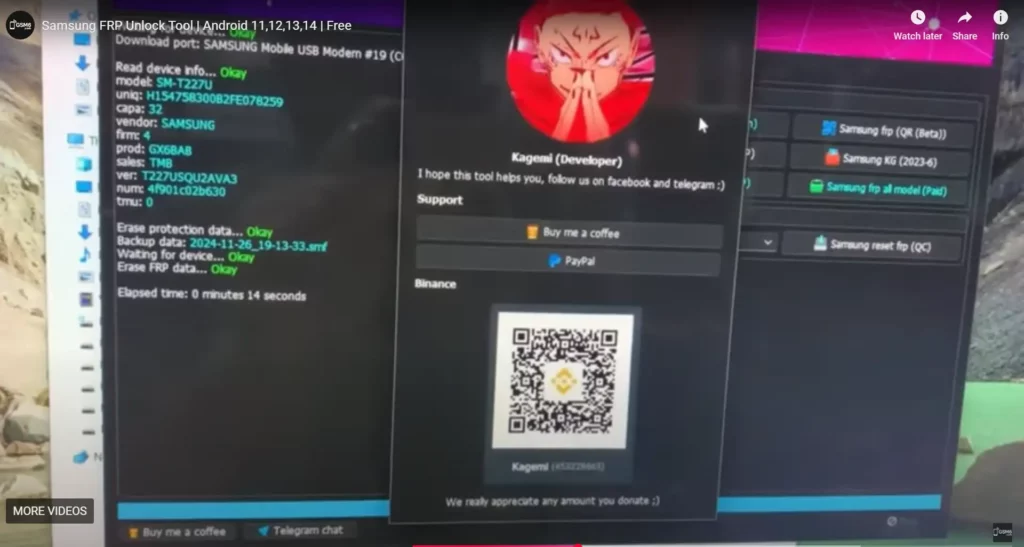
frp remove done on my samsung galaxy tab a7 lite screenshot
SamFlash V4.1: Step by Step Video Guide:
in this video i Tested the Samflash v4.1 tool to bypass my Samsung Galaxy TAB A7 Lite (T227U) which is American Model.
- turn off ipad
- hold both volume buttons & insert usb data cable (it will boot phone into download mode) then press volume up to confirm download mode
- now in samflash tool choose your mode (if mtk then download mode method)
- one click to remove google account.
here is the proof video. i am using windows 10 (64bit) but it works on windows 7 to 11 all editions.
Video Tutorial
Watch this guide for visual instructions
Uploaded: April 12, 2025
Troubleshooting Common SamFlash Errors & Solutions
Encountering an issue? Here are fixes for the most frequent problems you might face during the Samsung FRP bypass process with SamFlash v4.1:
“Authentication Failed” or “Auth Failed” Error:
- Solution: This often indicates a communication problem.
Always use the original, high-quality USB cable that came with your phone.
Try a different USB port on your PC (especially switch from USB 3.0 to USB 2.0).
Ensure all Samsung USB Drivers are correctly installed and up-to-date.
Temporarily disable your antivirus/firewall as it might block the tool.
- Solution: This often indicates a communication problem.
“Device Not Detected” or “Waiting for Device” Message:
- Solution: Your PC isn’t seeing the phone in the correct mode.
Install/Reinstall proper Samsung USB Drivers. This is paramount.
Verify your phone is correctly in Download Mode (Qualcomm) or Meta/Preloader Mode (MediaTek). Sometimes it takes a few tries.
Try a different USB cable or port.
Ensure OEM Unlocking is enabled in Developer Options (if you can access settings before FRP lock).
- Solution: Your PC isn’t seeing the phone in the correct mode.
“Process Stuck at 90%” or Freezing:
- Solution: Usually indicates an interruption or conflict.
Temporarily disable your antivirus software completely.
Run SamFlash (and Odin, if applicable) as Administrator. Right-click the executable and select “Run as administrator.”
Ensure no other phone-related software is running in the background.
Try using a USB 2.0 port if you’re on USB 3.0.
- Solution: Usually indicates an interruption or conflict.
“Firmware / File Not Found” Error (Odin):
- Solution:
Ensure you have extracted the SamFlash package completely and correctly.
Verify the path to the loaded firmware file in Odin is accurate and the file isn’t corrupted.
- Solution:
Expert Tips for Better Samsung FRP Bypass Success Rate (2025)
Maximize your chances of a smooth and effective FRP bypass with these insider tips:
For Android 13/14 & Latest Security Patch Devices:
- Sometimes, using a specific combination firmware (a firmware designed for factory service, often lighter than full stock ROMs) in conjunction with SamFlash provides the best results for the newest Android versions. Search for “Samsung [Your Model] combination firmware” if initial attempts fail.
Avoid FRP Re-Lock After Bypass:
- After successfully bypassing FRP, do NOT immediately add your personal Google account. First, perform a factory reset from within the device’s settings (
Settings > General management > Reset > Factory data reset). This ensures a clean slate and helps prevent the FRP from relocking later.
- After successfully bypassing FRP, do NOT immediately add your personal Google account. First, perform a factory reset from within the device’s settings (
Faster & More Stable Processing:
- Always prefer using USB 2.0 ports on your PC over USB 3.0 (blue ports) during the flashing process. USB 2.0 ports are generally more stable for low-level device communication.
ADB Bypass (If Applicable):
- For some specific Samsung models and Android versions, an ADB FRP bypass method might be available through other tools or combined with SamFlash. Explore this if standard methods prove difficult.
Check Device Connectivity:
- After connecting your device in the required mode (Download/Meta), always check your PC’s Device Manager to ensure it’s recognized under “Ports (COM & LPT)” or “Universal Serial Bus devices” as a Qualcomm or MediaTek diagnostic port.
Final Verdict: SamFlash v4.1 - Your Go-To FREE Samsung FRP Tool for 2025
SamFlash v4.1 stands out as an indispensable, free solution for Samsung FRP bypass in 2025. Its wide compatibility with both Qualcomm and MediaTek chipsets, coupled with its ability to tackle the latest Android security patches, makes it a must-have tool for anyone dealing with locked Samsung Galaxy devices. By following this comprehensive guide and our expert tips, you can confidently remove Google account verification and regain full access to your smartphone. Embrace the power of SamFlash v4.1 and say goodbye to FRP locks!
SamFlash v4.1 Download Information
SamFlash v4.1 Specifications
| Specification | Details |
|---|---|
| Tool Name | SamFlash v4.1 |
| Version | 4.1.0224 (February 2024) |
| Platform | Windows 7/8/10/11 |
| File Size | ~500 MB |
| License | Freeware |
| Price | Completely Free |
| Supported Brands | Samsung Only |
| Chipset Support | Qualcomm & MediaTek |
| Android Support | Android 9 to Android 14 |
| Release Date | February 2024 |
Download Options
| Source | Link | Notes |
|---|---|---|
| Google Drive | Direct Download | Official Mirror |
| Included Tools | Patched Odin, Drivers | Package Includes All |
Required Drivers Table
| Driver Type | Download Link | Purpose |
|---|---|---|
| Samsung USB Drivers | Download Here | Device Communication |
| MTK USB Drivers | Download Here | MediaTek Chipset Support |
Frequently Asked Questions
What is SamFlash v4.1 used for, and why is it considered the best free tool for Samsung FRP bypass in 2025?
SamFlash v4.1 is a professional-grade, free software designed to bypass Factory Reset Protection (FRP) and remove Google account verification from locked Samsung Galaxy smartphones. It’s highly regarded as the best free tool in 2025 due to its wide compatibility with both Qualcomm Snapdragon and MediaTek (MTK) chipsets, support for Android 9 to Android 14 security patches, and its user-friendly interface for a permanent unlock.
Is SamFlash v4.1 genuinely free to download and use?
Yes, absolutely! SamFlash v4.1 is provided as a free solution. The necessary software, patched Odin, and drivers are included in our secure download package, ensuring you don’t need to pay for any codes or services to bypass Samsung FRP.
Which Samsung Galaxy models and Android versions does SamFlash v4.1 support for FRP removal?
SamFlash v4.1 boasts extensive compatibility, supporting a vast range of Samsung Galaxy models across various series (e.g., A-series, S-series, M-series). It works on devices powered by both Qualcomm Snapdragon and MediaTek (MTK) chipsets and is effective on Android versions from Android 9, 10, 11, 12, 13, and even the latest Android 14 security patches for Samsung FRP bypass 2025.
Do I need to root my Samsung device or unlock its bootloader to use SamFlash v4.1?
In most scenarios, rooting your Samsung device is NOT required for SamFlash v4.1 to perform FRP bypass. However, for certain methods or specific models (especially those with Qualcomm chipsets), ensuring your bootloader is unlocked might be a prerequisite to enable Download Mode or other necessary diagnostic modes. Refer to our main guide for specific requirements.
How do I fix “Authentication Failed” or “Device Not Detected” errors when using SamFlash v4.1?
These are common troubleshooting points. For “Authentication Failed,” try using the original USB cable, a different USB 2.0 port, and temporarily disable your antivirus. For “Device Not Detected,” ensure Samsung USB Drivers are correctly installed, your phone is in the proper mode (Download Mode for Qualcomm, Meta Mode for MTK), and try a different cable/port. See our dedicated Troubleshooting section for more details.
Is it safe to use SamFlash v4.1, and will it damage my Samsung phone?
When used correctly and by following our comprehensive guide, SamFlash v4.1 is a safe tool for Samsung FRP bypass. However, any flashing process carries inherent risks. To minimize potential damage, always use the correct procedure for your device’s chipset, ensure a stable USB connection, disable antivirus, and carefully follow all steps.
After bypassing FRP with SamFlash, how can I prevent my Samsung phone from relocking its Google account?
To prevent the FRP from relocking, it’s highly recommended to perform a factory reset from within your device’s settings (Settings > General management > Reset > Factory data reset) immediately after a successful FRP bypass and before logging into any new Google account. This provides a clean slate and helps avoid future lock issues.
Where can I find the official download link for SamFlash v4.1?
You can find the official and secure download link for SamFlash v4.1.0224 directly within our SamFlash v4.1 Download & Essential Installation Guide section. We provide a verified mirror link to ensure you get the legitimate, free version.


Author:
Abdul MalikMobile Software Expert and founder of GSM6.com. Specializes in FRP bypass, IMEI repair, and advanced mobile tools. All tutorials are tested on real devices for accuracy and safety.


