
• Abdul Malik (AM) • android • 1 min
Relock Bootloader on Google Pixel: Restore Security and Fix Banking Apps (The Complete Guide)
Sealing the System After Repair (Relock bootloader on Google Pixel)
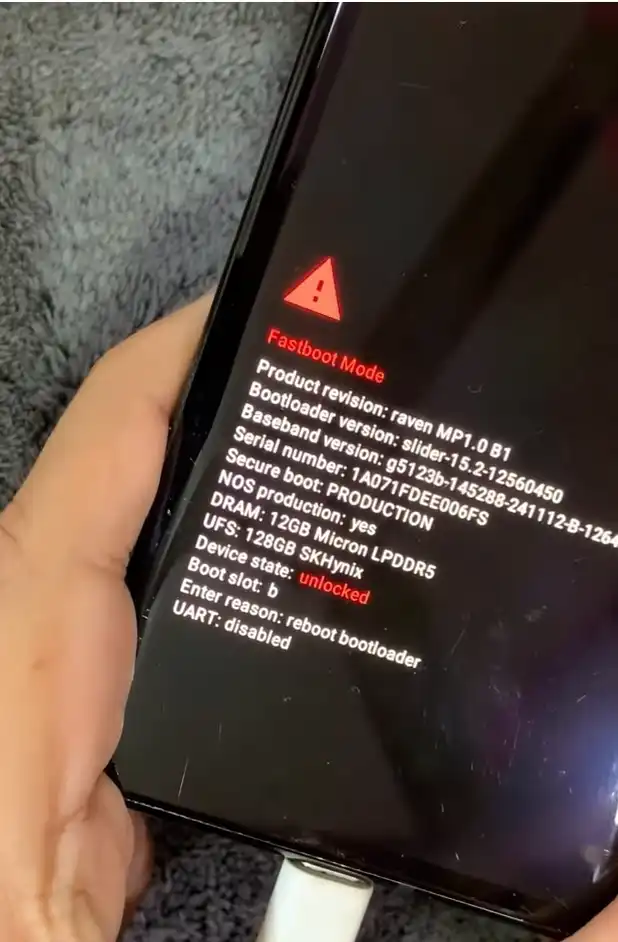
You have accomplished the difficult task. Your Google Pixel, which might have been a paperweight with an IMEI 0 error or a non-functional brick, is now alive and working. This is a technical victory. However, a major vulnerability remains: The Bootloader is Unlocked.
relock bootloader on google pixel: bootloader unlocked screen
An unlocked bootloader is a serious, open gate into the heart of your phone’s security. It means your Pixel is failing basic security checks constantly. That annoying, persistent message”“Your device is corrupt,” or “The bootloader is unlocked””is the phone’s security system telling you the device is not safe for daily use.
Relocking the bootloader is not optional; it is the mandatory final step to complete your repair. This process is how you restore the phone to a factory-secure state, fixing all the security and functionality issues that come with an open bootloader. This single operation will restore your phone’s integrity:
It makes all your financial applications”Google Pay, Netflix, banking apps”work again by satisfying security checks.
It permanently removes the annoying, constant security warnings at boot-up.
It activates Verified Boot, which is Google’s core security layer, drastically improving long-term stability and security against malware.
This comprehensive, technical guide will walk you through the precise, multi-stage process of relocking the bootloader on any modern Google Pixel. We will focus intensely on the critical steps involving the stock firmware flash, which is the only way to ensure the lock command succeeds and you avoid the common, frustrating “Invalid Android Image” error.
The Technical Necessity: Why You Must Relock Bootloader on Google Pixel
When you perform an IMEI repair or flash custom firmware, you break the security chain that Google calls Verified Boot.
Verified Boot: This system uses cryptographic checksums to check every single partition”the bootloader, the system, the kernel, and the vendor partitions”against a signature that only Google holds. If even one file is changed (which happens when you install Magisk, a custom ROM, or use repair software), the checksum is altered.
The Unlocked State: An unlocked bootloader allows the phone to ignore these broken checksums. This lets you run modified code (like your repair software or a custom ROM), but it also means the system’s security integrity is completely compromised.
The App Block: Applications, especially banking apps, use the Google Play Integrity API to ask the phone: “Is the bootloader locked, and does the software match the factory signature?” When the answer is “No,” the app refuses to run. Relocking the bootloader restores all the original checksums, fixes the signatures, and allows the security check to pass. This is the only way to restore full app functionality and make your device safe for financial use again.
The Preparation Phase: Assembling Your Tools and Setting Up the Environment
Before running any commands, you must prepare your computer and your phone meticulously. Any failure in this phase guarantees a roadblock later.
Step 1: Download and Prepare Required Tools
You need three essential components. Download them and place them in a dedicated folder.
ADB & Fastboot (Platform Tools):
- What it is: This is the command-line interface provided directly by Google to communicate with your Android device. We are only interested in the
fastboot.exeexecutable. This tool talks to the phone when it is in Bootloader Mode. - Why it’s crucial: The final, irreversible command”
fastboot flashing lock”can only be executed by this official program. - Action: Download the latest ZIP file and extract it to a short, simple path on your primary drive. Example:
C:\platform-tools. Avoid long folder names or the Downloads folder. This ensures the command prompt can always find the executable.
- What it is: This is the command-line interface provided directly by Google to communicate with your Android device. We are only interested in the
Google USB Drivers (The Communication Bridge):
- What it is: These are specialized drivers for Windows that allow your computer to see and talk to the Pixel in its different modes: normal mode (ADB) and the critical flashing mode (Fastboot).
- Why it’s crucial: Many computers have generic drivers that work for charging but fail completely when the phone enters the low-level Fastboot Mode. If the driver is wrong, the
fastboot devicescommand will show nothing, and you cannot proceed. - Action: Download and install the official drivers. If you have trouble, you will need to manually force the driver installation in Windows Device Manager.
Stock Firmware for Pixel (The Factory Blueprint):
- What it is: This is the complete factory image (a large ZIP file) released by Google. It contains every single system file for your phone model, including the core partitions like
boot.img,system.img, and the vitalflash-all.batscript. Get the Fastboot Factory Firmwares from here official source - Why it’s crucial: You must flash this clean, signed factory software before you run the lock command. Flashing this wipes out all remnants of the repair tools or custom code, setting all those security checksums back to their original, verified state. Do not use mismatched firmware. Ensure the build number you download is the latest available for your phone model.
- What it is: This is the complete factory image (a large ZIP file) released by Google. It contains every single system file for your phone model, including the core partitions like
Step 2: Preparing the Phone “ Developer Options and USB Debugging
We need to make sure the software side of your Pixel is ready to accept commands from the PC.
Enable Developer Options:
- Go to Settings > About Phone.
- Scroll down to the Build Number entry.
- Tap this entry rapidly 7 times until a small message confirms: “You are now a developer!” This unlocks the hidden menu we need.
Access Developer Options and Toggles:
- Go back to Settings > System > Developer Options. This is the secret control panel you just unlocked.
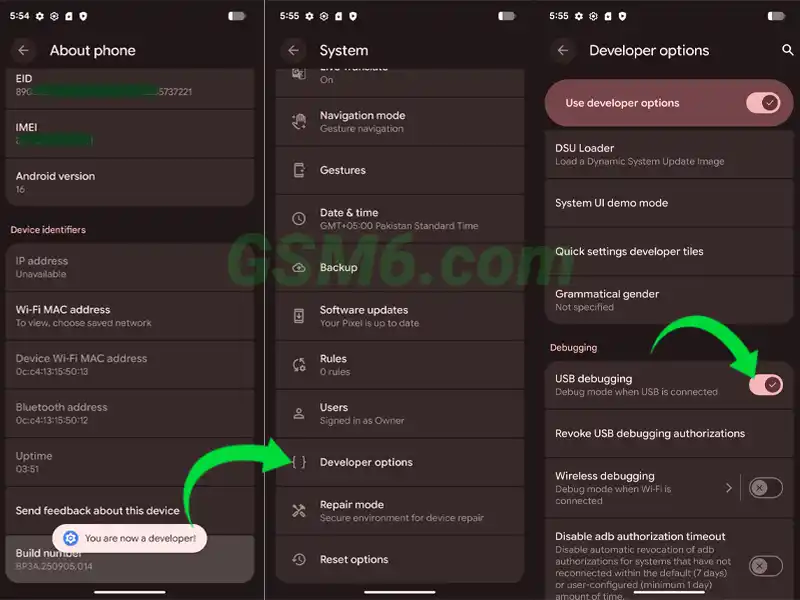
Enable USB Debugging:
- Find the USB Debugging toggle and switch it ON. This allows your PC to send ADB commands while the phone is booted. While we will primarily use Fastboot, enabling this is a developer best practice and can help with early connection tests.
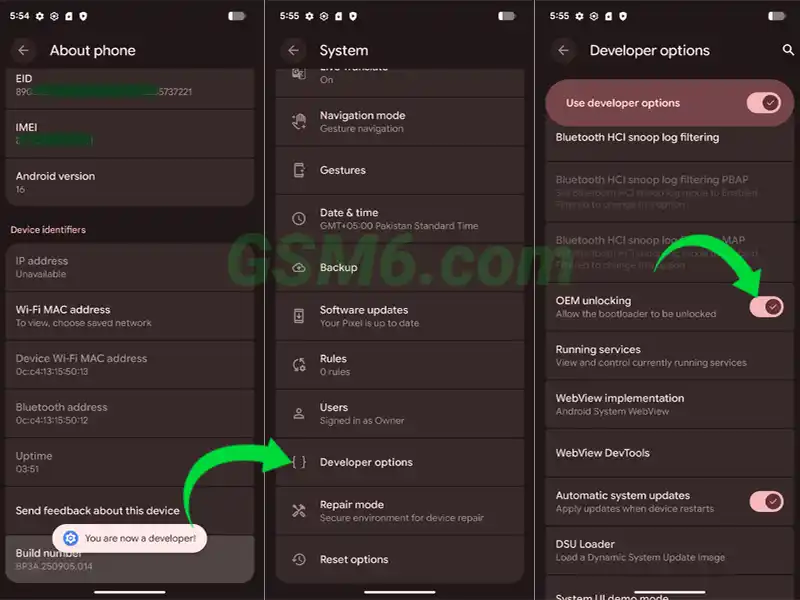
Confirm OEM Unlocking Status:
- Look at the OEM Unlocking toggle. Since your bootloader is currently unlocked, this option will be greyed out and should be set to the “enabled” position. If it were disabled, the phone would have blocked the original unlock process. We simply confirm it is in the correct state for the final lock command.
Relock bootloader on Google Pixel: enable oem unlocking
Relock bootloader on google pixel: enable usb debugging
Step 3: Entering the Critical State “ Fastboot Mode and PC Setup
This step moves the phone into the low-level state where the PC can perform the required flashing commands.
Power Off Completely: Do not just reboot. Press the Power button and select Power Off. The device must be shut down fully before entering the Bootloader.
Boot into Fastboot Mode: This requires a physical key combination.
- Press and hold the Volume Down button.
- While holding Volume Down, press and hold the Power button.
- Continue holding both keys until the black/white screen with the Android logo appears. This is the Fastboot Mode (also called the Bootloader).
Connect and Open Command Line:
- Connect your Pixel directly to the PC using a known good USB cable (avoiding hubs).
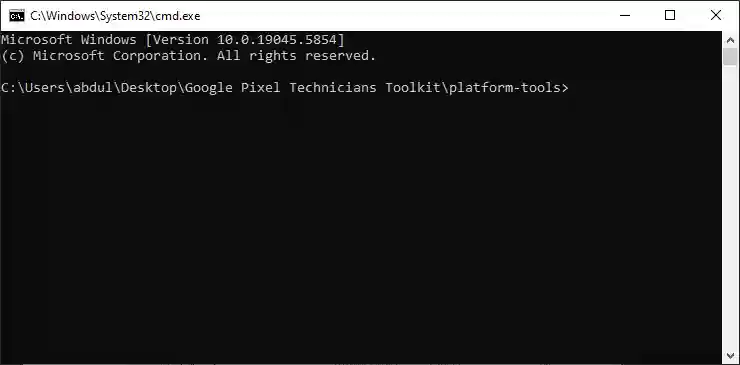
- On your PC, open your
C:\platform-toolsfolder. - Click in the folder’s address bar at the very top, type
CMD, and hit Enter. This opens the command prompt window exactly in the required directory.
Verify Connection: Before you do anything else, you must prove the PC can see the phone.
- In the command prompt, type:
fastboot devices - Expected Output: You must see a serial number followed by the word
fastboot(e.g.,987654321 fastboot). If you see a serial number, you are good to go. If the command returns nothing or says'fastboot' is not recognized..., you failed Step 1 (the driver/path is wrong), and you must stop and fix that issue immediately.
- In the command prompt, type:
Relock bootloader on google pixel: command prompt in Platform tools directory
The Execution Phase: Flashing Clean Firmware and Relocking
This is the main action. We are running a mandatory cleaning step before the final lock command. Do not skip Step 4.
Step 4: Mandatory Clean-Up “ Flashing Stock Firmware
This step is the absolute key to success. You must use the official flash-all.bat script to restore the factory checksums to the partitions. If you skip this, the lock command will fail with the “Invalid Android Image” error.
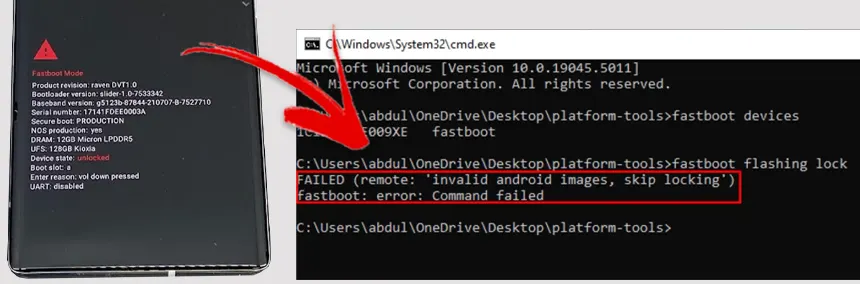
Relock Bootloader on Google Pixel error: invalid android images
Extract the Firmware Package: Take the large Stock Firmware ZIP file you downloaded and extract its full contents directly into your
C:\platform-toolsfolder. Your folder will now contain thefastboot.exe, theflash-all.batscript, and all the system image files (likeboot.img,system.img, etc.).Understanding
flash-all.bat: This is a simple script that automates a long series offastboot flashcommands. It writes clean data to the boot, vendor, and system partitions. However, by default, it includes one dangerous flag we must remove.Critical Modification: Removing the Data Wipe Flag:
- Right-click on the
flash-all.batfile in your folder and open it with a simple text editor like Notepad. - Look at the very last line of the script. It usually contains the command that actually installs the software. This line will contain the argument
-w. - The
-wflag stands for “Wipe data.” It forces a factory reset on the/datapartition. We want to clean the system without wiping your precious user data (photos, apps, settings) if possible. - Action: Find the
-win the last line of the script and delete it completely. Save theflash-all.batfile and close Notepad. - Technical Note: Because the system partitions (
boot,system) are clean, the phone will not force an immediate data wipe. However, the finalfastboot flashing lockcommand will still force a data wipe for security reasons. By removing the-where, you avoid two data wipes.
- Right-click on the
Executing the Flash Script:
- Ensure your Pixel is in Fastboot Mode and connected.
- Ensure your command prompt is open in the
C:\platform-toolsfolder. - Type the command to execute the flashing sequence:
flash-all.bat - Wait for the Process: The script will now run for several minutes. Do not touch your phone or the USB cable. You will see a lot of text fly by in the command prompt, showing which partition is being erased and then rewritten (
flashing boot,flashing system, etc.).
Automatic Reboot and Re-entering Fastboot:
- When the script completes successfully, it will automatically reboot the phone.
- Wait for the phone to completely boot up to the Android setup screen (to confirm it is working).
- Immediately shut the phone down again.
- Boot it back into Fastboot Mode (Volume Down + Power). This is the clean, stable state we need for the final lock command.
Step 5: The Final Act “ Relock Bootloader on Google Pixel
Your phone now contains 100% clean, factory-signed software. The system checksums are correct, and the device is ready to be sealed.
Verify Connection (Final Check): Run
fastboot devicesone last time to ensure the connection is stable.Run the Lock Command: This command is the final step that flips the security switch back to “Locked.”
fastboot flashing lockConfirm the Lock on Your Pixel:
- Look at your phone screen. The bootloader is now doing its final integrity check, and it will present you with a severe warning.
- The prompt will ask you to confirm that you want to Lock the Bootloader. This is your final confirmation that you understand the lock is permanent until you manually unlock it again, and that it will trigger a security wipe.
- Use the Volume buttons to select the option that says “Lock the Bootloader” (or the corresponding confirmation option).
- Press the Power button to execute the lock.
Wait for Final Reboot: The device will now perform the final security wipe (the mandatory data wipe associated with the lock command), seal the bootloader, and then reboot. The first boot after the relock can be lengthy, as the phone is setting up all its factory security parameters again.
Step 6: Confirming Success “ Verification Command
Once your phone boots up and you have completed the initial setup (or restored a backup), you must verify that the lock was successful.
Enter Fastboot Mode: Shut the phone down and boot it back into Fastboot Mode (Volume Down + Power).
Run the Verification Command: This command asks the bootloader for its current status.
fastboot oem device-infoCheck the Output: You are looking for a clear confirmation message:
- Success: The output must clearly show a line that says
Device unlocked: false(orDevice state: locked). This confirms the bootloader is now sealed, and your Pixel is factory-secure. - Failure: If it still shows
true(orunlocked), the lock command failed, and you must troubleshoot using the next section.
- Success: The output must clearly show a line that says
Video Tutorial
Video Tutorial
Watch this guide for visual instructions
Uploaded: February 19, 2025
Relock Bootloader Requirements & Tools
| Requirement | Details | Download Source |
|---|---|---|
| ADB & Fastboot | Platform Tools | GSM6 Download |
| Google USB Drivers | Windows Drivers | GSM6 Download |
| Stock Firmware | Factory Images | Google Official |
| Computer | Windows 7/8/10/11 | N/A |
| USB Cable | Data Cable | N/A |
Common Error Solutions
| Error | Cause | Solution |
|---|---|---|
| Invalid Android Image | Modified system partitions | Flash clean stock firmware before locking |
| No fastboot devices | Driver/connection issue | Install USB drivers, check cable |
| Command not recognized | Wrong directory | Open CMD in platform-tools folder |
| Installation failed | Corrupted firmware | Re-download stock firmware |
| Boot loop after lock | System corruption | Re-flash stock firmware |
This Guide Solves Your Biggest Problems
This step-by-step guide is the final fix for system integrity, security, and app problems after a repair or modification. When you search for any of the issues below, this article has the direct answer and the solution.
This complete guide shows you how to use fastboot flashing lock to fix the following critical problems on your Google Pixel:
- Fix Banking Apps: Stops financial apps (Google Pay, PayPal, bank apps) from blocking you because the bootloader is unlocked.
- Remove Security Warnings: Gets rid of the constant, annoying “Your device is corrupt” and “Bootloader unlocked” messages during startup.
- Resolve Flashing Errors: Provides the full, correct steps to bypass the frustrating “Failed (Remote: ‘Invalid Android Image, Skip Locking’)” error that blocks the relock process.
- Restore Play Integrity: Fixes your Pixel’s security status so it can pass the tough Google Play Integrity API checks (which replaced SafetyNet).
- Restore Full OTA Updates: Allows your phone to receive and install future official OTA system updates directly from Google again.
- Seal the System: Relocks the bootloader on models like the Pixel 8 Pro and Pixel 7 after IMEI repair or any deep firmware flash.
- Wipe Custom Traces: Cleans up leftover files from root tools (like Magisk) or custom ROMs that prevent the device from being secured.
- Verify Lock Status: Shows you the exact command to confirm the relock worked and your device is now safe:
Device unlocked: false.
Disclaimer
This guide provides detailed technical instructions. While care has been taken to ensure accuracy, any software modification carries minimal risk. By proceeding, you acknowledge that you are solely responsible for the security and integrity of your device and data. Always back up critical information before any flashing or locking operation.
Frequently Asked Questions
Is it possible to relock bootloader on google pixel without wiping my data?
No, absolutely not. This is a critical point. The command fastboot flashing lock is hard-coded by Google to perform a mandatory factory data reset (wipe). It does this for security reasons to prevent an attacker who gained access with an unlocked bootloader from keeping any system access or user data after the lock. There is no working method, no special command, that allows you to relock bootloader on google pixel without losing your data. You must back up everything beforehand.
How long does the relocking process take on a Google Pixel 8 Pro?
The actual command fastboot flashing lock takes only a few seconds to execute once you press the confirmation button on the phone. However, the total time for the whole process is longer. You must first flash the full stock firmware (Step 4), which can take 5 to 10 minutes. The device will then reboot and perform the security data wipe, and the first clean boot back to the setup screen can take another 3 to 5 minutes. Allocate 15 to 20 minutes from start to finish.
Will relocking the bootloader void my warranty on the Google Pixel?
This is a tricky legal question. Unlocking the bootloader usually voids the warranty (especially if you then root the device). Relocking the bootloader restores the device to a factory-secure state, and often, service centers cannot tell it was ever unlocked. However, Google’s system may log the unlock/relock event. The official position is that any modification (unlocking) voids the warranty, but a successful relock minimizes the risk if you need repair service later.
Can I use the Android Flash Tool to relock bootloader on google pixel?
Yes, this is an excellent alternative method, especially for beginners. Google’s official web-based Android Flash Tool (flash.android.com) automates the entire process. You connect your Pixel, select the latest factory image, and ensure you check the option that says “Lock Bootloader” before starting the flash. This tool automatically handles the necessary clean flash and then runs the lock command for you, reducing the chance of manual error.
What is the difference between fastboot flashing lock and fastboot oem lock?
They do the same job, but fastboot flashing lock is the modern, standardized command required by Google for all devices running newer versions of Android. The fastboot oem lock command is the older, vendor-specific command used on ancient devices. For your Google Pixel, you must always use fastboot flashing lock.
Why does my Pixel give the error “Invalid Android Image, Skip Locking” when I try to relock?
This is the most common and most critical error. It means the security checksums of your current software (the boot and system partitions) do not match the expected factory signature. The bootloader is smart: it refuses to lock on tampered software to prevent a hard brick. The solution is always to stop and complete Step 4 of the guide”flashing the correct, full stock factory image”before attempting the lock command again.
Does relocking the bootloader fix the “Device is corrupt” warning message?
Yes, completely. The “Device is corrupt” or “Bootloader Unlocked” message appears because the device’s Verified Boot security chain is broken. Relocking the bootloader re-activates Verified Boot, which confirms all system files are signed by Google, instantly removing the warning message during startup and restoring device integrity.
Is the relock process the same for the Pixel 6, Pixel 7, and Pixel 8 series?
Yes, the underlying process is fundamentally the same for all modern Google Pixel devices. They all use the A/B (seamless) partition system, and they all follow the same sequence: Enable developer options, boot to Fastboot, perform a full clean flash, and then execute the fastboot flashing lock command. The hardware buttons and required stock firmware files are the only things that change between models.
Can I relock my bootloader if I installed a custom kernel or custom ROM?
Yes, but you must wipe all traces of the custom software first. The custom kernel or custom ROM is exactly what causes the “Invalid Android Image” error. You must flash the official stock firmware for your device model and region before attempting to relock. Flashing the stock software is the cleaning step required to restore the necessary security signatures.
What is the anti-rollback protection, and how does it relate to relocking?
Anti-rollback protection is a security feature built into the bootloader itself. When Google releases a new update (especially one that fixes critical vulnerabilities), the bootloader version is sometimes permanently incremented. Relocking the bootloader on this newer version means you can never flash and boot back into an older, vulnerable Android version. This is a security measure to keep your phone protected, and it is permanently enabled after a successful relock on the latest firmware.
Will my banking apps work immediately after I relock the bootloader?
Yes. For most applications, functionality is restored immediately. Banking apps, Google Pay, and streaming services like Netflix check the status of the Google Play Integrity API. Once you relock the bootloader, your device status changes from “unlocked/tampered” to “certified/secure,” and those applications will start working right away.
What is the difference between SafetyNet and the Google Play Integrity API?
SafetyNet was the old security check used by Google. It was widely bypassed by root tools. Google has now replaced it with the much stronger Play Integrity API. This new API runs more complex, server-side checks and requires the bootloader to be locked (and the software to be signed) to pass the “Strong Integrity” check. Relocking your bootloader fixes the failure for both, ensuring compatibility with all modern apps.
Does relocking the bootloader restore my ability to receive official OTA updates?
Yes. When the bootloader is unlocked, the phone refuses to install Over-The-Air (OTA) updates because the system integrity is broken. Relocking the bootloader restores the system integrity and allows the device to receive and install future official OTA updates directly from Google again. This is a major benefit for long-term security.
If I relock bootloader on google pixel, can I still use root access later on?
No. Relocking the bootloader specifically removes the ability for the system to boot modified code, which includes root (like Magisk). If you want to use root again, you will have to re-unlock the bootloader (which wipes data again), flash the patched boot image, and start the process over. Relocked means safe and stock; unlocked means custom and rootable.
I relocked my bootloader, but banking apps still don’t work. Why?
If the bootloader shows as locked (Device unlocked: false) but banking apps still fail, there are two potential reasons: 1. Cache/Data Issue: Clear the data and cache for the banking app, or uninstall and reinstall it. The app may be holding onto the old “unlocked” status. 2. CPID/IMEI Patching Issue: If you used repair tools that modify parts of the system outside of the normal partitions (like the CPID or EFS), those modifications may still be triggering a security check failure, even with the bootloader locked. You may need a full, official service flash to truly clean the device.
How can I confirm the bootloader lock status without using the Fastboot command?
The simplest way is to check the OEM Unlocking toggle in the Developer Options menu on the phone itself. If the toggle is grayed out (disabled) and unclickable, the bootloader is LOCKED. If the toggle is active (white or blue) and you can tap it, the bootloader is UNLOCKED.
What should I do if my Google Pixel gets stuck in a boot loop after relocking?
A boot loop after a successful lock means a file became corrupted during the final data wipe or first boot. The fix is to return the device to Fastboot Mode (Volume Down + Power) and immediately re-flash the full stock factory image (Step 4) again. Flashing the stock firmware overwrites all possible corrupt partitions and will force the device to boot cleanly.
Does relocking the bootloader disable the OEM Unlocking option?
Yes, relocking the bootloader disables and greys out the OEM Unlocking option in Developer Options. This is a security measure. You must be connected to the internet and let your phone check in with Google’s servers for a few minutes before the option becomes available again if you ever wish to unlock it in the future.
I bought a used Pixel with an unlocked bootloader. Should I relock it immediately?
Yes, you should relock it immediately. An unlocked bootloader on a used phone is a massive security risk. It means the previous owner or a third-party seller could have installed system-level malware or spying tools that survive a normal factory reset. Relocking the bootloader forces a wipe and re-activates Verified Boot, wiping out any potential hidden threats and making the phone safe for you to use.
What Google Pixel models are compatible with this relock guide?
This guide works for all Google Pixel models that support the modern Fastboot flashing command structure, including: Pixel 5, Pixel 6, Pixel 6 Pro, Pixel 6a, Pixel 7, Pixel 7 Pro, Pixel 7a, Pixel 8, Pixel 8 Pro, Pixel 8a, and the Pixel Fold (and all future models). The core concepts of clean flash, data wipe, and fastboot flashing lock are the standard process for all modern Pixel hardware.


Author:
Abdul MalikMobile Software Expert and founder of GSM6.com. Specializes in FRP bypass, IMEI repair, and advanced mobile tools. All tutorials are tested on real devices for accuracy and safety.


