
• Abdul Malik (AM) • android • 1 min
Pixel Network Diagnostic Tool for Pixel 7, 8, 9 & Fold Series - Fix Sim Signals & Repair Baseband Issues Free
When your Google Pixel smartphone starts acting up with persistent connectivity issues, device recognition failures, or inexplicable system configuration inconsistencies, it can be incredibly frustrating. These problems often manifest in subtle ways, like unusual device information showing up in your settings, or more overt issues, such as your phone struggling to connect to Wi-Fi or cellular networks, or even being unrecognized by your computer. Traditionally, diagnosing and fixing these deep-seated system issues could be a daunting task, often requiring advanced technical knowledge or risky modifications like rooting your device.
But what if there was a simpler, safer, and more accessible solution?
Introducing the Pixel Network Diagnostic Tool
We’re thrilled to introduce the Pixel Network Diagnostic Tool, a brand-new, non-invasive utility specifically engineered to help owners of Pixel 6, 7, 8, 9, and Fold series smartphones analyze, troubleshoot, and optimize critical system areas. The best part? It works seamlessly without needing root access or any other high-risk modifications that could potentially void your warranty or compromise your device’s security. This tool is designed to bring your Pixel back to its normal, reliable functionality quickly and efficiently.
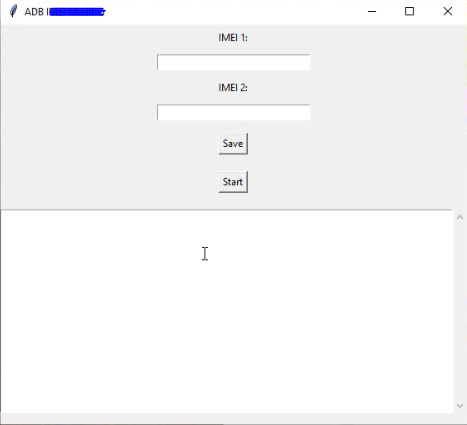
google pixel network diagnostic tool for pixel 7 8 9 & fold series by gsm6.com
What Exactly Does This “Pixel Network Diagnostic Tool” Do?
The Pixel System Diagnostic & Optimization Tool is a lightweight, portable diagnostic utility meticulously crafted for the latest Google Pixel devices. Its core functionalities are built around ensuring your device’s internal configurations and connectivity are in perfect sync. Here’s a breakdown of what it helps you achieve:
Comprehensive Device-Level Diagnostics: It conducts in-depth scans to pinpoint the root causes of underlying system issues that might not be obvious through standard troubleshooting.
System Information Verification and Synchronization: Ever seen strange device identifiers or inaccurate model numbers in your settings? This tool helps verify and synchronize critical system information, ensuring consistency across all device components and preventing misidentification issues.
Connectivity Configuration Restoration: If you’re struggling with Wi-Fi, Bluetooth, or cellular network dropouts, this tool can help restore proper connectivity settings, often fixing issues related to corrupted network profiles.
System App and Network Compatibility Assurance: It verifies that your device’s internal information aligns perfectly with what system applications and network services expect, preventing compatibility conflicts that can lead to functionality errors.
One of the significant advantages of this tool is its simplicity. There’s no complex installation process. Just download, extract the files, and run the executable on your PC. It’s designed for immediate use.
This tool is compatible with a wide range of Pixel devices, ensuring broad applicability for many users:
- Pixel 7, 7a, 7 Pro
- Pixel 8, 8a, 8 Pro
- Pixel 9 and Fold series
Pixel Network Diagnostic Tool for google pixel 7,8,9 & fold series by gsm6.com
Is “Pixel Network Diagnostic Tool” Safe? Addressing Antivirus Concerns
It’s completely understandable to be concerned about security, especially when downloading tools that interact directly with your phone’s system. Many users naturally worry when their antivirus software flags a legitimate diagnostic tool. This phenomenon, often termed a “false positive,” is quite common with advanced Android diagnostic utilities.
Why do these false positives occur? It’s primarily because such tools frequently employ methods and operational characteristics that can resemble those used by malicious software, even though their intent is entirely benign. These characteristics include:
Hidden ADB/Fastboot Commands: The tool uses the Android Debug Bridge (ADB) and Fastboot protocols, which are powerful command-line interfaces for interacting with Android devices. Antivirus programs might flag activities related to these commands because they can be used for both legitimate diagnostics and, in other contexts, potentially malicious actions.
Scripting Automation: The tool automates sequences of operations, which can sometimes be misidentified as suspicious scripting behavior by antivirus engines.
Portable Executable Frameworks: Because the tool runs without needing a traditional installation (it’s “portable”), some antivirus heuristics might flag it differently than conventionally installed software.
Privileged System Access (with user permission): When you grant permission, the tool interacts with system processes. This level of access, while necessary for diagnostics, can sometimes trigger alerts from security software looking for unauthorized access attempts.
Important Assurance: We want to be absolutely clear: these are not viruses or malware. Our tools are developed with the highest standards of security and functionality. Antivirus programs sometimes issue false positives for legitimate command-line tools, especially when downloaded from trusted sources like gsm6.com.
Our Commitment to Your Security: We conduct rigorous internal testing on every tool we develop to ensure it is completely free from harmful software, viruses, and malware. We believe in transparency, which is why we encourage you to independently verify the tool’s integrity. You can easily upload the tool’s executable file to VirusTotal, a reputable online service that scans files with dozens of antivirus engines simultaneously. This allows you to see independent scan results and gain full confidence in the tool’s safety.
To guarantee authenticity and avoid any potential risks, always download the tool exclusively from the official mirror links provided on our website. This ensures you are getting the verified, secure version of the software directly from us.
Pixel Network Diagnostic Tool’s Key Features Designed for Your Convenience
The Pixel Network Diagnostic Tool isn’t just about fixing problems; it’s about making the process as smooth and secure as possible for you. Here are some of its standout features:
Portable Version “ No Installation Needed: This is a major advantage. Simply download, unzip, and run. No messy installers, no entries in your system registry, and no leftover files after you’re done.
Wide Device Support “ Works with All Modern Pixel Models: From the Pixel 7 series up to the Pixel 9 and Fold devices, the tool offers broad compatibility, making it a versatile solution for a range of users.
USB Debugging Guide Included “ Helps You Set Up Your Device Correctly: Enabling USB Debugging is a crucial step. We’ve included a clear, step-by-step guide directly within the package to walk you through this simple process.
Includes Auto Detection “ Automatically Detects Your Device Model: Forget about manually selecting your phone model. The tool intelligently detects your connected Pixel device, streamlining the diagnostic workflow.
How to Use the Pixel System Diagnostic & Optimization Tool (Step-by-Step)
Using the Pixel System Diagnostic & Optimization Tool is straightforward. As a portable application, you won’t need to go through any lengthy installation procedures.
Before You Begin: Remember, this tool is portable, so no installation is needed.
Download the Tool: First, get the latest version of the tool from one of our designated trusted sources. You’ll find the download links in the section below. Always use our official mirrors to ensure you’re getting a genuine and secure version.
Extract the ZIP File: Once downloaded, the tool will be in a
.zipfile. Right-click on this file and select “Extract All” (on Windows). If you use third-party archiving software like 7-Zip or WinRAR, you can use those as well. Choose a location on your PC where you’d like to extract the files.Enable USB Debugging on Your Pixel: This is a critical step for the tool to communicate with your phone. If you haven’t enabled it before, here’s how:
- Open your Pixel’s Settings app.
- Scroll down and tap on “About phone.”
- Find “Build number” and tap on it 7 times repeatedly. You’ll see a small message confirming that “You are now a developer!”
- Go back to the main Settings screen.
- Navigate to System > Developer options.
- Find and enable the toggle for “USB Debugging.” Confirm any pop-up prompts on your phone.
- after that Root with Magisk. here is step by step root guide for google pixel
Connect Your Device: Plug in your Google Pixel device to your PC using a high-quality, reliable USB cable. It’s important to use a good cable to prevent connection drops. On your phone, you might see a “Trust this computer?” or “Allow USB debugging?” prompt. Be sure to allow it.
Run the Tool: Navigate to the folder where you extracted the tool. Locate the executable (
.exe) file (it will typically be named something likePixel_Tool.exeor similar) and double-click it. A user-friendly interface for the tool will then launch on your PC.Follow On-Screen Instructions: The tool’s interface is designed to be intuitive.
Pixel Network Diagnostic Tool Specifications
| Specification | Details |
|---|---|
| Tool Name | Pixel Network Diagnostic Tool |
| Version | 2025.05 Edition |
| Platform | Windows 10/11 |
| File Size | ~250 MB |
| Password | gsm6.com |
| Supported Models | Pixel 7, 7a, 7 Pro, 8, 8a, 8 Pro, 9, Fold |
| Requirements | Python, ADB, USB Drivers |
| Portable | Yes (No Installation) |
| Root Required | No |
Required Dependencies Checklist
| Dependency | Download Link | Purpose |
|---|---|---|
| Python Runtime | Official Python | Required for tool execution |
| Android USB Drivers | GSM6 Drivers | Device communication |
| ADB & Fastboot Tools | Platform Tools | Command-line interface |
| USB Cable | Quality Data Cable | Device connection |
Download the Pixel Network Diagnostic Tool
Official Download Link: MegaSync
Password: gsm6.com
What Comes With the Download?
- Pixel System Diagnostic & Optimization Tool (Portable EXE): The main application.
- USB Driver installer for Pixel phones: Ensures your PC can properly communicate with your device.
- Youtube Video Guide: A detailed, easy-to-follow guide for using the tool.
- Python Runtime (if required): Any necessary Python components the tool relies on.
- Readme file with troubleshooting tips: Additional information and guidance for common issues.
Video Tutorial
For a complete visual walkthrough and detailed step-by-step instructions on how to use the Pixel Network Diagnostic Tool for your Pixel 7, 8, 9, and Fold Series devices, please watch our comprehensive video tutorial:
Video Tutorial
Watch this guide for visual instructions
Uploaded: May 26, 2025
We believe the Pixel System Diagnostic & Optimization Tool will become an indispensable utility for Pixel users facing system and connectivity challenges. Give it a try and experience the difference of a truly optimized Pixel device!
Frequently Asked Questions
is this tool paid or free?
this tool is created for helping purposes only, & its totally free
can we use it for google pixel 6, 6a or 6 pro?
NO! this tool is specially designed for pixel 7,8,9 & fold series. if you are looking for a tool for pixel 6 for the same purpose. read this article
Does this tool work on Pixel Fold too?
Yes, it fully supports the Pixel Fold alongside Pixel 7, 8, and 9.
Will this erase my data?
No, using the Network Diagnostic Tool does not wipe your device unless you manually flash partitions.


Author:
Abdul MalikMobile Software Expert and founder of GSM6.com. Specializes in FRP bypass, IMEI repair, and advanced mobile tools. All tutorials are tested on real devices for accuracy and safety.


