
• Abdul Malik (AM) • android • 1 min
Pixel 6 Series Network Fix Tool - Solve Network Issues & Boot Errors
Pixel 6 Series Network Fix Tool: Advanced Network & System Fix Guide
Are you experiencing persistent network connectivity problems, unusual system behavior, or boot-related issues on your Google Pixel 6, 6a, or 6 Pro? These common frustrations can severely disrupt your device’s ability to connect to Wi-Fi, cellular networks, or even function properly, leading to a compromised user experience. This comprehensive guide offers a robust, 100% free method to tackle deep-seated software glitches, restore proper network and system configurations, and resolve critical boot problems using a specialized utility and system file manipulation.
This guide is for users who need a powerful solution beyond basic troubleshooting, aiming to revive their Pixel device’s connectivity and overall stability without incurring costly professional repairs.
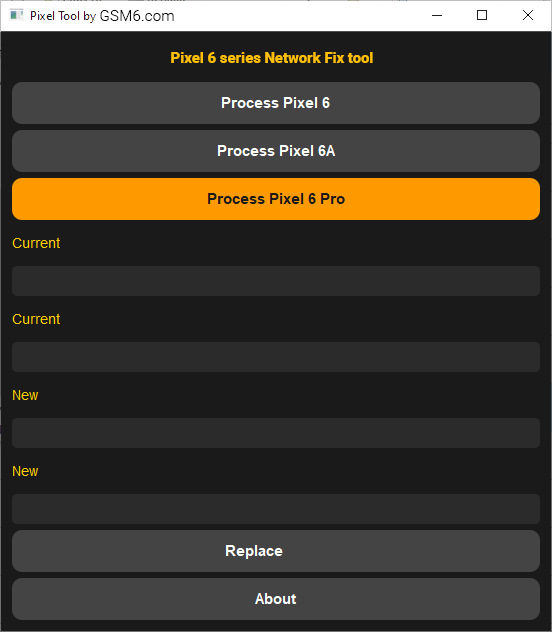
Pixel 6 Series Network Fix Tool for google pixel 6, 6a & 6 pro by GSM6.com
What You’ll Learn in This Guide:
How to safely unlock your Pixel’s bootloader for advanced system access.
How to utilize the specialized Pixel 6 series Network Fix Tool for 6, 6a & 6 pro to analyze and rectify underlying system and network configuration issues.
Step-by-step instructions for flashing a repaired system partition to resolve software conflicts impacting connectivity and boot anomalies.
Important Note: Modifying system files, while necessary for certain advanced repairs, carries inherent risks. Proceed with caution and ensure you follow all steps precisely. Unlocking the bootloader will factory reset your device and voids your manufacturer’s warranty. Always back up your essential data before beginning.
Understanding Network & System Corruptions on Google Pixel
Modern smartphones, including the Google Pixel series, rely on complex software architecture where network functionalities are deeply integrated. Over time, or due to failed updates, incompatible applications, or even improper shutdowns, certain critical system partitions responsible for network configuration and device stability can become corrupted. This can lead to a variety of frustrating symptoms:
Persistent Connectivity Problems: Unreliable Wi-Fi connections, cellular data drops, difficulties with Bluetooth pairing, or the device failing to detect networks altogether.
Boot Loops: Your phone gets stuck repeatedly restarting at the Google logo or a similar screen, often a symptom of underlying system instability.
Unresponsive System: The device might power on but remain frozen, unresponsive to touch, or crash frequently, which can impact network services.
“Your Device is Corrupt” Errors: A direct warning message indicating a problem with the device’s software integrity, often stemming from issues in core system partitions.
Inaccurate Device Information: Displaying incorrect baseband versions or other network-related hardware details in settings.
Our Pixel 6 series Network Fix Tool is designed to address these issues by helping you re-establish proper system and network integrity and configuration.
Step by step Guide to fix Pixel 6, 6a & 6 pro Network
Minimum Requirements:
Windows Computer (windows 7 - 11 all editions fully supported)
A Good Quality Type-C Data Cable
Android USB Drivers (Latest) you can get from here.
Platform tools (adb-fastboot minimal) get from here.
Pixel 6 series Network fix Tool
Your Pixel phone
Step 1: Safely Unlocking Your Google Pixel’s Bootloader
Before you can perform advanced system modifications necessary for network and system repairs, you must unlock your Pixel’s bootloader. This is a crucial preliminary step that enables the flashing of custom or modified system files.
Warning: Unlocking the bootloader will factory reset your device, erasing all personal data. It is absolutely essential to back up everything important before proceeding. This action also voids your device’s manufacturer warranty.
Follow these detailed steps to unlock your bootloader:
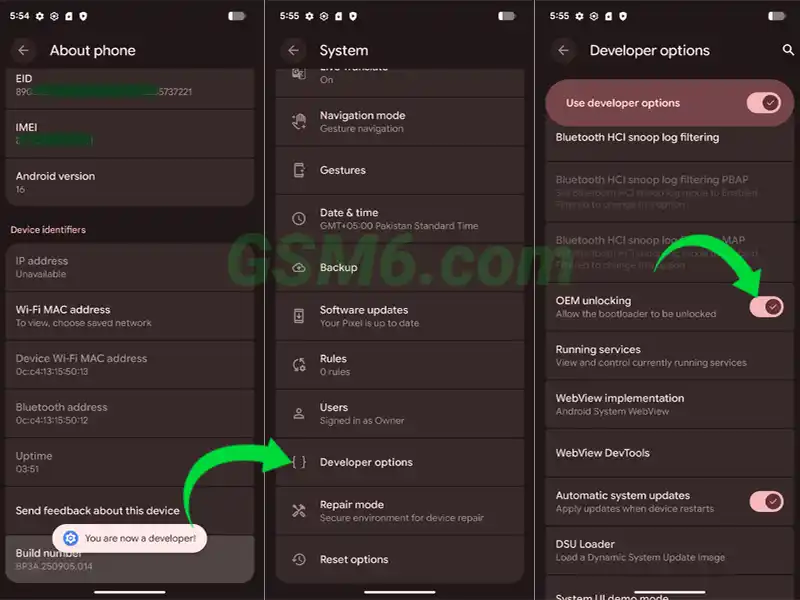
Enable Developer Options:
- Go to Settings > About Phone.
- Scroll down and repeatedly tap “Build Number” seven times until you see a message stating, “You are now a developer!”
Enable OEM Unlocking & USB Debugging:
- Return to the main Settings menu.
- Navigate to System > Developer Options.
- Toggle on “OEM Unlocking” (confirm if prompted).
- Toggle on “USB Debugging” (confirm any prompts).
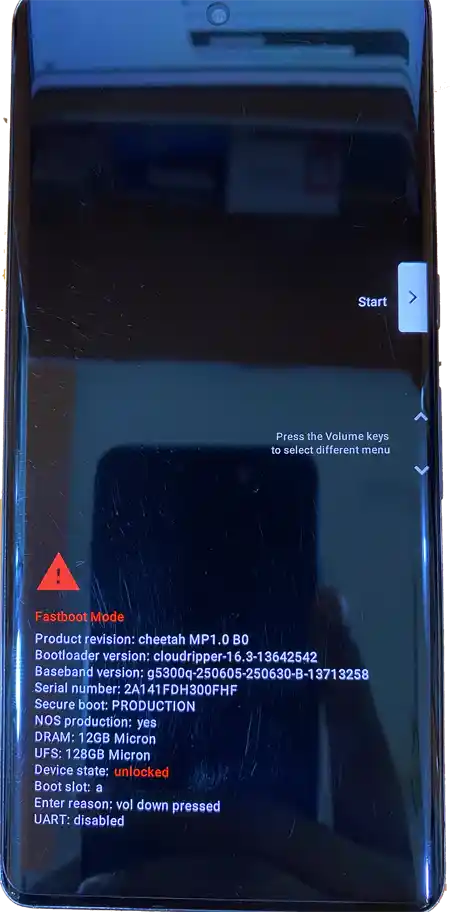
Boot into Fastboot Mode:
- Completely power off your Google Pixel device.
- Press and hold the Volume Down button and the Power button simultaneously until you see the Fastboot Mode screen (an Android robot lying down, or text indicating Fastboot Mode).
Connect to PC and Execute Command:
- Connect your Pixel device to your PC using a high-quality USB cable.
- On your PC, open a command prompt or PowerShell window in the directory where you have your Platform Tools (ADB & Fastboot) downloaded and extracted.
- Run the following command:
fastboot flashing unlock
Confirm Bootloader Unlock on Device:
- Your Pixel’s screen will display a warning message about unlocking the bootloader.
- Use the Volume buttons to navigate to the “Unlock the bootloader” option.
- Press the Power button to confirm your selection.
- Your device will factory reset and then reboot.
For more detailed instructions or troubleshooting common bootloader issues, refer to our comprehensive guide on Fixing “Your Device is Corrupt” Error
Step 2: Utilizing the Pixel 6 series Network Fix Tool for Advanced Fixes
To address network issues and underlying system corruptions, we will use the specially designed Pixel 6 series Network Fix Tool. This tool is capable of analyzing your device’s current configuration and generating a corrected system configuration file, often referred to as a devinfo.img or similar partition-specific image. This image contains the necessary data to re-establish proper network functionality and overall system stability.
How to Use the Pixel 6 series Network Fix Tool for pixel 6, 6a, 6 pro:
Download and Extract: Ensure you have downloaded the Pixel 6 series Network Fix Tool from our trusted download section below and extracted its contents to a convenient folder on your PC.
Launch the Tool: Double-click the executable file (e.g.,
Pixel 6 tool.exe) to launch the tool.Select Your Model: Within the tool’s interface, select your specific Pixel model (6, 6a, or 6 Pro). The tool will typically show existing configuration details.
Initiate System Repair: Click on the “Generate Network/System Repair File” or “Write” button. The tool will process and generate a modified system image file
devinfo.imgspecifically tailored for your device model to fix common network and system configuration issues. This file is crucial for the next step.This is offline Portable Tool, you dont need internet connection
Tool has no viruses.
If you’re new to this process, our dedicated Pixel 6 Network Repair Guide offers more visual guidance.
Step 3: Flashing the Repaired System Partition
Once you have successfully generated the corrected system image file using the Pixel 6 series Network Fix Tool, the next step is to flash this file back to your Google Pixel device while it’s in Fastboot Mode.
Reboot into Fastboot Mode:
- If your phone is currently on, power it off completely.
- Press and hold the Volume Down button and Power button simultaneously until you see the Fastboot Mode screen.
- Ensure your device is connected to your PC via USB.
Flash the Modified System File:
- Open a command prompt or PowerShell window on your PC within the directory where you extracted your Platform Tools (ADB & Fastboot) and where the
Pixel 6 series Network Diagnostic Toolgenerated your repaired system file (devinfo.img) - Execute the following command, replacing
<drag & drop modified_system_file.img here>with the actual path and filename of the file generated by the Network Diagnostic Tool:fastboot flash devinfo <drag & drop modified_devinfo.img here>
- Open a command prompt or PowerShell window on your PC within the directory where you extracted your Platform Tools (ADB & Fastboot) and where the
Reboot Your Phone:
- After the flashing process is complete (it should be very quick), you can reboot your phone to normal mode.
- You can do this by selecting the “Start” option on your phone’s Fastboot screen using the Volume buttons and then pressing the Power button, or by running the following command on your PC:
fastboot reboot
Your phone should now boot up with the system and network configurations rectified, hopefully resolving your connectivity issues, boot loops, or general system errors.
Download Required Tools:
To follow this guide, you will need the following tools:
Pixel 6 Series Network Fix Tool Specifications
| Specification | Details |
|---|---|
| Tool Name | Pixel 6 Series Network Fix Tool |
| Version | 1.0 |
| Platform | Windows 7/8/10/11 |
| File Size | ~50 MB |
| Extract Password | AM19x |
| SHA256 Hash | 19E4789F94D8B1B5345D375050DA6D35148AB86262C2C36AF6C35F300576265F |
| Requirements | Unlocked Bootloader, ADB/Fastboot |
| License | Freeware |
Required Tools Download
| Tool | Purpose | Download Link |
|---|---|---|
| Pixel 6 Network Fix Tool | Generate devinfo.img for network fix | Download from G-Drive |
| Android USB Drivers | Device detection on Windows | Download Here |
| Platform Tools (ADB/Fastboot) | Execute fastboot commands | Download Here |
Usage Process
| Step | Tool Used | Action | Result |
|---|---|---|---|
| 1 | Android Platform Tools | Unlock bootloader | Device ready for modification |
| 2 | Pixel 6 Network Fix Tool | Generate devinfo.img | Corrected system file created |
| 3 | Android Platform Tools | Flash devinfo.img | Network/system issues fixed |
Pixel 6 series Network Fix tool - Testing on Google Pixel 6?
Watch our comprehensive step-by-step tutorial here for a visual walkthrough of the entire process:
Video Tutorial
Watch this guide for visual instructions
Uploaded: May 26, 2025
In this video I have used Pixel 6 to fix CPID issue with this useful tool, running on Android 15.
I am using Microsoft Windows 10 but this will work on Windows 7(x86-x64), 8(x86-x64), 8.1(x86-x64) & 11(x64) as well. If you face any kind of compatibility issues, please let me know.
Stay Connected & Support My Work
If this guide helped you revive your Google Pixel’s network and system functionality, consider supporting our work!
YouTube: Subscribe Now
Support Me: Buy Me a Coffee
Frequently Asked Questions
Is this method safe?
Yes, when followed correctly and with proper backups, this method is designed to be safe for addressing software corruptions and network issues. However, please be aware that unlocking the bootloader inherently voids your manufacturer’s warranty.
Is my user data safe?
No, unlocking the bootloader will factory wipe your device, erasing all personal data. It is absolutely critical that you back up all important data before proceeding with Step 1. In case of any unforeseen issues during the process, having a backup ensures you don’t lose precious information.
What if my phone gets stuck on the Google logo or doesn’t boot correctly after flashing?
Sometimes, flashing system files can inadvertently change the active boot slot (e.g., from slot A to slot B, or vice-versa). If your device gets stuck, try changing the active slot in Fastboot Mode.
What if my Pixel 6 6a 6pro doesnt boot correctly after this?
Sometimes it changes the active slot automatically so try to Switch the active slot using fastboot commands: fastboot —set-active=a (if it was B) or fastboot —set-active=b (if it was A). Then, try fastboot reboot. Good luck with your working pixel 6 6a 6 pro network repair.


Author:
Abdul MalikMobile Software Expert and founder of GSM6.com. Specializes in FRP bypass, IMEI repair, and advanced mobile tools. All tutorials are tested on real devices for accuracy and safety.


