
• Abdul Malik (AM) • android • 1 min
How to Unlock Bootloader on Google Pixel (2025 Fastboot Guide) | All Models
Why Unlock Your Google Pixel Bootloader?
Before we dive into the nitty-gritty, let’s talk about why you would even want to learn How to unlock Bootloader on Google Pixel in the first place. Think of the bootloader as a security guard for your phone’s operating system. It checks for a valid signature on your software to make sure no one has messed with it. On a stock phone, this is a great thing”it keeps you safe. But when you want to customize your device, this security guard becomes a wall.
Unlocking the bootloader gives you the key to this wall. Once unlocked, you can flash custom firmware, install third-party recoveries, and gain root access. This opens up a world of possibilities for your Pixel device:
Custom ROMs: Install a different version of Android with new features, better performance, or a cleaner user interface. This is a primary reason to unlock Pixel bootloader.
Root Access: Gain complete administrative control over your device. This lets you use powerful apps that require elevated permissions and make system-level changes.
Custom Recoveries: Install recoveries like TWRP to create full backups of your system, flash ZIP files, and perform advanced maintenance.
Kernel Flashing: Flash custom kernels to improve battery life, enhance performance, or add new features to your phone’s core functions.
Important Notes & Prerequisites (READ THIS FIRST!)
Before you start this Google Pixel bootloader unlock process, it’s crucial to understand the risks and prepare your device properly. Seriously, do not skip this section.
Data Wipe (Factory Reset): Unlocking the bootloader will perform a complete factory reset and erase all data on your phone. This includes all apps, photos, contacts, and everything else. Back up all your important files to your computer or a cloud service before you proceed. There is no way around this data loss during the unlock process.
Carrier Locking: Some carrier-locked devices (especially those from Verizon, AT&T, or certain T-Mobile variants) may have bootloader unlocking disabled. This is common. If you cannot find the “OEM unlocking” option in Developer options (it might be grayed out), your phone might be locked to a carrier and cannot be unlocked by this method. There are often complex carrier-specific workarounds for unlocking the network lock, but they are different from unlocking the bootloader.
Battery Life: Ensure your device is charged to at least 50%. A low battery during the process could lead to it shutting down unexpectedly, which can potentially brick your device.
Warranty Void: Unlocking the bootloader can void your phone’s warranty. While some companies are more lenient than others, it’s best to assume that any issues you face after unlocking may not be covered by Google or your seller.
Security Risk: An unlocked bootloader makes your device less secure against physical theft or malware. Always be mindful of the added security risks.
How to Unlock Bootloader on Google Pixel? (2025 Fastboot Method)
With the warnings out of the way, let’s get this done. Follow these steps carefully, and you’ll have your Google Pixel bootloader unlocked in no time using the Fastboot method.
Step 1: Download Required Files
The first step is to get all the necessary tools on your computer. You’ll need two main things: the Android Platform Tools and the correct USB drivers.
Platform Tools (ADB & Fastboot): This is a small, essential package from Google that contains the
adbandfastbootcommand-line tools. These are what we’ll use to communicate with your phone. Download the latest version directly from Google:- Download ADB & Fastboot Platform Tools: Click here for the Link
Android USB Drivers (for Windows PC): These drivers ensure your computer can properly recognize your Google Pixel phone in different modes, including fastboot. You’ll need these to make the connection work on Windows.
Download Universal Android USB Drivers: Click here for the Link
Mac and Linux users typically do not need to install separate drivers.
Once you’ve downloaded the files, extract the Platform Tools zip file to a location you can easily access on your computer, such as your desktop or C: drive. Remember this folder location.
Step 2: Enable Developer Options & USB Debugging
Android has a hidden menu for developers. We need to unlock it to get the “OEM unlocking” and “USB debugging” options, which are essential for the Pixel Fastboot unlock process.
Go to your phone’s Settings > About phone.
Scroll down and tap “Build number” seven times in quick succession. A small message will pop up saying, “You are now a developer!”
Go back to the main Settings menu and navigate to Settings > System > Developer options.
Inside the Developer options menu, find and enable two key toggles: “OEM unlocking” and “USB debugging.” These two options are mandatory to proceed with the bootloader unlock. If “OEM unlocking” is grayed out, refer to the “Important Notes” section above regarding carrier-locked devices.
Step 3: Boot into Fastboot Mode
Fastboot is a critical diagnostic and engineering protocol that allows you to modify your Android’s file system directly from a computer. We need to put your phone in this mode to perform the Google Pixel bootloader unlock.
First, power off your Google Pixel phone completely.
Now, press and hold the Volume Down and Power buttons simultaneously. Keep holding them until you see the Fastboot mode screen, which is usually an Android robot lying on its back.
Using a high-quality USB cable, connect your phone to your PC. This is where the USB drivers you downloaded earlier come into play.
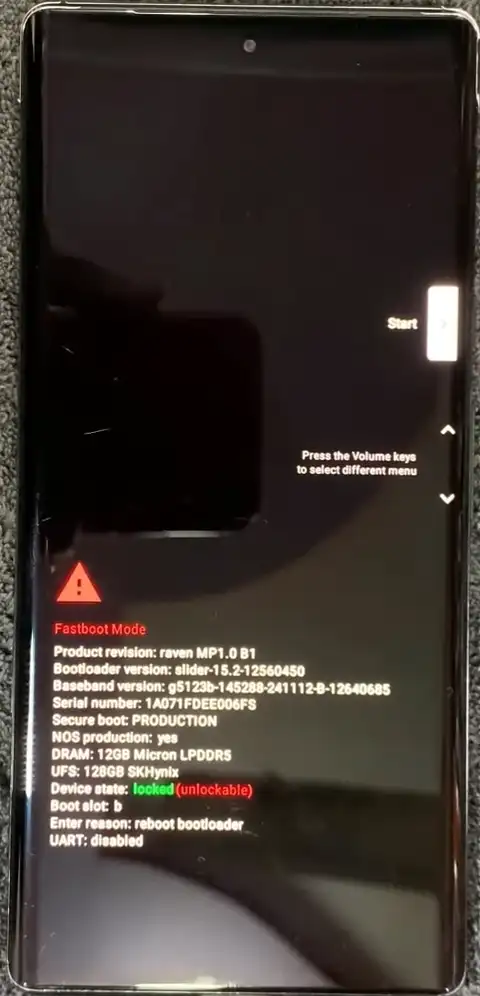
Google Pixel Phone with Locked Bootloader.
Step 4: Verify Fastboot Connection
This is a crucial checkpoint. If your PC and phone aren’t talking to each other, the rest of the steps won’t work.
Navigate to the folder where you extracted the Platform Tools (from Step 1).
Inside this folder, hold down the Shift key on your keyboard and Right Click an empty space. A context menu will appear.
Select “Open PowerShell window here” (or “Open Command Window here,” depending on your Windows version). A command prompt or PowerShell window will open.
In the command window, type the following command and press Enter:
fastboot devicesIf your phone is properly connected, you should see a unique device ID followed by the word “fastboot.” If you don’t see anything, or if it says “waiting for device,” then your drivers aren’t installed correctly, or the cable is faulty. You’ll need to troubleshoot this connection before moving on.
Step 5: Unlock the Bootloader
This is the big moment. This is the command that will change the status of your bootloader.
In the same command window, type the following command and press Enter:
fastboot flashing unlockLook at your phone’s screen immediately. A warning message will appear, asking you to confirm the bootloader unlock. Use the volume buttons to navigate to “Unlock the Bootloader” (or similar wording) and press the Power button to select it. This is your last chance to back out!
The phone will now perform the unlock and a factory reset. This will take a few minutes.
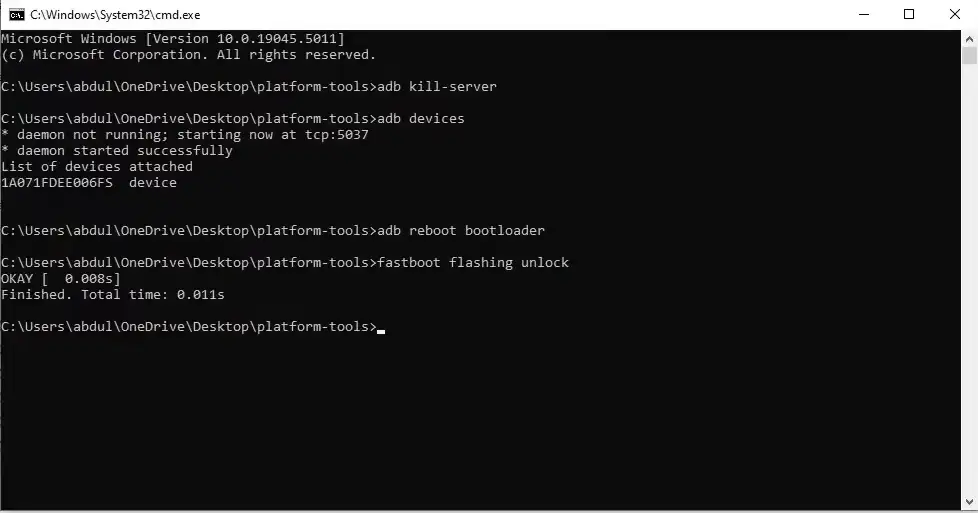
fastboot command to unlock the bootloader “fastboot flashing unlock”
Use Hard Keys
now press volume up or down to select “Unlock The Bootloader” option & then press power button to Confirm
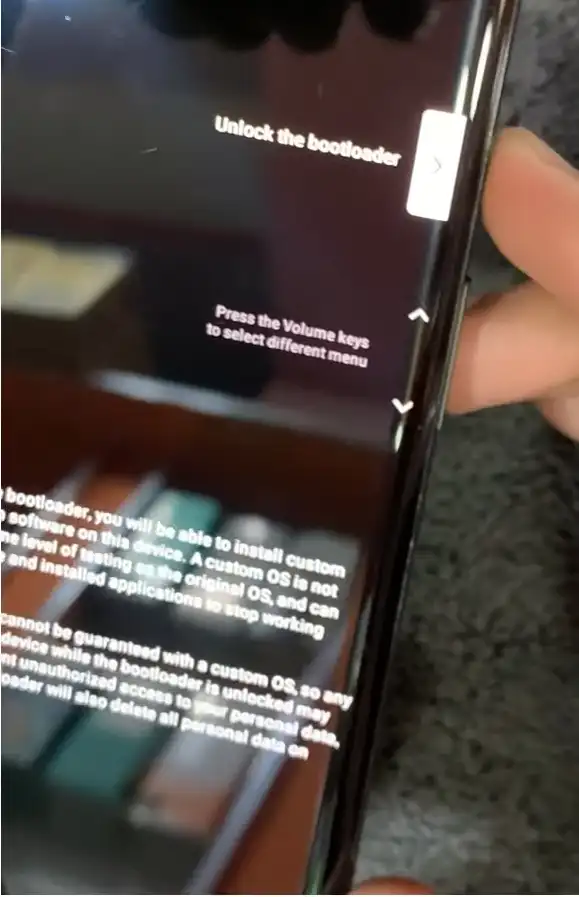
using hard keys to unlock the bootloader on google pixel
Verify bootloader Unlock
after using hard keys, you will see the bootloader status is showing Unlocked in the fastboot mode.
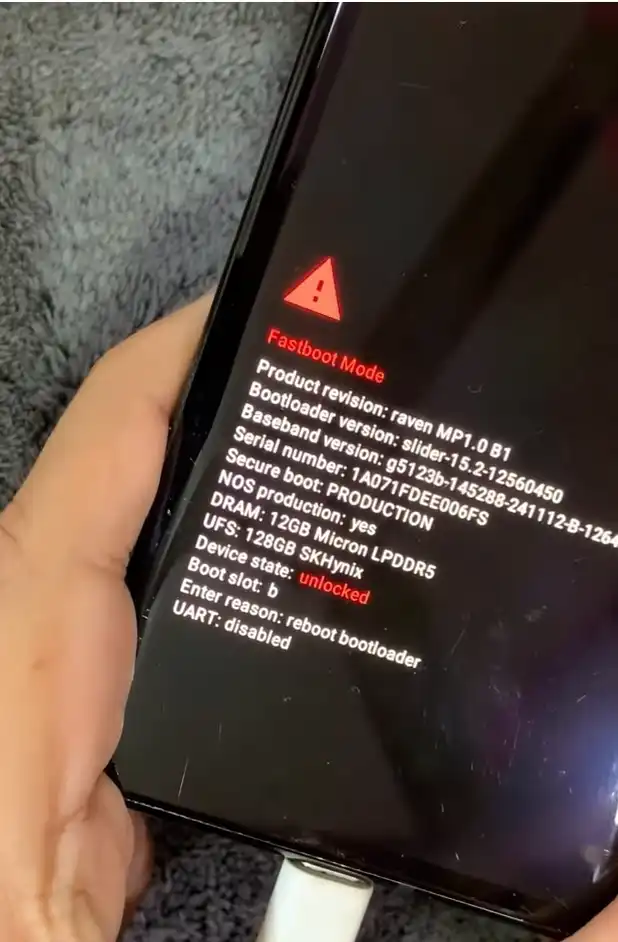
google pixel bootloader unlocked successfully after fastboot command.
Step 6: Reboot Your Device
Once the process is complete, you can manually reboot your device.
In the command window, enter:
fastboot rebootYour phone will restart with the bootloader unlocked! The first boot after a factory reset can take a bit longer than usual, so be patient. You will also see a warning message every time you boot your phone, indicating that the bootloader is unlocked. This is normal and serves as a reminder that the device’s security is now in your hands.
What to do After Unlocking the Bootloader?
Now that your bootloader is unlocked, the fun really begins! Your options are wide open:
Root Your Phone: This is a very common next step. You can use tools like Magisk to achieve root access, which gives you full control over your device’s software.
Flash a Custom Recovery: A custom recovery like TWRP allows you to install custom ROMs, flash Magisk, and perform full system backups.
Install a Custom ROM: Custom ROMs are community-built versions of Android that often include new features, better performance, or a debloated, stock experience.
We’ll have more detailed guides on all these topics coming soon to the site, so be sure to stick around!
Watch the Full Video Tutorial: How to Unlock Bootloader on Google Pixel
For a clear, step-by-step visual guide on how to unlock the bootloader on Google Pixel, watch the full tutorial on my YouTube channel:
in this tutorial i have used google pixel 6 (raven) running on android 15, i have uploaded a lot of other videos where i have unlocked the bootloader on android 16 as welll..
i am using desktop setup with windows 10 64bit. but this will work for windows 7 to 11 all version.
Video Tutorial
Watch this guide for visual instructions
Uploaded: February 15, 2025
Frequently Asked Questions
What exactly is a bootloader and why is it locked on my Pixel?
The bootloader is a low-level program that runs first when you power on your phone. It is locked by Google to guarantee software security and integrity. This means it only lets your phone boot the official, approved Android system, preventing unofficial changes like custom ROMs.
Will unlocking the bootloader erase my data?
Yes, it will. Running the fastboot flashing unlock command forces a complete factory reset. This is a built-in security step to stop unauthorized access to your private files. You must back up everything before you start the process.
Does unlocking the bootloader void the warranty on my Google Pixel?
In most cases, yes. While the law in some regions (like the Magnuson-Moss Act in the US) makes it hard for a company to automatically void the warranty, Google can refuse to cover any damage that they can prove was caused by software modifications made after the bootloader was unlocked. It is a big risk.
Is the fastboot flashing unlock command the correct one for all new Pixel phones?
Yes. For modern Google Pixel devices (Pixel 6, 7, 8, etc.), the correct command is fastboot flashing unlock. The old command, fastboot oem unlock, is now outdated and will not work on new Pixel models.
Is it legal to unlock the bootloader on my own Pixel phone?
Yes, it is legal in the United States and many other countries to unlock the bootloader on a device you own. However, this does not change the terms of your warranty or carrier contract.
I get a “waiting for any device” error. How do I fix the fastboot connection?
This means your computer cannot see your phone in Fastboot Mode. The problem is usually with the drivers or the cable. Fix it by: 1) Reinstalling the Android USB drivers (Step 1). 2) Trying a different, high-quality USB cable. 3) Using a different USB port on your PC (avoid USB hubs).
The command fastboot flashing unlock gives me a FAILED message. Why?
The most common reason for this bootloader unlock failure is that you did not enable the “OEM unlocking” option in Developer options (Step 2). You must enable this toggle while the phone is booted into Android before you can use the fastboot command.
I see the “OEM unlocking” toggle, but it is grayed out. What does that mean?
This means your phone’s bootloader is permanently restricted. This is usually the case for Verizon-locked Pixel phones or devices sold by specific carriers that forbid bootloader modification. If the option is grayed out, you cannot use this guide to unlock the bootloader.
Do I need to be connected to Wi-Fi to enable the “OEM unlocking” option?
Yes, sometimes. On some Pixel models, the phone must be connected to the internet to check its status with Google’s servers before it allows you to enable the “OEM unlocking” toggle. If the option is grayed out, try connecting to Wi-Fi for a few minutes and checking again.
After enabling “USB Debugging,” my PC still says “device unauthorized.” How do I proceed?
When you connect your phone to the PC after enabling USB Debugging, a pop-up window must appear on your phone asking you to “Allow USB debugging.” You must tap “Allow” and ideally check the box for “Always allow from this computer.” If you do not see this pop-up, you might need to revoke USB debugging authorizations in the Developer options and try connecting again.
Will unlocking the bootloader affect my phone’s ability to receive official OTA software updates?
Yes. Once the bootloader is unlocked, the phone’s built-in check for official updates (called Verified Boot) will fail. You will usually have to manually flash the full factory image (using a special flash-all.sh script) every time an update is released, or use a custom tool like Magisk to handle updates.
Will my banking apps or Google Pay stop working after I unlock the bootloader?
Most likely, yes. Many financial and streaming apps use a security check (called Play Integrity or SafetyNet) that fails on devices with an unlocked bootloader. To fix this, you would need to root your phone (using Magisk) and install special modules to hide the unlocked status from these apps.
Can I re-lock the bootloader after I am done with customization?
Yes, you can. You can re-lock the bootloader by running the command fastboot flashing lock in Fastboot Mode. This will also trigger another full factory reset. It is a necessary step if you want to flash the phone with the official firmware and restore the highest level of security.
Does unlocking the bootloader automatically root my Pixel phone?
No. Unlocking the bootloader is only the first step. It is the key to the castle, but it does not give you root access. After unlocking, you must then flash a patched boot image (usually created with Magisk) to gain full root access.
What is “fastboot flashing unlock_critical” and do I need to run it?
This command unlocks certain “critical partitions” of the phone that hold very low-level firmware. It is usually only needed for very advanced actions. For standard rooting and custom ROMs, you only need the regular fastboot flashing unlock command. It is generally safer to avoid unlocking critical sections unless absolutely necessary.
Is this bootloader unlock guide specific to the Pixel 8 Pro?
No. This official fastboot unlock guide works for almost all Google Pixel models, including the Pixel 8, Pixel 7 Pro, Pixel 6, and earlier generations. The core ADB/Fastboot commands are universal across all unlockable Pixel phones.
Is it safe to buy a used Pixel with an already unlocked bootloader?
It is a risk. An unlocked bootloader means the previous owner could have installed any kind of software. If you buy a used phone with an unlocked bootloader, you should immediately flash the latest official factory image from Google and then re-lock the bootloader for maximum security before setting it up as your own.
What is the “unlocked bootloader” warning screen that appears at startup?
After you unlock the bootloader, a warning message appears every time the phone boots. It is a safety feature from Google that simply tells you the device’s original security integrity is compromised. It is a permanent and normal side effect of the Pixel bootloader unlock.
Can I use this guide to unlock the bootloader on a Samsung or a different non-Pixel Android phone?
No. While the basic ADB/Fastboot tools are universal, the command and process are different. Samsung, for example, uses a tool called Odin. Other brands often have waiting periods or completely different methods. This guide is strictly for the Google Pixel bootloader unlock.
Can I use the Android Flash Tool to unlock the bootloader instead of typing commands?
The Android Flash Tool, found on Google’s website, is used for flashing official factory images. While it can install a fresh stock ROM easily, it does not typically unlock the bootloader itself. You still need to manually run the fastboot flashing unlock command after putting the device in Fastboot Mode. It is best to stick to the direct command line for the actual unlock process.


Author:
Abdul MalikMobile Software Expert and founder of GSM6.com. Specializes in FRP bypass, IMEI repair, and advanced mobile tools. All tutorials are tested on real devices for accuracy and safety.


