
• Abdul Malik (AM) • android • 1 min
How to Root Google Pixel 6, 7, 8, 9 and Fold Series | Easy Guide | Step-by-Step
Introduction: Taking Back Control of Your Hardware
You bought the best Android phone available”a pure Google Pixel. Yet, you still feel restricted. That’s because you are. You’re operating in a system where Google, not you, holds the master keys.
Rooting is the process of seizing control. It’s gaining “superuser” access”the ultimate administrative power to command the entire operating system, from the smallest file to the core hardware. It’s the difference between being a user and being the owner.
In this comprehensive, direct, and step-by-step guide, I’ll walk you through the proven method to Root Google Pixel 6, 7, 8, 9, or Fold series device using Magisk. We will use the Patched Boot Image method, which is the only stable way to bypass the security checks on these modern devices with their seamless update system (A/B partitions). We are going to perform surgery on the core boot files themselves.
Note: This guide is for the newer Pixel 6, Pixel 7, Pixel 8, Pixel 9, and Pixel Fold series. These phones use a different system structure with the required init_boot.img file. If your phone is a Pixel 5 or older, this process will not work and could brick your device.
Why Rooting your Google Pixel? The Real Technical Advantage
Why go through the effort? Because rooting gives you unlocked performance, real control, and essential repair access that the stock software keeps hidden.
Unlocking System Capabilities
Magisk Modules for Custom Features (System Overhaul): Magisk is the core engine here, and it works systemlessly, meaning it makes changes in a clean, separate layer without messing with the core files. This is how you bypass security checks. Magisk Modules are small packages that plug right into this system, allowing you to:
Boost Performance: Tune the Tensor chip’s thermal behavior and CPU settings for consistent, higher speeds, which is great for high-demand games.
Enhance Functionality: Enable features Google hides, like advanced high-quality audio formats, or even trick Google Photos into giving you unlimited original-quality backups.
Bypass Security: Use modules to pass Google’s SafetyNet or the newer Play Integrity API. This is non-negotiable if you want apps like your banking apps, Google Pay, and streaming services to work after rooting. They check for root; Magisk hides it.
Block System-Wide Ads and Maximize Privacy (The Clean Internet): Built-in ad-blockers only work in your browser. With root access, you can use tools like AdAway to block advertising domains at the DNS level.
This instantly creates a faster, cleaner phone experience by preventing ad data from even downloading.
It cuts off data usage from ads and seriously improves your privacy by blocking many tracking domains across all your apps, not just the browser.
Flash Custom ROMs & Kernels (Deep Personalization): If stock Android isn’t enough, root access lets you install:
Custom Kernels: Access the core layer between the software and hardware. You can overclock the CPU for speed or underclock it for maximum battery life. You get to control the phone’s fundamental power usage.
Custom ROMs: Swap out the entire operating system for alternatives like LineageOS or CalyxOS, which offer different feature sets, new looks, or a focus on deep, enhanced privacy.
Fix IMEI & CPID Issues (The Technician’s Tool): For advanced users and repair techs, root access is the first mandatory step to fix catastrophic software failures. When a Pixel update or crash causes an “IMEI 0” or “IMEI Null” error, the only way to restore the baseband data, fix the Chip ID (CPID), and get the phone to connect to the network again is by using specialized repair software that requires full root privileges to access the locked modem partitions.
Essential Requirements: Your Pre-Flight Checklist
Do not start this guide until you have confirmed every item on this list. Skipping one means failure.
Requirement 1: Unlocked Bootloader (The Security Gate)
This is the required step that allows you to flash custom images.
- The Truth: Unlocking the bootloader is a permanent action and will immediately trigger a Factory Data Reset (FDR), wiping all data on your phone. This is a security feature built by Google. Back up everything now.
Requirement 2: Magisk Manager (The Program)
Make sure you have the absolute latest version of the Magisk application (the APK).
- The Reason: Newer Pixels and Android versions require the latest Magisk version to correctly patch the two required files, especially the specialized
init_boot.img.
Requirement 3: Stock Firmware for Your Pixel (The Perfect Match)
This is the most critical requirement. You must download the EXACT factory image that perfectly matches the software build number currently running on your phone.
- The Warning: If you flash a boot file that is from a different security patch or build number, the system will detect the signature mismatch and enter an immediate, non-recoverable Boot Loop. This will force you to spend hours flashing the full stock firmware to fix the phone. Get the correct file right now.
Requirement 4: ADB & Fastboot Tools (The PC Connection)
You need the official Platform-Tools package from Google, which contains:
Fastboot: The tool we will use to flash the patched files onto the device’s partitions when the phone is in Bootloader Mode.
Pro-Tip: Download the small Platform Tools ZIP and extract it to a simple folder on your C: drive, like
C:\platform-tools.
Requirement 5: Android USB Drivers (The Handshake)
Your computer needs the proper drivers to talk to the phone in all modes. Windows often installs generic drivers that work for file transfer but fail when the phone is in the critical Fastboot Mode.
- If your PC cannot see the device when you type
fastboot devices, the driver is wrong, and the entire process stops. You must install the dedicated Google USB Drivers.
Step-by-Step: How to Root Google Pixel with Magisk
This is the four-step procedure. Follow every command exactly.
Step 1: Unlock Bootloader (The Data Wipe Command)
WARNING: All data will be wiped in this step.
Enable Developer Options: On your Pixel, go to Settings > About phone. Tap the Build number 7 times.
Enable OEM Unlocking: Go back to Settings > System > Developer options. Toggle OEM unlocking to ON. If it’s greyed out, your phone is carrier locked.
Enter Fastboot Mode: Shut the phone down completely. Press and hold the Power button and Volume Down button together. Hold them until the phone displays the Bootloader screen.
Connect to PC: Connect your phone to your PC with a reliable USB cable.
Open Command Prompt: Go to your Platform Tools folder (e.g.,
C:\platform-tools). Click in the address bar, typecmd, and hit Enter to open the command prompt in the correct location.Verify Connection: Type the command:
fastboot devicesYou must see a serial number. If you see nothing, fix your drivers now.Run the Unlock Command: This starts the irreversible wipe and unlock:
fastboot flashing unlockConfirm on Device: On your phone screen, use the Volume keys to select the option to Unlock the bootloader, and press the Power button to confirm.
The device will factory reset and reboot to the initial setup screen. The bootloader is now unlocked.
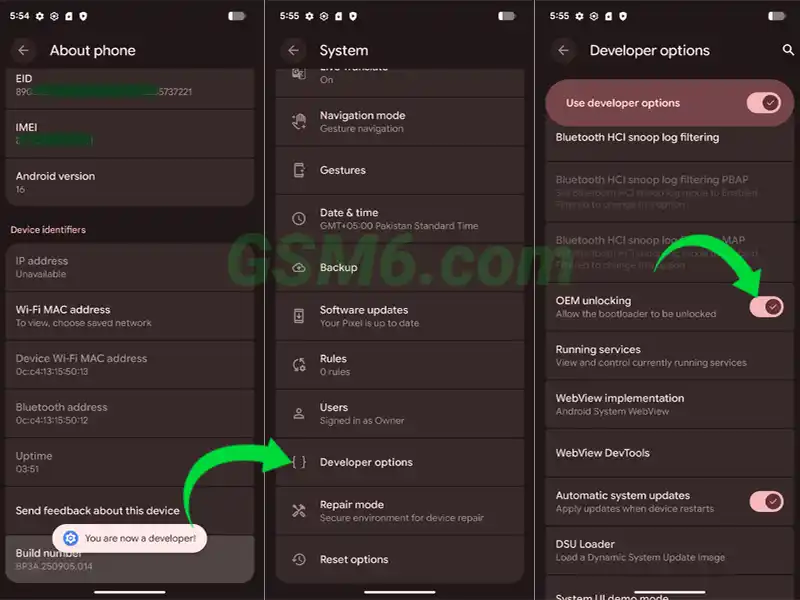
how to enable oem unlocking on google pixel screen [root google pixel guide]
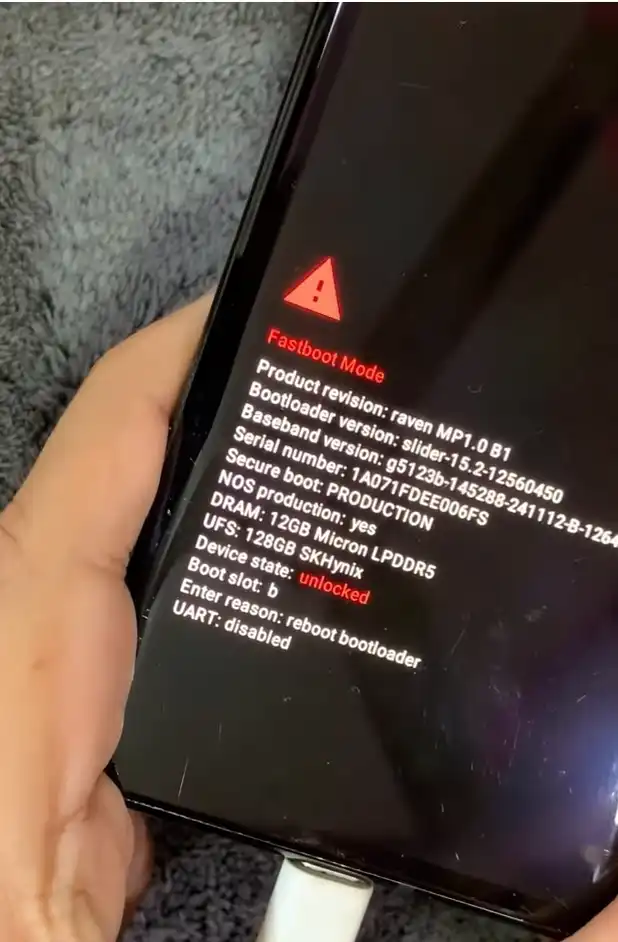
Step 2: Patch the Boot Image with Magisk (File Injection)
We are using the Magisk app on your phone to modify the official boot files.
Extract the Correct Files: Take the stock firmware ZIP file that matches your phone’s build number. Extract it. Inside, you’ll find a second ZIP file (e.g.,
image-device.zip). Extract this second ZIP file as well.Copy Files: From that final folder, find and copy the two critical files onto the internal storage of your Pixel phone:
boot.imginit_boot.img
Install Magisk: Re-install the Magisk Manager APK on your phone and open it.
Patch the First File (
boot.img):- In the Magisk app, tap Install.
- Select the option “Select and Patch a File.”
- Find and select
boot.imgfrom your phone’s storage. - Tap “Let’s go.” Magisk patches the file.
- The new file will be in your Downloads folder. Rename it to
magisk_patched_boot.img.
Patch the Second File (
init_boot.img):- Repeat the process. Tap Install > “Select and Patch a File.”
- Find and select
init_boot.img. - Tap “Let’s go.”
- Rename this file to
magisk_patched_init_boot.img.
Transfer Back: Copy both of these newly created, patched files from your phone’s storage back to your PC, placing them directly into your Platform Tools folder.
Step 3: Flash the Magisk Patched Image (Final Execution)
This is the final execution step. Pay attention to the order.
Enter Fastboot Mode: Get your phone back into Fastboot Mode (Power + Volume Down) and connect it to the PC.
Open Command Prompt: Make sure your command prompt is open in the Platform Tools folder.
Flash the
init_bootImage First:fastboot flash init_boot magisk_patched_init_boot.imgWait for the “Finished” message.Flash the
bootImage Second:fastboot flash boot magisk_patched_boot.imgWait for the “Finished” message.Reboot to Recovery (MANDATORY STEP): Do NOT skip this. You must reboot into recovery to correctly set the A/B partition flags and prevent an immediate boot loop:
fastboot reboot recoveryFinal Factory Reset (Highly Recommended):
- The phone will be in the Recovery Menu.
- Select “Wipe data/factory reset.” Confirm the reset. This ensures a clean file bind and prevents almost all stubborn post-root boot errors.
Reboot System: Select “Reboot system now.” The first boot will take 5-10 minutes.
Step 4: Verify Your Root (Confirmation)
Once the phone boots up and you complete the initial setup, check your work.
Check Magisk Status:
- Re-install the Magisk Manager APK if the final reset removed it.
- Open the app. It should show a green status: “Magisk is installed” with a version number. If it prompts you for an “Additional Setup,” follow the instructions and reboot again.
Double-Check:
- Install a Root Checker app from the Play Store.
- When you run the app, a pop-up window from Magisk will appear. This is the proof. Tap Grant to give the app Superuser access.
- The app will confirm: “Congratulations! Root access is properly installed on this device!”
How to Root Google Pixel: Step by Step Video Guide
For those who need a visual reference, here is the full, direct video walkthrough of the entire process from start to finish. This video confirms the steps outlined above, including the critical init_boot.img patching process. i have used google pixel 7 for this tutorial, running on android 15.. but the method for android 16 is also the same.
Video Tutorial
Watch this guide for visual instructions
Uploaded: February 18, 2025
Common Problems and Troubleshooting (The Reality Check)
Things do not always go perfectly the first time. As a developer, you need to know how to fix the inevitable mistakes. Here is the direct guide to solving the most common failure points.
Problem A: Device is stuck on the Google logo (Boot Loop).
The Cause: The most common failure. The boot files you flashed either do not match your current software build number or were corrupted. The system fails its integrity check and restarts endlessly.
Solution A (The Quick Slot Switch):
Enter Fastboot Mode: Shut the phone down. Boot it up by holding Power + Volume Down.
Try flipping the active slot:
fastboot set_active otherthenfastboot set_active currentthenfastboot rebootIf it still loops, proceed to Solution B.
Solution B (The Clean Re-Flash):
Enter Fastboot Mode and connect to your PC.
Find the original, unpatched
boot.imgandinit_boot.imgfiles you saved.Flash the clean, working files back:
fastboot flash init_boot init_boot.imgthenfastboot flash boot boot.imgthenfastboot rebootThe device will now boot into a clean, unrooted state. Re-attempt the root process from Step 2.
Problem B: The fastboot command is not recognized or found.
The Cause: Your computer’s command prompt (CMD or PowerShell) cannot find the fastboot.exe file. This means the CMD window is not open in the correct directory.
Solution:
Go Directly to the Folder: Open File Explorer and navigate directly to your Platform Tools folder (e.g.,
C:\platform-tools).Open CMD from Folder: Click in the address bar at the top, type
cmd, and hit Enter.The new command prompt will open in the correct path. The command will now be recognized.
Problem C: PC isn’t detecting the phone in Fastboot mode (No device in fastboot devices).
The Cause: This is a driver failure. Windows sees a connected device but does not have the correct low-level Google USB Driver to communicate with it in the critical Fastboot state.
Solution (The Hard Driver Fix):
Open Device Manager on your PC.
While your phone is in Fastboot Mode and connected, look for an entry, usually under “Other devices,” marked with a yellow exclamation point, or sometimes under “Android Device” as “Android Bootloader Interface.”
Right-click the problem device and select “Update driver.”
Choose “Browse my computer for drivers.”
Select “Let me pick from a list of available drivers on my computer.”
Scroll down to “Android Device” and force the installation of the “Android Bootloader Interface” driver provided by Google.
Once forced, the
fastboot devicescommand will work.
Problem D: Magisk Manager says “N/A” after flashing.
The Cause: The patched files were flashed, but the Magisk application didn’t install correctly or its configuration files were corrupted during the final reset.
Solution:
Manual Re-Install: Go to Settings > Apps and Uninstall the Magisk Manager app.
Re-Install: Re-install the latest Magisk Manager APK from scratch.
Run Additional Setup: Open the newly installed app. It will detect the Magisk files on the boot partition and prompt you for an “Additional Setup” or “Direct Install.” Select this option. Magisk will finalize the setup and prompt for a Reboot.
After the reboot, Magisk should show the green “Magisk is installed” status. If it fails again, you must re-flash the original stock boot images and start the patching process over.
Risks and Warnings to Root Google Pixel (The Full Disclosure)
Rooting is a powerful administrative action that carries technical risks you must understand.
Risk 1: Data Loss is Guaranteed (The Irreversible Action)
The act of unlocking the bootloader is a hard reset that wipes all your data. The second factory reset recommended in Step 3 ensures cleanliness but confirms the data loss. Backup is mandatory.
Risk 2: Warranty Void (The Permanent Flag)
Unlocking the bootloader is a permanent, logged action in the device’s security memory. If you send the phone in for repair, this flag will be detected by technicians, and Google or its partner will use it as grounds to void your warranty for software tampering.
Risk 3: Security & Malware Exposure (The Unlocked Door)
Rooting bypasses Android’s fundamental security isolation. Any malicious application that gains root access can now do anything it wants”steal data, log keys, or install itself permanently. Only grant Superuser permissions to apps you absolutely trust.
Risk 4: Over-The-Air (OTA) Updates are Broken (The Manual Life)
Your rooted device will no longer accept automatic OTA updates. The system check will fail because your boot image is modified. Every time a new monthly patch or Android version releases, you must manually download the new stock firmware, re-patch the new boot files, and re-flash them to update and re-root your phone.
Download Links: Get the Files
| File/Tool Name | Description | Direct Link |
|---|---|---|
| Magisk Manager APK | The latest official Magisk APK, the root tool engine. | Download (Github Source) |
| Stock Factory Firmware | Official Google Source for all Pixel Images (CRITICAL for getting boot.img). | Official Google Developer Images |
| ADB & Fastboot (Platform Tools) | The essential command-line tools for flashing. | Download From Here |
| Android USB Drivers | Necessary for Windows to correctly see your device in Fastboot Mode. | Official Android USB Drivers |
Frequently Asked Questions
Does rooting my Pixel void my warranty?
Yes, it does. The act of unlocking the bootloader is a permanent, logged technical event. While you can relock the bootloader, the initial unlock status is recorded in the device’s security module. A service center technician can and will see this log, and they will reject your device for warranty repair on the grounds of tampering.
Will I lose my data if I root my phone?
Yes, you will lose all data. The security feature of unlocking the bootloader mandates a complete data wipe. The final step of the root process also includes a recommended factory reset to ensure a clean install. You must back up your device before starting Step 1.
Why do I have to flash both boot.img and init_boot.img?
The Technical Reason: Modern Pixels use a split boot process for security. init_boot.img contains the initial ramdisk and the instructions for the very first part of the boot process, which includes initial security setup. boot.img holds the main kernel and the rest of the core boot files. For root to work, Magisk must inject its code into the earliest part of the boot sequence before the system performs its integrity checks. Because the initial process is split, Magisk must patch and modify both files. Flashing only one will lead to a failed boot or an incomplete root.
My phone is stuck on the Google logo after flashing. What should I do?
The Fix: This is a boot loop”a software fail-safe. You need to restore the known good files. Boot the device back into Fastboot Mode (Power + Volume Down). Flash the original, unpatched boot.img and init_boot.img files back onto the device using the fastboot flash commands. The device will then boot into a clean, unrooted state, which confirms your firmware files are correct. You can then re-attempt the rooting process carefully.
How do I unroot my Google Pixel and pass security checks again?
The Guaranteed Method: The most reliable way is to flash the full stock factory firmware. Download the full factory image ZIP for your device. Important: Modify the flash-all.bat or flash-all.sh script inside the ZIP to remove the -w flag (the flag that wipes user data). Run the modified script while the phone is in Fastboot Mode. This command will re-flash every single system partition with clean, Google-signed files, which completely removes all traces of Magisk and restores full system integrity, allowing you to pass all current security checks.
How difficult is it to root a Google Pixel 7 or Pixel 8?
It’s not “difficult,” but it is precise. The process of rooting modern Pixels (like the 7 and 8 series) is not complicated if you follow the guide step-by-step. The key is precision, not difficulty. You must have the correct stock firmware file and execute the commands exactly as written. Because these phones use the modern A/B partition system, the old, simple rooting methods don’t work. You must be precise with the fastboot commands and the patching of both the boot.img and init_boot.img files to successfully root your Google Pixel.
How do I unroot my Google Pixel and go back to normal?
The best way to fully unroot your device is by flashing the full, official stock firmware back onto your phone using the fastboot command. This completely overwrites the modified boot files and all system partitions with Google-signed, clean files. While Magisk offers a one-click uninstall, flashing the full factory image is the only method that guarantees every trace of root is gone, which is essential if you want to relock the bootloader or send the phone in for service.
If I root my Google Pixel, will I stop getting official updates (OTAs)?
Yes, you will. Once you root your Google Pixel by flashing the patched boot image, your phone’s system integrity check will fail whenever an Over-The-Air (OTA) update from Google tries to install. The OTA process sees the modified files and refuses to proceed to prevent bricking the phone. After rooting, you must manually install every new security patch or Android version by downloading the new factory image, re-patching the new boot files, and re-flashing them yourself.
Will rooting my Google Pixel help fix security patch bugs or slow performance?
Yes, it can. While rooting doesn’t directly fix Google’s bugs, it gives you the power to apply patches and optimizations that Google hasn’t released yet. By flashing a custom kernel after you root your Google Pixel, you can often fix things like excessive battery drain, thermal throttling, or scheduler issues. You gain control over the low-level hardware performance that stock Android locks down.
Is it possible to root a carrier-locked Google Pixel?
Technically, you can root a carrier-locked Pixel, but only if you can unlock the bootloader first. Many carriers (like Verizon) lock the bootloader and disable the “OEM Unlocking” option in Developer Options. If this option is grayed out, you cannot proceed with the first step of this guide, which is mandatory to root your Google Pixel. You must contact your carrier and get the phone officially unlocked before you can start the rooting process.


Author:
Abdul MalikMobile Software Expert and founder of GSM6.com. Specializes in FRP bypass, IMEI repair, and advanced mobile tools. All tutorials are tested on real devices for accuracy and safety.


