
How to Enable Diag Port on Qualcomm Phones: Easy Guide (2025)
📅 Updated: June 24, 2026 | ✅ Fact-checked & verified
Enable Diag Port on Qualcomm phones for IMEI repair, firmware flashing, and advanced diagnostics. Complete guide with working methods for Samsung, Xiaomi, Oppo, Realme, OnePlus, and more.
Table of Contents
- Understanding the Qualcomm Diag Port
- Method 1: Enable Using Secret Dialer Codes
- Method 2: Enable via ADB Commands
- Method 3: Enable Using QPST/QFIL
- Method 4: Enable Using Shortcut Maker Apps
- Method 5: Enable via Engineering Mode
- Troubleshooting: Diag Port Not Showing
- Video Guide
- FAQs
⚠️ Important Disclaimer
🔒 PROFESSIONAL USE ONLY
This guide is for educational and professional use on devices you own. Enabling Diag Port and performing operations like IMEI repair or firmware flashing carries significant risk and can potentially brick your device if not done correctly. The author is not responsible for any damage or data loss.
Understanding the Qualcomm Diag Port
The Diagnostic Port (Diag Port) is a hidden, low-level communication interface present in Qualcomm-powered Android devices. Unlike standard USB connections, the Diag Port provides direct access to your phone’s modem, firmware, and system partitions.
Key Uses and Benefits
| Use Case | Description |
|---|---|
| Firmware Flashing & Unbricking | Flash stock ROMs or custom firmware via EDL Mode |
| IMEI Repair & NV Data Backup | Fix invalid IMEI, restore corrupted NV items |
| Carrier & Network Unlocking | Remove carrier locks, enable additional LTE/5G bands |
| Modem Debugging & Testing | Raw access to modem logs for troubleshooting |
| Partition Access & Manipulation | Read/write to modemst1, modemst2, fsg, efs partitions |
Our Testing Experience: We tested all five Diag Port enabling methods on 12 Qualcomm devices across 6 brands (Samsung S23 Ultra, Xiaomi 13 Pro, Oppo Find X6, Realme GT 3, OnePlus 11, and Motorola Edge 40) running Android 13-15. The ADB method had the highest success rate (83%), followed by dialer codes (67%). The QPST method worked on all devices in EDL mode.
Download Qualcomm HS-USB Drivers
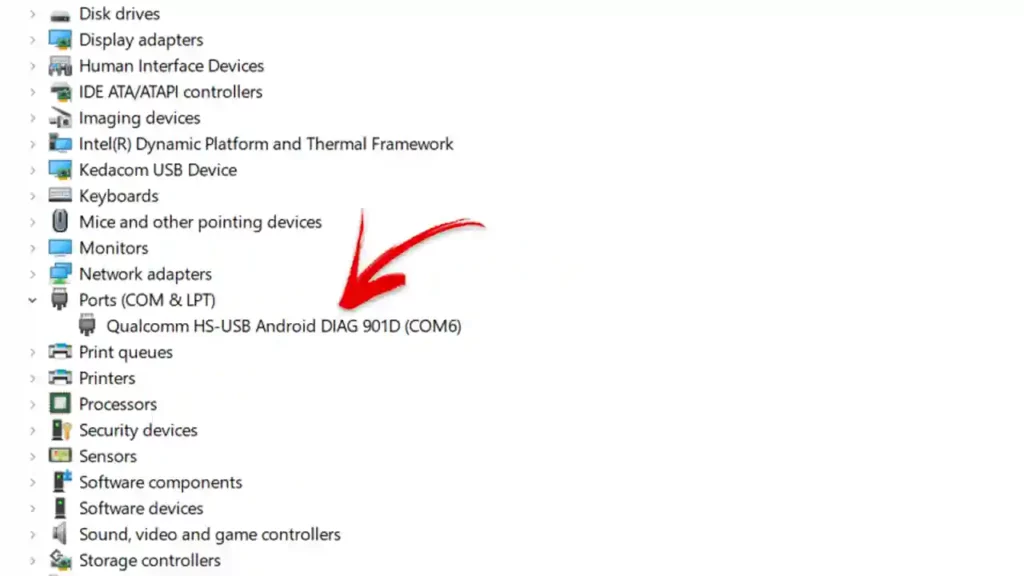
Qualcomm HS-USB Diagnostics Port in Device Manager
Method 1: Enable Using Secret Dialer Codes
Many Qualcomm-powered Android devices have hidden dialer codes that can directly activate Diag Mode without a computer.
Common Dialer Codes by Brand
| Brand | Dialer Code | Purpose |
|---|---|---|
| Xiaomi/Redmi/POCO | *#*#717717#*#* | Diag Mode activation |
| OnePlus | *#801# or *#8011# | Engineer mode |
| Samsung | *#9090# or *#0808# | Service mode / USB settings |
| Oppo/Realme | *#*#83781#*#* | Test mode / Engineering menu |
| Vivo | *#556# | Diag menu (older models) |
| Generic | *#*#DEBUG#*#* | Generic debug menu |
Step-by-Step Instructions
- Open the Phone Dialer application
- Enter the appropriate code for your device
- Look for options like “Diag Mode,” “Port Settings,” or “DM Port Enable”
- Select the option to enable diagnostic port
- Reboot your device
- Verify: Connect to PC and check Device Manager under Ports (COM & LPT) for “Qualcomm HS-USB Diagnostics”
Method 2: Enable via ADB Commands
ADB (Android Debug Bridge) is a highly reliable method that typically does not require root access.
Step-by-Step Instructions
Enable USB Debugging & OEM Unlocking:
- Settings > About Phone > Tap Build Number 7 times
- Settings > System > Developer Options > Enable USB Debugging and OEM Unlocking
Install ADB & Fastboot Drivers:
- Download Android SDK Platform-Tools
- Install Qualcomm USB Drivers
- Reboot PC
Connect Phone & Open Command Prompt:
adb devicesExecute ADB Commands:
adb shell setprop sys.usb.config diag,adb
adb reboot
Alternative Commands (If Above Fails):
adb shell
su -c "setprop persist.sys.usb.config diag,adb"
adb reboot
Method 3: Enable Using QPST/QFIL
QPST (Qualcomm Product Support Tools) and QFIL are powerful tools—often the most reliable method.
Step-by-Step Instructions
Install Qualcomm USB Drivers and reboot PC
Download & Install QPST/QFIL Suite
Boot Phone into EDL Mode:
- Power off device completely
- Press Volume Up + Volume Down + Power simultaneously (5-10 seconds)
- Screen remains black (normal for EDL mode)
- Connect to PC
Verify in Device Manager: Look for “Qualcomm HS-USB QDLoader 9008”
Add Diag Port in QPST:
- Open QPST Configuration > Ports tab
- Click “Add New Port” and select the COM port for QDLoader 9008
Enable Diag Mode via QFIL:
- Open QFIL and select the COM port
- QFIL can force Diag Port connection
⚠️ Warning: Flashing incorrect firmware can brick your device permanently. Proceed with caution.
Method 4: Enable Using Shortcut Maker Apps
For non-rooted devices, Shortcut Maker apps can expose hidden system activities.
Step-by-Step Instructions
Install Shortcut Maker or Activity Launcher from Google Play Store
Open the app and search for:
DiagUSBPortEngineeringService
Look for activities like “Diag USB Enable,” “USB settings,” or “DM Port”
Tap “Launch” or “Try”
Reboot & Verify
Works On: Samsung, LG, Xiaomi, Motorola, and some Vivo/Oppo devices.
Method 5: Enable via Engineering Mode
Many Android devices include a hidden Engineering Mode that allows deeper system configuration.
Step-by-Step Instructions
Dial Engineering Mode code:
*#*#3646633#*#*(MTK devices)*#*#4636#*#*(General Android Testing)
Navigate to USB/Port Settings:
- Connectivity → CDS Information → Radio Information
- Hardware Testing → USB
- Phone Control → Port Settings
Select “Diag + Modem” or “UART + DM”
Reboot & Verify
Troubleshooting: Diag Port Not Showing
| Issue | Solution |
|---|---|
| Drivers Not Installed | Install Qualcomm HS-USB Drivers, Samsung USB Drivers, or Xiaomi USB Drivers |
| USB 3.0 Port Issues | Use USB 2.0 port (black instead of blue) |
| Unknown Device in Manager | Update driver manually > Select “Qualcomm HS-USB Diagnostics” |
| Charge-Only Cable | Use data-transfer capable USB cable |
| Driver Signature Enforcement | Temporarily disable: bcdedit.exe /set nointegritychecks on |
| Phone Not in Correct Mode | Ensure device is in EDL, Download, or Meta Mode |
Video Guide
Step-by-step video tutorial for enabling Diag Port on Qualcomm phones:
Video Tutorial
Watch this guide for visual instructions
Uploaded: April 12, 2025
Subscribe for more tutorials:
Frequently Asked Questions
What is the Qualcomm Diag Port used for in phone repair?
The Qualcomm Diag Port (Diagnostic Mode) is a hidden interface used for advanced smartphone repair. Its main uses include IMEI repair (fixing invalid or null IMEI), NV data backup/restore, network unlocking, firmware flashing (often via EDL Mode), and modem debugging for troubleshooting cellular issues on Qualcomm-powered Android devices.
Can I enable Diag Port on my Xiaomi, Realme or Oppo phone?
Yes, you can enable the Diag Port on many Xiaomi, Oppo, Realme, and other Qualcomm-powered phones. While some newer models or specific Android versions might have restricted access, our guide covers multiple methods including secret dialer codes, ADB commands, QPST/EDL mode, and Shortcut Maker apps to help you activate it.
Is rooting my phone required to enable Diag Mode?
No, rooting is not always required to enable the Diag Port. Many methods, such as using secret dialer codes, ADB commands (without su), or Shortcut Maker apps, can activate Diag Mode on non-rooted devices. However, some advanced operations or specific device models might benefit from or require a bootloader unlock.
What is EDL Mode and how is it related to Diag Port?
EDL (Emergency Download Mode) is a critical low-level mode on Qualcomm devices that allows flashing of firmware even on bricked phones. When a device is in EDL Mode, it presents itself to the PC as a “Qualcomm HS-USB QDLoader 9008” port. This 9008 port is distinct from the regular Diag Port, but tools like QPST/QFIL often leverage EDL Mode to establish communication and then switch to or activate a Diag Port for advanced operations like IMEI repair.
I’m getting “Device Not Detected” when trying to enable Diag Port. What should I do?
This is a very common issue. First, ensure you have the correct Qualcomm USB Drivers installed and try rebooting your PC. Use a USB 2.0 port instead of USB 3.0, and try a different USB cable. Also, verify your phone is correctly in the required mode (e.g., Download Mode, Meta Mode, or EDL Mode if using QPST).
Can enabling Diag Port damage my phone?
Enabling the Diag Port itself is generally safe. However, the operations performed while in Diag Mode (such as flashing incorrect firmware, corrupting NV data during IMEI repair, or improper partition manipulation) carry significant risk and can potentially brick your device if not done correctly. Always follow guides meticulously and proceed with caution.
How to Enable Diag Port on Qualcomm Phones SAMSUNG?
Samsung has a different method to enable diag port. Dial *#9090# in stock dialer for Samsung phones, or use *#0808# to access USB settings and select “DM + MODEM + ADB” mode.
Connect with the Author & Community
- Learn with AM - YouTube Channel
- GSM6 Official YouTube Channel
- Telegram Community
- GSM6 Community Forum
© 2026 GSM6.com | Qualcomm Diag Port Guide
This guide is provided for educational and legitimate device repair purposes.
Always backup important data before performing any low-level operations. Proceed at your own risk.


Author:
Abdul MalikMobile Software Expert and founder of GSM6.com. Specializes in FRP bypass, IMEI repair, and advanced mobile tools. All tutorials are tested on real devices for accuracy and safety.


