
• Abdul Malik (AM) • android • 1 min
Google Pixel 6, 6a, 6 Pro IMEI & CPID Repair - Free 2026 Fix Tool
Google Pixel 6 Series CPID Repair Tool
If your Google Pixel 6, 6a, or 6 Pro is showing “null IMEI”, “IMEI 0000”, or CPID-related errors after an Android update (like Android 15 or 16), you may notice issues such as no network, no calls, or loss of mobile data.
This step-by-step repair guide explains how technicians and advanced users can use the free Google Pixel 6 CPID Fix Tool to troubleshoot and restore device functionality. The process involves unlocking the bootloader, modifying the devinfo.img partition, and flashing it back to your device.
Disclaimer:
This tutorial is for educational and authorized repair purposes only.
Do not use it for IMEI tampering, illegal modifications, or stolen devices.
Always use your original IMEI from your phone’s box or SIM tray.
GSM6.com is not responsible for misuse, data loss, or legal issues.
Requirements
- Windows PC
- Compatible Android USB Drivers
- Platform tools - ADB Fastboot (Optional)
- Good Quality Type-C Data Cable
- Focus
How to Fix CPID on Google Pixel 6, 6a or 6 Pro? Step-by-Step
Step 1: Unlocking the Bootloader on Your Google Pixel (6, 6a, 6 Pro)
Before you can make any deep changes to your Pixel’s system files, you must first unlock the bootloader. This is a necessary step that allows your device to accept modified software. Be aware that this process will wipe all data from your phone and may void your warranty.
Follow these steps carefully to unlock your bootloader:
Enable Developer Options:
- Go to your phone’s Settings.
- Scroll down and tap on About Phone.
- Find “Build Number” and tap on it 7 times quickly. You will see a message saying “You are now a developer!”
Enable OEM Unlocking & USB Debugging:
- Go back to Settings, then tap on System, and then Developer Options.
- Find “OEM unlocking” and turn it on. Confirm any warnings. This is very important.
- Find “USB debugging” and turn it on. Confirm any warnings.
Boot into Fastboot Mode:
- Completely power off your Google Pixel device.
- Press and hold the Volume Down button and the Power button at the same time until you see the Fastboot Mode screen.
Connect to PC and Run Command:
- Connect your Pixel device to your computer using a USB cable.
- On your computer, open a command prompt or terminal window.
- Type the following command and press Enter:
fastboot flashing unlock
Confirm Bootloader Unlock on Phone:
- On your phone’s screen, you will see a warning message about unlocking the bootloader.
- Use the Volume buttons to choose the option to unlock the bootloader (usually “Unlock the bootloader” or “YES”).
- Press the Power button to confirm your choice.
Your device will now erase all data and restart. Once it boots up, the bootloader will be unlocked. If you need a more detailed guide on unlocking the bootloader or fixing common boot errors, check out the resources on GSM6.com.
Step 2: Modifying devinfo.img Using the Free Google Pixel 6, 6a, 6 pro CPID Tool
The core of fixing IMEI and CPID issues on your Google Pixel 6 series devices is to correctly modify the devinfo.img file. This file contains important device information, including IMEI. For this, we will use the free Pixel 6, 6a, 6 pro CPID Tool. This tool is specially designed to help with Google Pixel 6 IMEI repair.
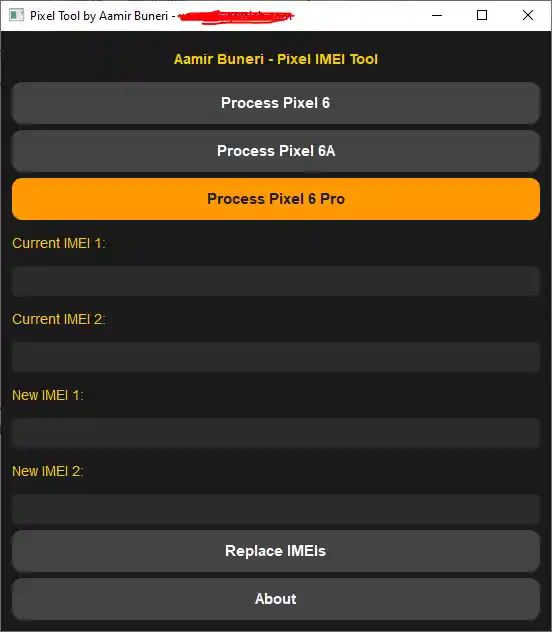
Choose model & write original imei from the box
Here’s how to use this powerful tool:
Download and extract the Tool:
- Download the tool (link in download section)
- Install any necessary drivers for your Google Pixel device on your computer.
Launch the Tool and Select Your Model:
- Open the Gsm6 Pixel 6 Series Toolkit on your PC.
- Choose your specific Pixel model: Pixel 6, Pixel 6a, or Pixel 6 Pro.
- The tool should show you the existing IMEI numbers (if any are present).
Enter New IMEI Numbers:
- In the tool, carefully write the new IMEI numbers. It is highly recommended to use the original IMEI numbers found on your phone’s box or SIM tray. This is crucial for legality and network compatibility.
Generate Modified devinfo.img:
- Click on the “Replace IMEIs” button within the tool.
- The Pixel IMEI repair tool will then create a new, modified
devinfo.imgfile specific to your chosen model and the IMEI numbers you entered. Make sure you know where this file is saved on your computer.
If you are new to this type of modification, consider watching the comprehensive video guide on the Learn With AM YouTube channel, which demonstrates using the Google Pixel 6, 6a, 6 pro cpid tool for Pixel 6 IMEI repair.
Step 3: Flashing the Modified devinfo.img to Your Google Pixel 6, 6a, or 6 Pro
Once you have your modified devinfo.img file, the next step is to flash it onto your Pixel device. This will apply the new IMEI and CPID information.
Follow these instructions to flash the file:
Reboot into Fastboot Mode:
- If your phone is currently on, power it off completely.
- Press and hold the Volume Down button and the Power button together until you see the Fastboot Mode screen again.
Connect to PC:
- Connect your device in Fastboot Mode to your PC using a USB cable.
Flash the devinfo.img file:
- Open a command prompt or terminal on your computer in the directory where your modified
devinfo.imgfile is saved. - Type the following command. You can drag and drop the modified
devinfo.imgfile into the command prompt window to automatically get its full path:fastboot flash devinfo <drag_&_drop_modified_devinfo.img_here> - Press Enter to run the command.
- Open a command prompt or terminal on your computer in the directory where your modified
Reboot Your Phone:
- After the flashing process is complete, you can reboot your phone to normal mode. You can do this by pressing the Power button on your device or by typing this command in the command prompt:
fastboot reboot
- After the flashing process is complete, you can reboot your phone to normal mode. You can do this by pressing the Power button on your device or by typing this command in the command prompt:
Your Google Pixel 6, 6a, or 6 Pro should now boot up. Once it is fully loaded, check your IMEI by dialing *#06#. Your IMEI and CPID issues should be fixed, and your device should be able to connect to mobile networks again. This is a common solution for Android IMEI and similar problems.
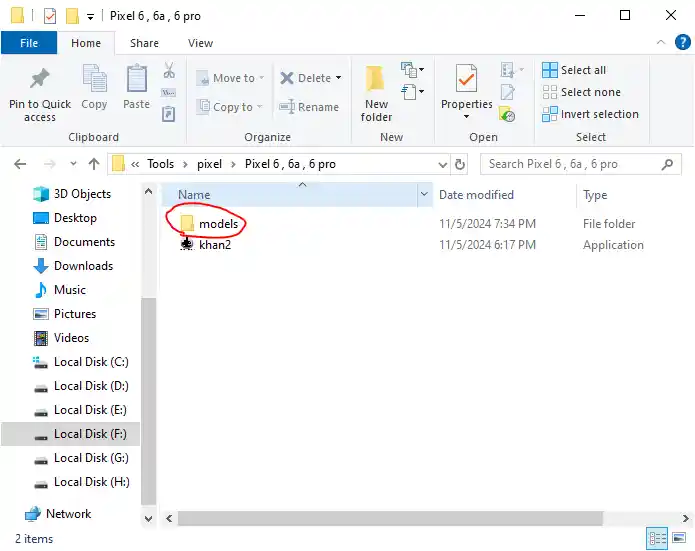
Destination directory for modified devinfo.img > models
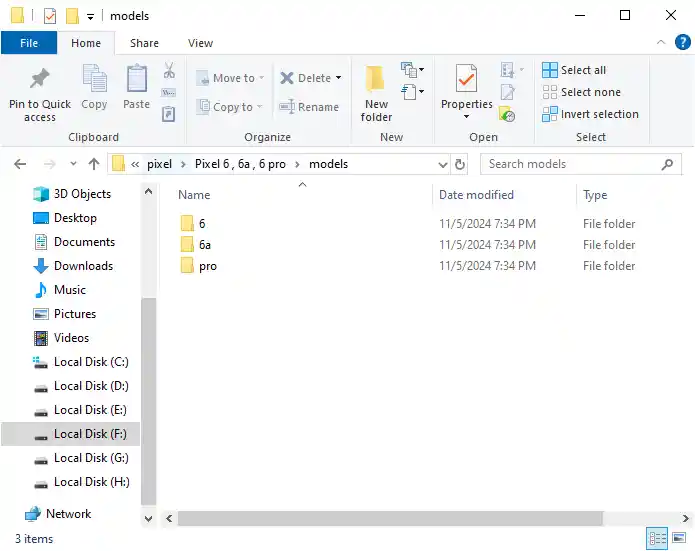
Destination directory for modified devinfo.img > models/6, 6a, pro
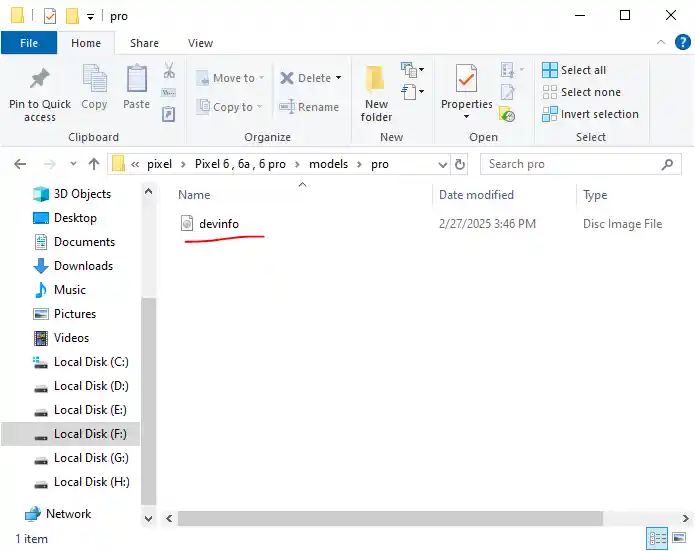
Destination directory for modified devinfo.img > models/6, 6a, pro/devinfo.img
Download: Google Pixel 6, 6a, 6 pro CPID Fix Tool
Pixel 6 CPID Tool Specifications
| Specification | Details |
|---|---|
| Tool Name | Google Pixel 6 Series CPID Repair Tool |
| Version | 2025.1.0 |
| Platform | Windows 7/8/10/11 (64-bit & 32-bit) |
| File Size | ~50 MB |
| License | Freeware |
| Price | Completely Free |
| Password | gsm6.com |
| Supported Models | Pixel 6, Pixel 6a, Pixel 6 Pro |
| SHA256 Hash | 160580598c10e41d783bdd730d038ac8a29b5463 |
| Release Date | October 2025 |
Repair Process Checklist
| Step | Tool Required | Time Required | Risk Level |
|---|---|---|---|
| 1. Bootloader Unlock | ADB Fastboot Tools | 5-10 minutes | High (Data Loss) |
| 2. IMEI Input | Pixel CPID Tool | 2-3 minutes | Medium |
| 3. devinfo.img Generation | Pixel CPID Tool | 1-2 minutes | Low |
| 4. Flash devinfo.img | ADB Fastboot Tools | 2-3 minutes | Medium |
| 5. Verification | Phone Dialer | 1 minute | Low |
Official Download Link: https://mega.nz/file/OglxDSJQ#A_FOExkBtZa2ET4aKQjYO5rIlJUadZ9BymD4l80lQBw
Other Required Downloads
You will also need these other files and tools to complete the process without errors.
Android USB Drivers: These drivers help your computer talk to your Pixel phone in Fastboot mode. You can find them on the GSM6.com website.
ADB & Fastboot Platform Tools: This is a set of command-line tools from Google that you will need for running commands like
fastboot flashing unlockandfastboot flash devinfo.
Need Help with These Files?
If you are not sure how to use these files, watch the full video guide on the Learn With AM YouTube channel. The video will show you exactly what to do with each file and how to use the tool.
Need a Video Guide? Watch the Step-by-Step Tutorial!
For a visual, easy-to-follow guide on how to perform this entire process, including using the Gsm6 Pixel 6 Series Toolkit and flashing the devinfo.img file, watch the detailed video tutorial on the Learn With AM YouTube channel:
Video Tutorial
Watch this guide for visual instructions
Uploaded: February 15, 2025
In this guide I have used google pixel 6 running on android version 15. Windows 10 (64bit)
FAQ (Frequently Asked Questions)
Frequently Asked Questions
Is this IMEI repair method truly free?
Yes, the method outlined in this guide, using the Gsm6 Pixel 6 Series Toolkit, is provided as a free solution to repair IMEI and CPID issues on your Google Pixel 6, 6a, or 6 Pro.
Is modifying my phone’s IMEI legal?
This is a critical legal consideration. Modifying an IMEI number may be illegal in many regions. You must confirm and comply with your local laws and regulations before attempting any IMEI alteration. This guide is for educational purposes for devices you legally own.
Will unlocking the bootloader void my phone’s warranty?
Yes, unlocking the bootloader will almost always void your device’s warranty with Google. If your device needs future repairs, Google or authorized service centers may refuse service under warranty.
Will I lose my data during this process?
Yes, unlocking the bootloader will wipe all user data from your device. It’s crucial to back up all important data (photos, contacts, apps, etc.) before starting Step 1.
What is the devinfo.img file, and why is it modified?
The devinfo.img file is a special partition on your Pixel device that stores important factory-provisioned information, including your device’s IMEI and other unique identifiers (like CPID). Modifying this file with the correct data is how the tool injects the new/repaired IMEI.
What is CPID, and why does it need fixing?
CPID stands for “Chip ID” or “Component ID.” It’s another unique identifier linked to your phone’s hardware. Issues with CPID, often alongside IMEI problems, can affect network connectivity and device recognition. Fixing it ensures your phone’s identity is correctly recognized.
Which Google Pixel models are supported by this method?
This specific method and the Pixel 6, 6a, pro cpid tool is designed for the Google Pixel 6, Pixel 6a, and Pixel 6 Pro. For Pixel 7,8 & 9 series (all models) you can follow this guide.
What if my phone gets stuck on the Google logo after flashing?
If your phone gets stuck on the Google logo (bootloop), it might be due to an active slot change (A or B). Try changing the active slot in Fastboot Mode. You might need to re-flash the correct factory image or follow specific troubleshooting for Google Pixel boot errors on GSM6.com.
Can this method fix a “null IMEI” or “IMEI 0000” error?
Yes, this method is specifically designed to address and fix “IMEI 0000” or “null IMEI” issues that can appear after software updates or other system corruption on Pixel 6 series devices.
Do I need any special drivers for my computer?
Yes, you will need the correct ADB and Fastboot drivers for your Google Pixel device installed on your Windows PC. These are often included with Android SDK Platform-Tools or can be installed via programs like 3uTools or by updating drivers manually in Device Manager.
Is the Gsm6 Pixel 6 Series Toolkit easy to use for beginners?
While the tool aims to simplify the process, performing IMEI repair and bootloader unlocking requires a basic understanding of fastboot commands and Android device flashing. Beginners should follow the video guide on Learn With AM very carefully.
What Android versions are supported for this fix?
This method is primarily aimed at Google Pixel 6 series devices running Android 14, Android 15, and even the latest Android 16 builds, as new updates can sometimes cause IMEI issues.
Can I relock the bootloader after performing the IMEI repair?
Yes, after confirming that your IMEI and CPID are fixed, you can relock the bootloader. However, be aware that relocking the bootloader will perform another factory reset and wipe your data. Always ensure the device is fully functional before relocking.
Where can I download the Gsm6 Pixel 6 Series Toolkit?
You can often find download links for the Gsm6 Pixel 6 Series Toolkit on the GSM6.com website or through links provided in the Learn With AM YouTube video tutorial. Always download from trusted sources to avoid malware.
What if I enter the wrong IMEI numbers?
Entering incorrect IMEI numbers can lead to network problems or other device issues. It’s critical to use the original IMEI numbers from your phone’s box or SIM tray to ensure proper functionality and legality.
Does this process involve rooting my Pixel device?
No, this process primarily involves unlocking the bootloader and flashing a specific partition (devinfo.img). While an unlocked bootloader is a prerequisite for rooting, this guide itself does not perform a full root of your device.
Can this fix “Your Device is Corrupt” errors?
Unlocking the bootloader and flashing correct system images can sometimes resolve “Your Device is Corrupt” errors. The linked resources on GSM6.com might offer more specific guidance for that particular error.
Why is it important to have the “original IMEI from the box”?
Using the original IMEI ensures that your phone’s unique identification remains consistent with its official records. This is vital for network recognition, warranty status (if applicable), and avoiding potential legal issues associated with duplicated or false IMEI numbers.
How long does the entire IMEI repair process take?
The entire process, including unlocking the bootloader, modifying, and flashing, can take anywhere from 20 minutes to an hour, depending on your technical comfort level and how smoothly each step proceeds.
What if I’m not a professional technician?
If you are not an experienced mobile technician, it is highly recommended to watch the full video guide on the Learn With AM YouTube channel multiple times before attempting this. Proceed with extreme caution, understanding all risks, or seek help from a qualified expert.


Author:
Abdul MalikMobile Software Expert and founder of GSM6.com. Specializes in FRP bypass, IMEI repair, and advanced mobile tools. All tutorials are tested on real devices for accuracy and safety.


