
• Abdul Malik (AM) • android • 1 min
Fix: Google Maps Saved Places Missing or Starred Locations Not Showing
Are your Google Maps saved places missing or starred locations not showing? Use these Ten fixes”including a new account-link workaround”to instantly restore your lists on Android and iPhone.
Key Takeaways
Missing saved/starred places are typically caused by sync glitches or corrupted local data.
Try quick wins first: re‘login, create a new list, or switch accounts.
The Account‘Link Workaround (below) reliably restores lists for most users in 2025.
Why Do Google Maps Saved or Starred Places Disappear?
Google Maps syncs lists between your devices and the cloud. If sign‘in tokens expire, local cache corrupts, or the app loses a clean sync state, your saved lists may not show”even though they still exist in your account. The fixes below force a fresh, clean resync.
Common Causes of Missing Saved Places
| Cause | Description | Solution Priority |
|---|---|---|
| Sync Glitch | Temporary server-client mismatch | High - Try Fix 1, 4, 5 |
| Cache Corruption | Local app data damaged | Medium - Try Fix 8 |
| Token Expiry | Authentication tokens expired | High - Try Fix 1 |
| Account Conflict | Multiple account interference | Medium - Try Fix 4, 9 |
| App Bug | Google Maps software bug | Low - Try Fix 6, 7 |
| Sync Disabled | Web & App Activity turned off | Medium - Try Fix 10 |
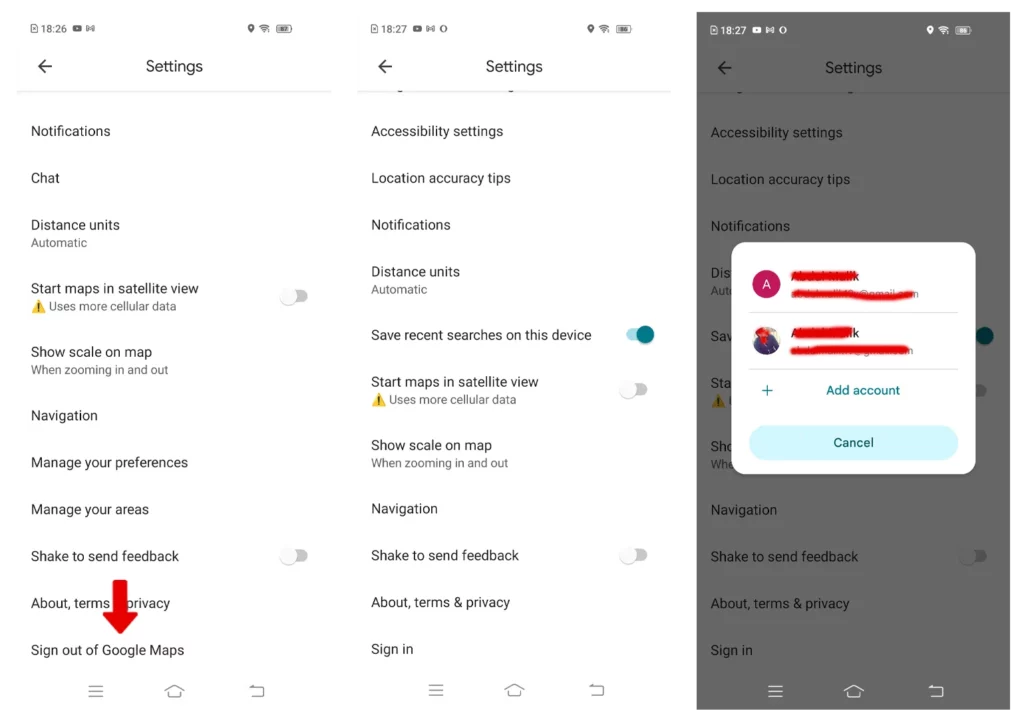
Fix 1: Re‘Login to Your Google Account
Open Google Maps †’ tap your profile.
Android: Manage accounts on this device †’ remove account †’ add again. iPhone: sign out †’ sign back in.
Reopen Maps and check your Saved tab.
Fix 2: Create a New List
Go to Saved †’ tap New list.
Name it, add a short description, set a type (Favorites/Want to go).
Add a few places and see if your missing items sync back.
if still Saved places not showing in Google Maps move to Fix 3.
Fix 3: Create a Web List
Open Google Maps on the web †’ Your places †’ Saved.
Click the ‹® next to a list †’ Share list †’ copy link.
Send the link to your phone and open it in the Maps app.
it will Restore Google Maps saved places 2025. or lets try fix 4
Fix 4: Switch Google Accounts
Tap your avatar †’ choose another signed‘in account or add one.
Return to your main account and recheck Saved.
Fix 5: Use Incognito Mode
Profile †’ Turn on Incognito mode.
Wait a minute or two †’ turn it off †’ verify lists.
Fix 6: Reinstall Google Maps on iPhone
Delete the app †’ install again from the App Store.
Sign back in and check your lists.
Fix 7: Re‘Enable Google Maps on Android
Open Settings †’ Apps †’ Maps.
Tap Disable, wait a moment, then Enable.
Open Maps and confirm your saved places.
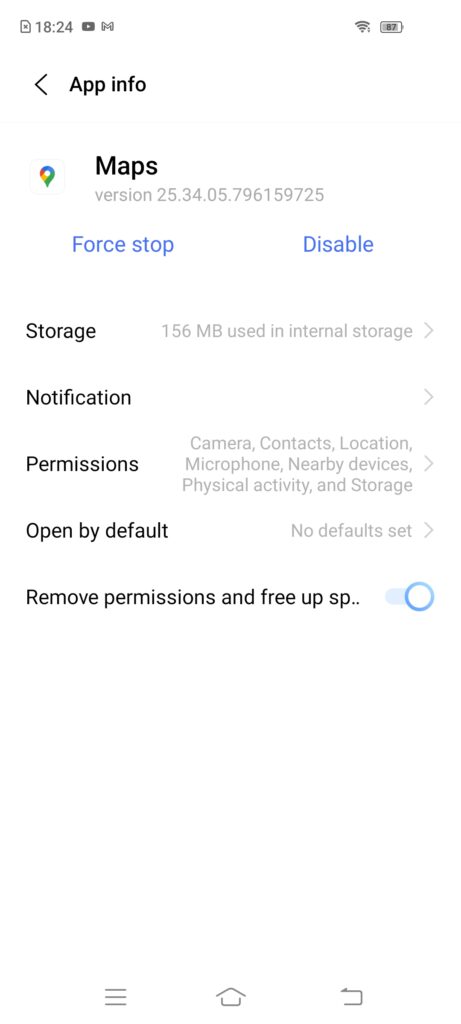
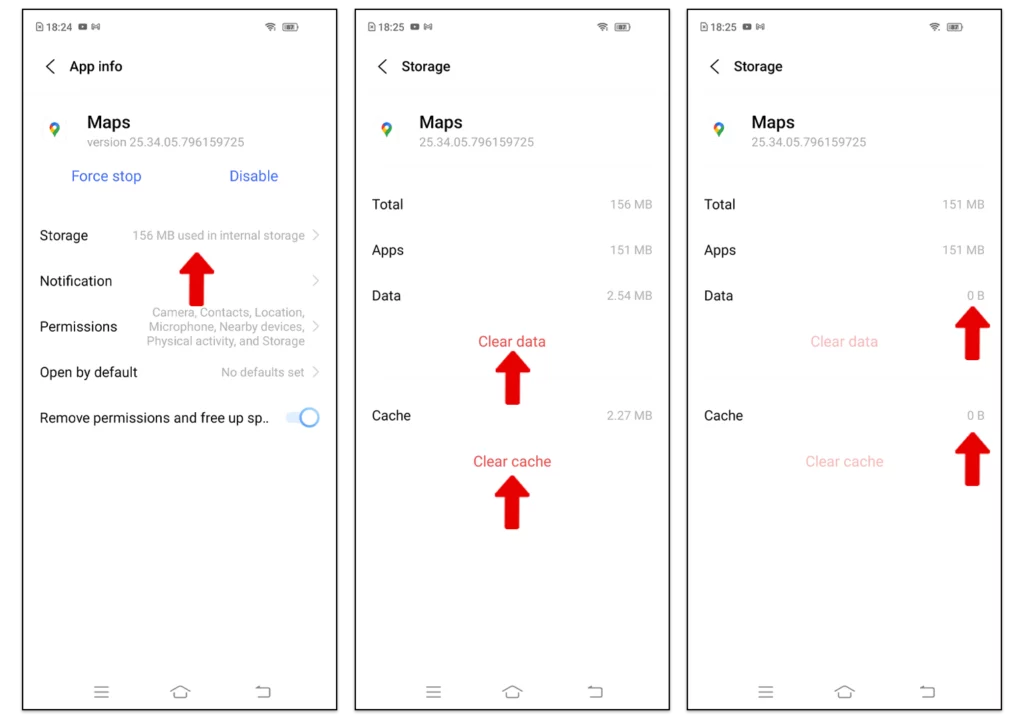
Fix 8: Clear App Data (Android)
Android App Data Clearing Steps
| Step | Action | Expected Result |
|---|---|---|
| 1 | Settings > Apps > Maps | Access app management |
| 2 | Tap Storage & cache | View storage usage |
| 3 | Tap Clear storage | Confirm warning dialog |
| 4 | Open Maps app | App resets to fresh state |
| 5 | Sign in again | Data syncs from cloud |
Settings †’ Apps †’ Maps †’ Storage & cache.
Tap Clear storage †’ confirm, then sign back in.
Fix 9 - Ultimate Workaround: Restore Lists via Another Google Account
This method has repeatedly brought back all missing lists when nothing else worked:
Account Link Workaround Process
| Step | Action | Purpose |
|---|---|---|
| 1 | Create new Google account (or use existing secondary) | Separate account for triggering sync |
| 2 | Sign into Maps with secondary account | Establish clean sync environment |
| 3 | Create new list, add locations | Generate sync trigger data |
| 4 | Make list public, copy share link | Create accessible sync bridge |
| 5 | Sign into primary account on phone | Return to affected account |
| 6 | Open shared link in Maps | Trigger cross-account sync |
| 7 | Save shared list to primary account | Force full data resync |
| 8 | Check original saved places | Lists should reappear |
Create a new list using a different Google account (e.g., your work Gmail). Add at least one place.
Make the list public and copy the shareable link.
On your affected phone, signed into your personal Gmail, open that link in the Google Maps app.
Save the shared list. This triggers a full resync”your original lists should reappear and become editable.
Real‘world result: “Been stuck for months”tried this and BOOM, everything came back instantly.”
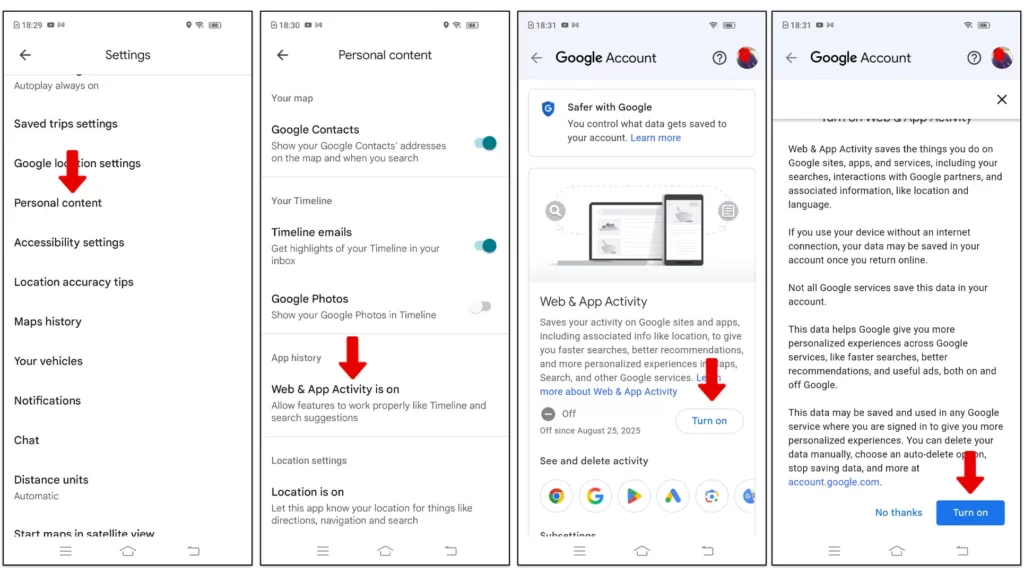
Fix 10 - Turn on Web & App Activity
its very rare but possible, if your web & app activity turned off you will not get previously synced maps data on new device.
Open Google maps settings
tap on Personal Content
under app history section tap on Web & app activity.
if its turned OFF just tap & Turn ON
it will show a confirmation message tap on Turn ON again & then check if your saved locations are back.
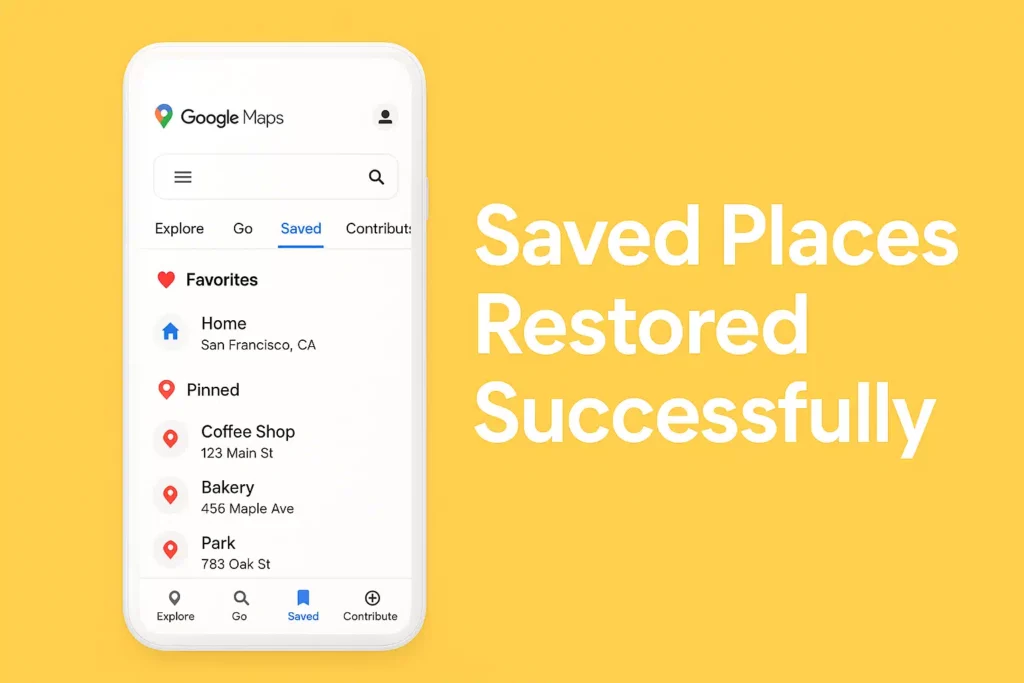
Fix Selection Guide
Which Fix to Try First?
| Situation | Recommended Fixes | Success Rate |
|---|---|---|
| Lists disappeared suddenly | Fix 1, 4, 5 | 70-80% |
| Never appeared on new device | Fix 10, 3, 9 | 60-70% |
| Some lists show, others don’t | Fix 2, 9, 3 | 80-90% |
| App crashing or freezing | Fix 6, 7, 8 | 90-95% |
| Nothing works | Fix 9 (Workaround) | 95%+ |
Prevent It From Happening Again
Prevention Tips
| Tip | How It Helps | Implementation |
|---|---|---|
| Regular Backup | Export lists to secondary account | Monthly sharing to backup account |
| Keep Updated | Latest bug fixes and improvements | Enable auto-update in app store |
| Single Account | Reduce sync conflicts | Use one Google account for Maps |
| Web Verification | Cross-check list existence | Weekly check on maps.google.com |
| Avoid Data Clearing | Preserve local sync state | Only clear cache, not storage |
Back up lists: Share key lists to a secondary account or keep a private link.
Keep Maps updated: Install the latest version from Play Store/App Store.
Avoid nuking data: Don’t clear app storage unless you’ve synced first.
Common Fixes in this Article: Google Maps saved places missing Saved places not showing in Google Maps Google Maps favorites disappeared fix Restore Google Maps saved places 2025 Google Maps saved tab not working
Frequently Asked Questions
Why did my saved places disappear?
Usually a temporary sync issue, token expiry, or cached data conflict. The steps above refresh your account and force a clean resync.
Do these fixes work on both Android and iOS?
Yes”every method above supports Android, iPhone, and the web version where noted.
Is reinstalling required?
Only if simpler fixes fail. Reinstalling (Fix 6/7) is a last resort that clears deep app corruption but requires signing in again.
Can I get my lists back if I cleared data?
As long as your lists were synced to your Google account, they’ll return after you sign back in.
How long does it take for saved places to reappear?
Usually immediately after applying fixes. Some cases may take 5-10 minutes for full sync. Check web version first to confirm lists exist in cloud.
Will I lose my saved places permanently?
No, saved places are stored in your Google account cloud. Even if app data is cleared, lists remain in your account and will sync back when properly connected.
Does Google have an official solution?
Google acknowledges sync issues but doesn’t provide specific fixes. Their general advice is to check account sync, update app, or contact support. Our guide provides practical solutions beyond their generic advice.
Can I export my saved places for backup?
Yes, via Google Takeout (takeout.google.com). Select Google Maps data to export all saved places as KML/CSV files for permanent backup.
Why do only some lists disappear?
This indicates specific list corruption rather than global sync failure. Try Fix 2 (create new list) or Fix 9 (account link workaround) which often resolves partial list disappearance.
Will these methods delete my other Google data?
No, these methods only affect Google Maps data. Your Gmail, Photos, Drive, and other Google services remain untouched.
What if I have multiple Google accounts?
Account switching (Fix 4) often resolves conflicts. Ensure you’re checking saved places in the correct account by tapping your profile picture in Maps to verify active account.
Can I prevent this from happening?
Yes: 1) Keep app updated 2) Regularly check web version 3) Backup via Google Takeout quarterly 4) Avoid clearing app storage unnecessarily.
Is this a Google Maps bug?
Likely a sync issue rather than bug. Google Maps syncs across web, Android, iOS which can sometimes cause temporary mismatches, especially after app updates.
What’s the success rate of these fixes?
Based on user reports: Fix 1-5 work for 70% of cases, Fix 9 works for 95% of stubborn cases. The account link workaround (Fix 9) has highest success rate for persistent issues.
Do I need technical skills?
No, all fixes are step-by-step with screenshots. Most require only basic phone navigation skills. Follow instructions carefully for best results.
What if nothing works?
If all 10 fixes fail: 1) Wait 24 hours (sometimes server-side) 2) Contact Google Support 3) Use Google Takeout to export data 4) Manually recreate lists as last resort.
Can this happen on iPhone and Android equally?
Yes, affects both platforms. The fixes are mostly identical with minor platform-specific steps (like clearing data vs reinstalling).
Will updating Google Maps help?
Possibly, if the issue is app-specific bug. Always ensure you have latest version from official app stores before troubleshooting.
How can I verify my lists exist in cloud?
Visit maps.google.com on computer, click menu > Your places > Saved. If lists appear here, they exist in cloud and will sync to phone with proper fixes.
Can network issues cause this?
Poor connectivity can prevent sync but shouldn’t cause permanent disappearance. Lists should reappear when connection improves. Use Wi-Fi for troubleshooting.


Author:
Abdul MalikMobile Software Expert and founder of GSM6.com. Specializes in FRP bypass, IMEI repair, and advanced mobile tools. All tutorials are tested on real devices for accuracy and safety.


