
• Abdul Malik (AM) • android • 1 min
Fix Your Device is Corrupt Error on Android - Complete Guide 2026
Have you ever turned on your Android phone and seen the scary message: “Your device is corrupt. It can’t be trusted and may not work properly”? This frustrating bootloader error can make your phone unable to start, leaving many people worried about losing their important data or that their phone is broken forever.
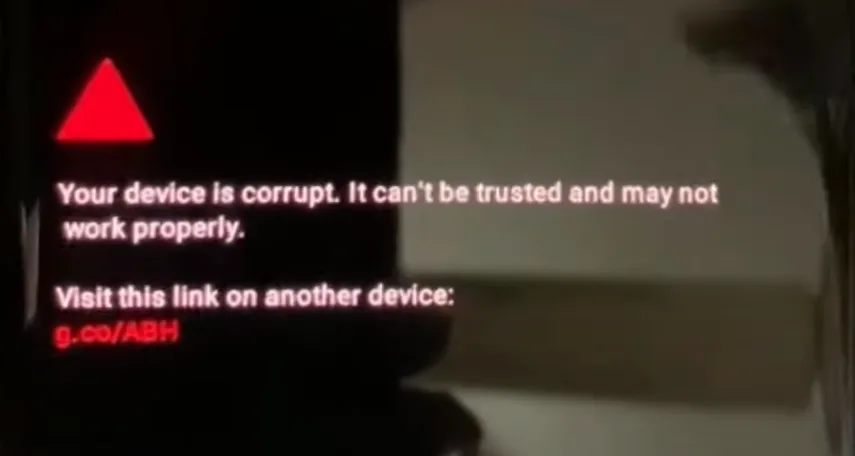
error “Your Device is Corrupt”
But do not panic”this complete guide will show you many proven ways to fix the “device is corrupt” error in 2025. We will explain exactly why this problem happens and give you advanced steps to fix it, even if the simple solutions do not work. We are here to help you get your phone working again!
By the end of this guide, you will know exactly how to fix the “your device is corrupt” error on Android devices like Google Pixel, Samsung, and OnePlus, and get your phone booting normally again. Let’s get started!
š ï¸ Disclaimer
This guide is for educational and authorized repair purposes only.
Do not use it on stolen or unauthorized devices.
Unlocking bootloaders, flashing firmware, or modifying partitions may void warranty and can cause data loss.
GSM6.com and AM are not responsible for misuse, damage, or legal issues.
Always follow this guide only if you own the device or have explicit permission to repair it.
Understanding & Solving the “Your Device is Corrupt” Error
When your Android device shows the “Your device is corrupt” message, it means the bootloader (a special piece of software that starts your phone) has found a very serious problem with your system’s files. This is not just a small crash; it is a deep issue that stops your phone from starting at all.
What Does the “Device is Corrupt” Message Mean?
This warning means that a critical part of your phone’s software is damaged or has been changed in a way that Google (or your phone maker) does not trust. This usually happens because of:
Corrupted System Files: This can happen during a bad software update, from harmful software (malware), or if there were mistakes when flashing new files.
Modified or Tampered Boot Partitions: This is a very common reason, especially if you have tried to “root” your phone, install custom software (custom ROMs), or make other deep changes. The boot partitions are like the first instructions your phone reads to start up.
Hardware Failure: This is not as common, but sometimes a faulty internal storage chip can cause this error.
Unlike a simple app crash, this “device is corrupt” error completely stops your device from booting, making it a high-priority problem that needs fixing right away.
Affected Devices: Google Pixel, Samsung, OnePlus & More
This “your device is corrupt” problem is most common on Google Pixel devices, often after big software updates. But it can also affect many other popular Android brands:
Common Devices with Corrupt Error
| Device Brand | Common Models | Typical Causes |
|---|---|---|
| Google Pixel | Pixel 3-8, Pro models | OTA updates, custom ROM flashing |
| Samsung | Galaxy S/Note/A series | Root attempts, firmware corruption |
| OnePlus | 7-12 series | OxygenOS updates, custom kernels |
| Xiaomi | Redmi, POCO, Mi series | MIUI updates, bootloader unlocking |
| Motorola | Edge, G series | Failed updates, partition errors |
| Nokia | Android One devices | System updates, software conflicts |
Method 1: The Fastboot Fix (Switching Boot Slots) “ Your First and Easiest Solution
Most modern Android devices use a clever system called A/B partitioning. This means your phone has two identical sets of system partitions (think of them as two separate “slots,” A and B). If one slot gets corrupted (for example, after a bad update), your phone often cannot boot from it. The good news is that switching to the other, working slot can often resolve the “Your device is corrupt” error immediately without losing your data! This is a very common and effective Fastboot fix for this error.
Step-by-Step Fastboot Solution to Fix the Corrupt Error
To perform this fix, you will need a computer and some basic tools.
Fastboot Fix Process
| Step | Action | Command/Details |
|---|---|---|
| 1 | Enter Fastboot Mode | Power + Volume Down (most devices) |
| 2 | Connect to PC | Use quality USB cable |
| 3 | Check Current Slot | fastboot getvar all |
| 4 | Switch Active Slot | fastboot set_active a or fastboot set_active b |
| 5 | Reboot Device | fastboot reboot |
| 6 | Verify Boot | Check if phone starts normally |
Enter Fastboot Mode on Your Device:
First, power off your Android device completely. Make sure it is truly off.
For most Android devices (including Google Pixel, Motorola, Xiaomi), press and hold the Power button + Volume Down button at the same time for a few seconds until you see the Fastboot Mode screen (it often shows an Android robot or text).
For Samsung devices, you usually need to try Power button + Volume Up button + Bixby button (if your phone has one) or connect it to a PC while holding Volume Down + Power.
For OnePlus devices, you might use Power button + Volume Up button + Volume Down button.
If you are having trouble, search online for “[Your Phone Model] Fastboot Mode” to find the exact key combination.
Connect to a Computer & Install Tools:
Connect your device to your PC or Mac using a high-quality USB cable.
On your computer, you need to install Google’s Platform Tools (ADB & Fastboot). These are essential for sending commands to your phone. We will provide download links in the “Download Section” below.
You also need to install Android USB Drivers on your Windows PC so your computer can properly see your phone in Fastboot Mode. (Mac and Linux users usually do not need separate drivers.)
Open Command Prompt (on Windows) or Terminal (on Mac/Linux). To do this on Windows, type
cmdinto the Start menu search bar and press Enter.
Check the Current Boot Slot to Fix the Corrupt Error:
In your Command Prompt or Terminal, type this command and press Enter:
fastboot getvar allThis command shows you a lot of information about your phone. Look for a line that says
current-slot: aorcurrent-slot: b. This tells you which system slot your phone is currently trying to boot from.
Switch to the Opposite Boot Slot:
Based on what you found in the previous step:
If the
current-slotisa, you need to switch to slotb. Type:fastboot set_active bIf the
current-slotisb, you need to switch to slota. Type:fastboot set_active a
Press Enter after typing the command.
Reboot Your Device:
After switching the active slot, type this command to restart your phone:
fastboot rebootPress Enter.
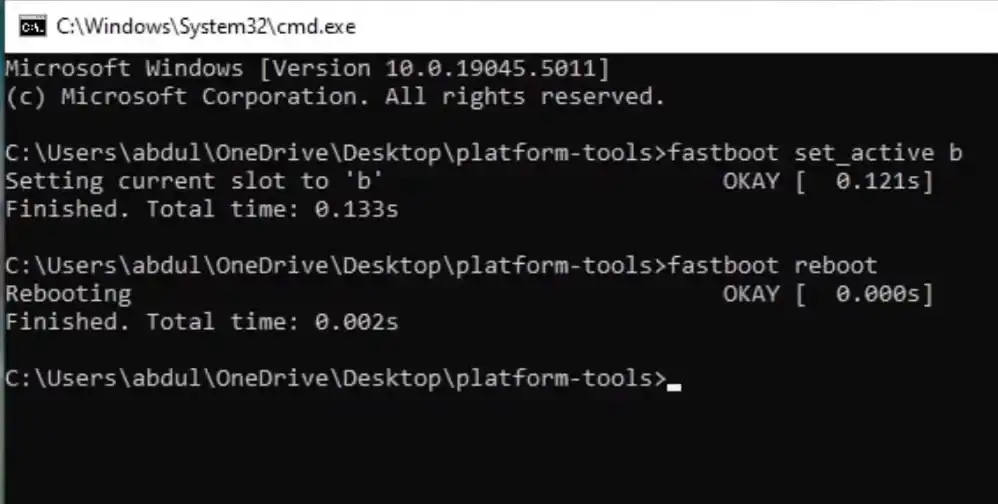
change active slot command to fix your device is corrupt error screenshot.
œ… Success! Your device should now boot normally, fixing the “your device is corrupt” error. This Fastboot command often works like magic because you’re telling your phone to use a healthy system copy.
Video Tutorial (For Visual Learners)
For a clear, step-by-step video guide on how to perform this Fastboot fix, including installing the tools and running the commands, watch the tutorial on my YouTube channel, Learn With AM:
in this guide i have used Google Pixel 6 Pro, Android 15 & facing “Your device is Corrupt” error. Windows pc with Microsoft windows 10 64 bit. watch full step-by-step video by gsm6
Video Tutorial
Watch this guide for visual instructions
Uploaded: September 25, 2025
Method 2: Reflash Stock Firmware (If Fastboot Fails to Fix “Your Device is Corrupt”)
If simply switching boot slots in Fastboot Mode does not fix your “device is corrupt” error, it means your entire system partition might be deeply corrupted. In this more serious case, flashing the stock firmware (the original software your phone came with) is the next best solution. This process will completely replace your phone’s operating system, which almost always fixes software-related corruption.
How to Flash Stock ROM to Fix Corrupt Android Device
š Warning: This process will erase all data from your device. Only proceed if you have already backed up your important data or if data recovery is no longer an option.
Firmware Flashing Methods by Brand
| Brand | Recommended Tool | Official Source |
|---|---|---|
| Google Pixel | Android Flash Tool, Fastboot | Google Factory Images |
| Samsung | Odin Tool | SamMobile |
| OnePlus | MSM Tool, Fastboot | OnePlus Downloads |
| Xiaomi | Mi Flash Tool | Xiaomi Firmware |
| Motorola | Rescue and Smart Assistant | Motorola Support |
Download the Correct Stock Firmware:
You need to download the official stock firmware (often called a “factory image” or “stock ROM”) specifically for your exact phone model and region. Getting the wrong firmware can cause more problems.
For Google Pixel devices: You can download official factory images directly from Google.
- Official Google Factory Images Source: https://developers.google.com/android/images
For Samsung, OnePlus, Xiaomi, Motorola, etc.: You will need to search for “[Your Phone Model] stock firmware download” on Google. Always try to find the firmware from your phone manufacturer’s official support website or very reputable, well-known Android development communities like XDA Developers.
You will also need to ensure you have the Compatible USB Drivers installed on your computer.
Boot into Fastboot/Download Mode:
- Follow the same steps as in Method 1 to get your device into Fastboot Mode. (For some Samsung devices, this might be called “Download Mode” or “Odin Mode” and requires a different flashing tool called Odin, which is specific to Samsung. For Pixel and OnePlus, Fastboot is usually enough.)
Flash Using Fastboot (for Pixel/OnePlus/Generic AOSP devices):
Once your device is in Fastboot Mode and connected to your PC, open Command Prompt or Terminal in the folder where you downloaded and extracted your stock firmware files.
Stock firmware packages usually contain several
.imgfiles (likeboot.img,system.img,vendor.img, etc.). You will flash these files one by one. The exact commands can vary, but generally, it involves:fastboot flash boot boot.imgfastboot flash system system.imgfastboot flash vendor vendor.img# ...and so on for other necessary partitions likedtbo.img, product.img, etc.Note: Many factory image downloads come with a script (e.g.,
flash-all.batfor Windows orflash-all.shfor Linux/Mac) that automates these commands. If available, running this script is usually the easiest way.
Reboot & Check:
- After all necessary partitions are flashed, reboot your device:
fastboot reboot
- After all necessary partitions are flashed, reboot your device:
Your device should now restart with the fresh stock firmware, which should completely fix the “your device is corrupt” error.
Method 3: Factory Reset (Last Resort Before Professional Repair)
If neither the Fastboot slot-switching method nor reflashing stock firmware works to fix the “your device is corrupt” error, a factory reset might be your last software resort. This is often done through the device’s Recovery Mode.
Steps to Factory Reset via Recovery Mode
📌 Note: This will delete all personal data from your device. Use this as a very last resort if you have no backup and the other methods have failed.
Recovery Mode Factory Reset Process
| Step | Action | Key Combinations |
|---|---|---|
| 1 | Power Off Device | Hold Power button, select Power Off |
| 2 | Enter Recovery | Power + Volume Up (most devices) |
| 3 | Navigate Menu | Use Volume buttons to scroll |
| 4 | Select Wipe Data | Power button to select |
| 5 | Confirm Reset | Select Yes/Factory data reset |
| 6 | Reboot System | Select Reboot system now |
Boot into Recovery Mode:
Power off your device completely.
The key combination for Recovery Mode is different from Fastboot Mode for some devices. For most Android devices, it’s typically Power button + Volume Up button. For others, it might be a specific sequence. If unsure, search for “[Your Phone Model] Recovery Mode”.
You should see a menu with options like “Reboot system now,” “Wipe data/factory reset,” etc.
Select “Wipe Data/Factory Reset”:
Use the Volume buttons to move up and down in the menu.
Use the Power button to select “Wipe data/factory reset.”
Confirm & Reboot:
You will be asked to confirm this action, as it will delete all your data. Select “Yes” or “Factory data reset.”
Once the reset is complete, select “Reboot system now.”
Hopefully, your device will now boot up normally. If even a factory reset fails, it might indicate a deeper hardware problem, and you should consider professional repair.
Why Did This Happen? (Prevention Tips)
Understanding why the “Your device is corrupt” error occurs can help you avoid it in the future:
Prevention Guidelines
| Prevention Tip | Why It Helps |
|---|---|
| Don’t interrupt updates | Prevents partial/corrupted system writes |
| Use reliable power sources | Avoids voltage fluctuations during writes |
| Quality USB cables | Ensures stable data transfer during flashing |
| Regular backups | Protects data if repair requires wipe |
| Avoid untrusted mods | Reduces risk of incompatible system changes |
| Keep bootloader locked | Unless necessary for custom development |
Avoid Interrupting System Updates: Always let OTA updates complete fully. Do not power off your phone, remove the battery, or unplug it from power during an update.
Don’t Root/Flash ROMs Without Proper Knowledge: Advanced modifications like rooting or flashing custom ROMs carry significant risks. Only attempt these if you fully understand the process, potential consequences, and how to recover.
Use Reliable Cables & Power Sources: A bad USB cable or an unstable power supply during flashing or updating can corrupt system files.
Backup Regularly: This is the most important tip! Regularly back up your data to Google Drive, a local computer, or an external drive. This way, even if you lose data during a fix, your important files are safe.
Final Thoughts & Support to Fix “Your Device is Corrupt”
The “Your device is corrupt” error can be scary, but it’s usually fixable. The Fastboot method of switching boot slots is often the fastest and easiest solution. If that doesn’t work, reflashing stock firmware or a factory reset should get your device back to normal.
- 🔹 Need more help?
- Watch YouTube Tutorials: For visual step-by-step guides and more advanced troubleshooting, make sure to check out the Learn With AM YouTube channel. AM offers many helpful videos for Android device fixes.
By following this guide, your device should be back to normal in minutes!
Download Section: ADB & Fastboot Platform Tools and USB Drivers
To perform the Fastboot commands mentioned in this guide, you will need the correct tools and drivers on your computer.
— IMPORTANT: Always download these tools from official and trusted sources to avoid malware.
Required Tools Summary
| Tool | Purpose | Download Source |
|---|---|---|
| ADB & Fastboot | Command line tools for device communication | Android Developers |
| Android USB Drivers | Windows driver for device recognition | Official Manufacturer Sites |
| Device-Specific Tools | Manufacturer flashing tools | See brand-specific links above |
1. Google’s Platform Tools (ADB & Fastboot)
This package contains adb.exe and fastboot.exe, which are necessary for sending commands to your Android device.
- For Windows, Mac, and Linux: Download the latest version directly from Google’s official Android Developers website.
- Download Link for Platform Tools (ADB & Fastboot): Article Link (Always read related articles before downloading or using any tools)
2. Android USB Drivers
These drivers allow your Windows computer to properly recognize your Android device in Fastboot Mode. Mac and Linux users usually do not need to install separate drivers.
- For Windows:
- Download Universal Android USB Driver: Article Link (must read article before downloading, to learn compatibility & other necessary details)
Frequently Asked Questions
My computer doesn’t see my phone in Fastboot mode. What’s wrong?
This is a driver problem. Your PC needs the right Android USB drivers to talk to your phone. It is a common issue. Go to the download section and get the drivers. Install them, then try again. Sometimes, a different USB cable or a different USB port on your computer can also fix it.
The command fastboot set_active b gives me an error. What should I do?
If the command fails, it is usually because you do not have the latest Platform Tools. The set_active command is new. Go to the download section and make sure your ADB and Fastboot files are the newest version from Google. Try again after you update them.
My phone is stuck in a loop. It just keeps going back to the same “corrupt” screen.
This is a fastboot loop. It happens if the phone cannot boot from either slot. This means both slots might be broken. The next step is to reflash the full stock firmware for your device. It will fix everything but will also wipe your data.
Will this fix my “corrupt” device without deleting my photos and data?
The first method, switching the active slot, is designed to keep your data safe. It usually works without a factory reset. But if you have to use Method 2 (flashing stock firmware) or Method 3 (factory reset), you will lose everything. Always back up your data before you start.
I have a Samsung. My phone won’t go into Fastboot mode. What do I do?
Samsung phones are different. They use “Download Mode” or “Odin Mode,” not Fastboot. You need to use a different tool, like Odin, to flash firmware. The A/B slot method might not work. This guide is mainly for Google Pixel and other A/B devices. For Samsung, check out the other guides on GSM6.com.
My bootloader is locked, and I can’t enable OEM unlocking because the phone won’t boot. The commands don’t work.
This is a big problem. Many fastboot commands, including flashing unlock, only work on phones with OEM unlocking turned on. If you cannot boot your phone to turn it on, this is a very difficult fix. You may have to use a special tool that can fix it with a locked bootloader or a special “rescue” flashing tool from your phone’s maker.
How do I know if the problem is a software issue or if my phone is just broken?
If you can still get into Fastboot Mode, there is a very good chance it is a software problem. If the phone is completely dead and does not respond to anything, it might be a hardware issue (like a broken memory chip). As long as you can get to the Fastboot screen, you have hope.
The video is old, is this still a good guide for 2025?
The method is still valid for 2025. The commands and the idea of switching A/B slots are basic and do not change. The most important thing is to use the latest version of Platform Tools and the correct stock firmware for your device.
Why should I trust this guide? Who is AM?
This guide is from Learn With AM on YouTube and GSM6.com. My work is based on many years of real experience in mobile device software and hardware repair. I have worked on hundreds of devices and have created many free guides and tools to help people fix their own phones. I share these free resources on my website and YouTube channel to provide trustworthy solutions that work. The information here is tested and proven.
Is it illegal to follow this guide? What about my warranty?
No, following a guide is not illegal. However, unlocking the bootloader and flashing a new operating system will void your warranty. It is your choice to take this risk. If you are changing an IMEI, that may be illegal in your region. Always check your local laws first. This guide is for educational purposes on devices you own.
What are the risks of doing this myself? Is it safe?
Doing it yourself is not as safe as giving it to a pro. The biggest risks are: Losing your data: You must back up everything first. Bricking your phone: If you flash the wrong file or the process fails, your phone can become a paperweight. Voiding the warranty: The manufacturer will not help you if something goes wrong. This guide gives you the exact steps to lower these risks, but they are still there. Only continue if you accept these risks.
How can I prevent the “your device is corrupt” error from happening again?
The best way to prevent this error is to never interrupt a system update. Let all updates finish completely without touching the phone. Also, do not install custom software or root your device unless you fully understand the risks. Always use original, high-quality USB cables and reliable computers for any flashing process.
What is the difference between Fastboot and ADB?
They are both tools that let a computer talk to your Android phone, but they work in different ways. ADB (Android Debug Bridge) is used when your phone is running the operating system. It lets you send commands to install apps, copy files, and reboot the phone. Fastboot is used when your phone is in a special bootloader mode. It is a more powerful tool that lets you flash (install) new software, erase partitions, and manage the bootloader. It is a lower-level tool for deeper changes, like the ones in this guide.
I’m not good at this. Where can I get more help if I am stuck?
If you get stuck, do not keep trying and risk breaking your phone. Stop and re-read the guide. Make sure you followed every step. Watch the video again. The video on my Learn With AM YouTube channel shows you exactly what to do. Join the community. You can find more help on the gsm6 community forum. Other people have had the same issues and can help you.
Will it work if my Pixel won’t boot?
it depends. if you pixel device is currupted & stuck in fastboot due to running on empty active slot, this solution will work for you. always check current active slot before doing anything with your device’s firmware.
What is A/B partitioning?
A/B partitioning is a system where Android devices have two sets of system partitions (slot A and slot B). This allows for seamless updates - you can use one slot while the other updates in background. If one slot becomes corrupt, you can switch to the other.
How long does the Fastboot fix take?
The actual Fastboot commands take 30-60 seconds. The entire process including setup and troubleshooting might take 5-15 minutes for most users.
Can this error damage my phone permanently?
Usually no, this is a software error that can be fixed. However, if you repeatedly flash incorrect firmware or interrupt processes, you could cause permanent hardware issues. Follow instructions carefully.
Will this work on Android 14/15 devices?
Yes, the Fastboot slot switching method works on Android 14 and 15 devices with A/B partitioning. The commands remain the same across Android versions.
What if I get “waiting for device” message?
“waiting for device” means your computer isn’t detecting the phone. Check: USB drivers installed, cable working, phone in correct mode (Fastboot), USB debugging enabled (if required).
Can I use this guide for tablets too?
Yes, the same principles apply to Android tablets with A/B partitioning. The Fastboot commands and recovery processes work identically on compatible tablets.
What’s the success rate of these methods?
Method 1 (slot switching) has about 80-90% success rate for devices with A/B partitioning. Method 2 (firmware flash) has 95%+ success rate for software issues. Hardware failures require professional repair.
Do I need to unlock bootloader first?
For slot switching (Method 1), usually no. For flashing firmware (Method 2), sometimes yes depending on device. Check your specific device requirements.
How to backup data if phone won’t boot?
If phone won’t boot to system, data backup is difficult. You might try ADB pull commands in Recovery Mode or use professional data recovery tools/services.


Author:
Abdul MalikMobile Software Expert and founder of GSM6.com. Specializes in FRP bypass, IMEI repair, and advanced mobile tools. All tutorials are tested on real devices for accuracy and safety.


