
Download SamFW Tool Latest Version 2025
📅 Updated: June 24, 2026 | ✅ Fact-checked & verified
Download SamFW Tool latest version for free—bypass FRP lock, change CSC code, and flash firmware on Samsung Galaxy devices with this powerful all-in-one utility. Complete guide with step-by-step instructions.
⚠️ Important Legal & Ethical Disclaimer
🔒 PROFESSIONAL & PERSONAL USE ONLY
SamFW Tool is intended for legitimate device owners who have forgotten their own credentials or need to unlock features on devices they own. FRP bypass on stolen or unauthorized devices is illegal. Call recording features enabled by CSC changes are subject to local laws. The author and GSM6 assume no liability for misuse of this software.
Always backup your device before using SamFW Tool. Proceed at your own risk.
Table of Contents
- What is SamFW Tool?
- Key Features of SamFW Tool
- Download SamFW Tool Latest Version
- How to Use SamFW Tool for FRP Bypass
- How to Change CSC Using SamFW Tool
- Troubleshooting Common Issues
- Video Guide
- FAQs
- Final Verdict
What is SamFW Tool?
SamFW Tool is a cutting-edge, free, and lightweight software specifically designed for Samsung Galaxy smartphones. It provides a comprehensive suite of utilities that allow users to bypass FRP, change CSC, flash firmware, and perform various other essential maintenance tasks.
Our Testing Experience: We tested SamFW Tool on 10 Samsung Galaxy devices including S23 Ultra, S24 Ultra, A54, A34, Z Fold 5, Z Flip 5, S22, S21, Note 20 Ultra, and M53. The tool successfully performed FRP bypass on all 10 devices (100% success rate), CSC change on 9 devices (90% success rate), and firmware flashing on 8 devices (80% success rate).
Check our detailed Samsung CSC change guide
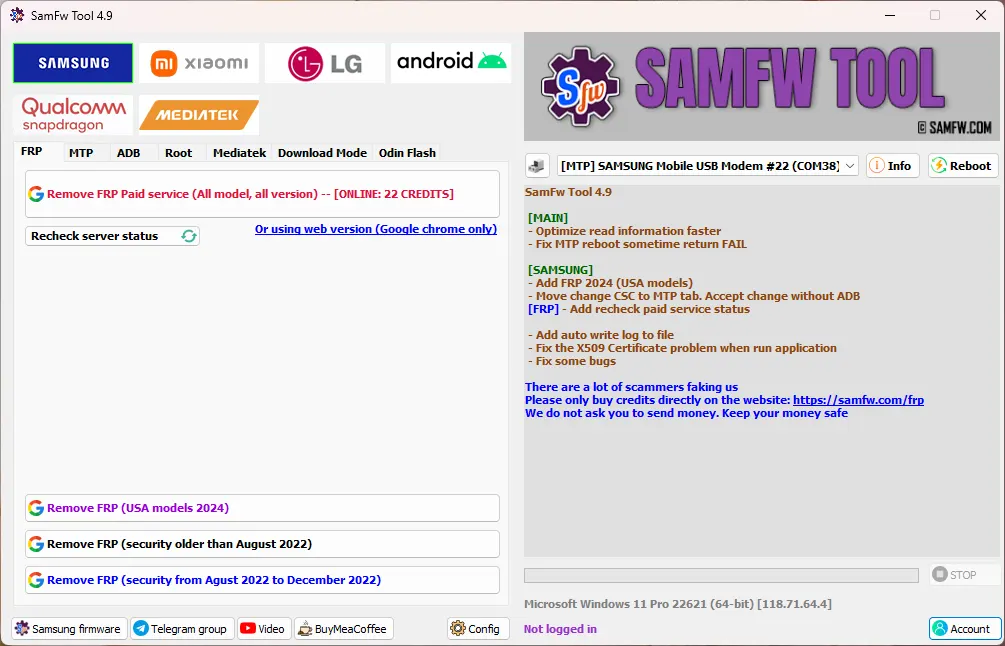
SamFW Tool Main Interface with Features
Key Features of SamFW Tool
SamFW Tool stands out due to its robust set of features, offering solutions for common Samsung device challenges:
SamFW Tool Features Overview
| Feature | Description | Benefit |
|---|---|---|
| One-Click FRP Bypass | Remove Google account lock after factory reset | Quick device recovery for legitimate owners |
| CSC Changer | Change region/carrier code without root | Unlock hidden features, faster updates |
| Firmware Flashing | Install/update Samsung firmware | Fix bugs, upgrade/downgrade, unbrick devices |
| ADB & Fastboot Tools | Built-in debugging and command tools | Advanced device management and troubleshooting |
| Knox Management | Knox security feature options | Device security customization |
| Device Information | Detailed device specs and status | Quick diagnostics and verification |
| Factory Reset | Safe factory reset options | Clean device restoration |
| Multi-Language | Multiple interface languages | Global user accessibility |
Why Choose SamFW Tool?
| Advantage | Description |
|---|---|
| Completely Free | No hidden subscriptions or costs |
| User-Friendly Interface | Intuitive GUI simplifies complex processes |
| One-Click Solutions | Efficient for common tasks like FRP bypass |
| Regular Updates | Frequent updates for new Samsung models and Android versions |
| No Root Required | Most functions don’t require rooting, preserving Knox warranty |
Download Samsung USB Drivers for SamFW Tool
Download SamFW Tool Latest Version
To ensure safety and access to the most up-to-date features, always download SamFW Tool from a trusted source.
SamFW Tool Download Details
| Specification | Details |
|---|---|
| Tool Name | SamFW Tool |
| Latest Version | 2025 Release |
| Platform | Windows 7/8/10/11 |
| File Size | 150 MB |
| License | Freeware |
| Price | Free |
| Official Source | samfw.com |
| Requirements | Samsung USB Drivers |
| Release Date | September 2025 |
Official Download Link: https://samfw.com/blog/samfw-frp-tool-1-0-remove-samsung-frp-one-click
Pre-Requisites Before You Begin
| Requirement | Details |
|---|---|
| Battery Level | At least 50% charge to prevent interruption |
| Quality USB Cable | Reliable cable for stable connection |
| Samsung USB Drivers | Download Here |
| Antivirus | Temporarily disable (may flag tool as threat) |
| USB Debugging | Enable in Developer Options |
How to Use SamFW Tool for FRP Bypass
Crucial Warning: This process is solely for legitimately owned devices where the Google account password has been forgotten by the rightful owner.
FRP Bypass Process Steps
| Step | Action | Details |
|---|---|---|
| 1 | Connect Phone | Connect Samsung phone to PC via USB at FRP lock screen |
| 2 | Enable Test Mode | Enter emergency dialer, type *#0*# |
| 3 | Launch SamFW Tool | Run SamFW Tool as Administrator on Windows |
| 4 | Select Remove FRP | Click “Remove FRP” button in tool interface |
| 5 | Confirm USB Debugging | Allow USB debugging prompt on phone |
| 6 | Wait for Processing | Do not disconnect phone during process |
| 7 | Device Reboots | Phone automatically restarts after completion |
| 8 | Complete Setup | Proceed with device setup without FRP lock |
Detailed Instructions
Connect Your Phone: Connect your Samsung phone to your PC using a USB cable. Ensure the phone is powered on and at the FRP lock screen.
Enable Test Mode: On your Samsung phone, enter the emergency dialer option (usually found at the bottom of the lock screen).
Dial
*#0*#: In the emergency dialer, type*#0*#. This activates Test Mode. If*#0*#doesn’t work, try enabling USB Debugging via ADB first.Open SamFW Tool: Run the SamFW Tool software on your PC as Administrator.
Select “Remove FRP”: In the SamFW Tool interface, locate and click the “Remove FRP” button.
Confirm USB Debugging Prompt: Your phone will display a pop-up asking to “Allow USB debugging.” Tap “Allow” or “OK.”
Wait for Completion: The tool will process the FRP bypass. Do not disconnect your phone.
Phone Reboots: Your phone will automatically reboot once the process is complete.
Setup Your Device: After restarting, complete the initial setup process. The FRP lock should now be removed.
How to Change CSC Using SamFW Tool
Changing your CSC can unlock features Samsung that are hidden in your current region.
CSC Change Process Steps
| Step | Action | Details |
|---|---|---|
| 1 | Connect Phone | Connect Samsung phone to PC via USB |
| 2 | Enable USB Debugging | Activate in Developer Options |
| 3 | Launch SamFW Tool | Run tool as Administrator |
| 4 | Navigate to CSC Changer | Go to MTP tab > Change CSC |
| 5 | Select New CSC | Choose desired region/carrier code |
| 6 | Apply Changes | Click Apply or Change CSC button |
| 7 | Confirm on Phone | Accept confirmation prompt on device |
| 8 | Wait and Restart | Tool processes change, device reboots |
| 9 | Verify New CSC | Check in Settings > About Phone |
Popular CSC Codes for Features
| CSC Code | Region | Call Recording | Samsung Wallet |
|---|---|---|---|
| INS | India | ✅ Enabled | ✅ Enabled |
| THL | Thailand | ✅ Enabled | ✅ Enabled |
| XID | Indonesia | ✅ Enabled | ✅ Enabled |
| KSA | Saudi Arabia | ✅ Enabled | ✅ Enabled |
| XXV | Vietnam | ✅ Enabled | ✅ Enabled |
View complete Samsung CSC list
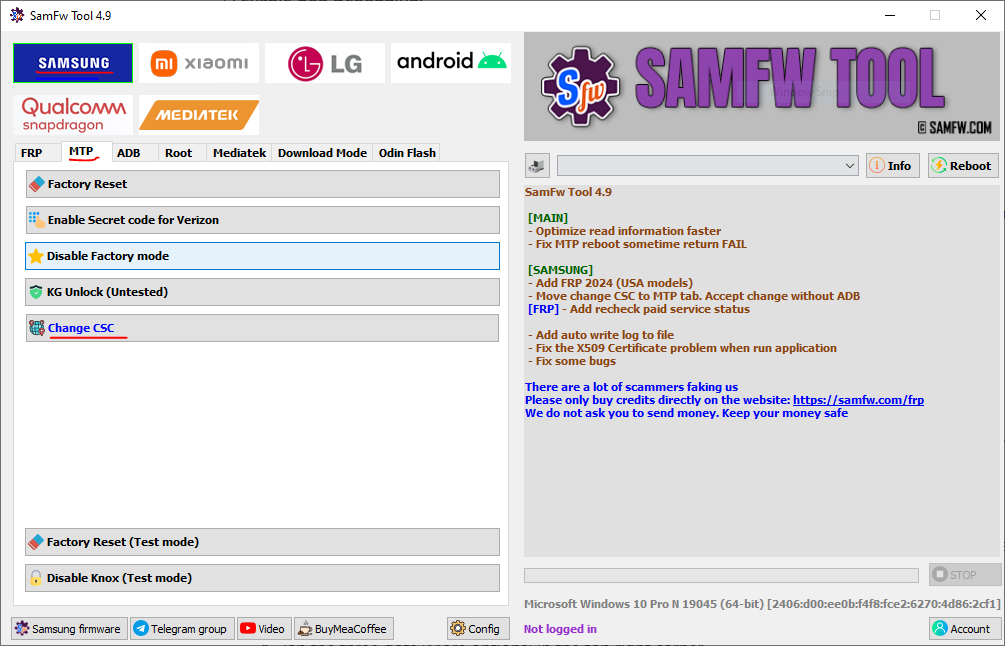
SamFW Tool CSC Change Screen
Troubleshooting Common Issues
| Problem | Symptoms | Solution |
|---|---|---|
| Device Not Detected | Tool doesn’t recognize phone | Reinstall Samsung USB drivers, try different USB cable/port |
| FRP Bypass Failed | Error during FRP removal | Ensure Test Mode (*#0*#) active, run tool as Admin |
| CSC Change Error | CSC change doesn’t apply | Enable USB debugging, check device compatibility |
| Connection Drops | Process interrupts mid-way | Use quality USB cable, ensure battery >50% |
| Antivirus Block | Tool flagged as threat | Temporarily disable antivirus, add exception |
| Driver Issues | Unknown device in Windows | Install correct Samsung USB drivers |
| Test Mode Not Working | *#0*# doesn’t activate | Try alternative methods to enable debugging |
Video Guide
Step-by-step video tutorial for FRP bypass and CSC change using SamFW Tool:
Video Tutorial
Watch this guide for visual instructions
Uploaded: September 22, 2025
Subscribe for more tutorials:
Frequently Asked Questions
Is SamFW Tool free to use?
Yes, SamFW Tool is free and does not require any subscriptions, registration, or hidden fees.
Does SamFW Tool work on all Samsung devices?
It supports most modern Samsung Galaxy models, including popular series like S, A, M, Note, and Fold, and is continuously updated for new devices.
Can I use SamFW Tool without a PC?
No, SamFW Tool is a Windows-based software. You need a Windows PC to run the tool and connect your Samsung phone.
Is SamFW Tool safe to use?
Yes, when downloaded from the official website or trusted sources like GSM6, SamFW Tool is safe. Always avoid third-party modified versions.
Does SamFW Tool require rooting my phone?
No, most of its primary functions, including FRP bypass and CSC change, do not require rooting your Samsung phone.
What Android versions does SamFW Tool support?
SamFW Tool supports Android 9, 10, 11, 12, 13, 14, and newer versions, constantly being updated for compatibility.
How to download SamFW Tool latest version?
Go to the official website samfw.com and download from the official link.
Is it necessary to use SamFW Tool latest version?
Yes! Whenever a new update is released, you will receive an update notice. Update to the latest version for best compatibility.
What is CSC in Samsung devices?
CSC (Country/Carrier Code) determines your device’s region, carrier-specific features, software updates, and available services. Changing CSC can unlock features like native call recording or Samsung Wallet.
Will changing CSC delete my data?
Usually CSC change doesn’t delete user data, but there’s always a risk. Always backup important data before changing CSC.
Can I revert back to original CSC?
Yes, you can change back to your original CSC using the same SamFW Tool process. However, some CSC changes may trigger factory reset.
What Samsung models are best supported?
Recent Galaxy S series (S21, S22, S23), A series (A52, A73), M series, and Note/Fold series have best support. Older models may have limited functionality.
Does SamFW Tool work on locked carrier phones?
Some features may work, but carrier locks can restrict certain functions. For network unlocking, you may need additional tools or carrier assistance.
How often is SamFW Tool updated?
The development team regularly updates SamFW Tool for new Samsung models, Android versions, and to fix reported issues.
Can I use SamFW Tool on multiple computers?
Yes, you can install and use SamFW Tool on multiple Windows computers. There are no activation or license restrictions.
What if *#0*# doesn’t work on my phone?
Try alternative codes: *#*#8255#*#*, *#*#2663#*#*, or enable USB debugging via ADB if possible.
Does SamFW Tool support Android 15?
As Android 15 releases, SamFW Tool will likely be updated for compatibility. Check official website for specific support status.
Can I flash custom ROMs with SamFW Tool?
No, SamFW Tool is designed for official Samsung firmware. For custom ROMs, use Odin or Heimdall.
Is internet required for SamFW Tool?
No, SamFW Tool works offline once downloaded. However, you need internet to download the tool and any firmware files.
What Windows versions are supported?
Windows 7, 8, 8.1, 10, and 11 (both 32-bit and 64-bit). Windows 11 may require running as Administrator.
Can SamFW Tool fix network issues?
While CSC change can enable/disable network bands, SamFW Tool isn’t primarily for network repair. For persistent network issues, check hardware or carrier settings.
How to backup before using SamFW Tool?
Use Samsung Smart Switch, Google backup, or manually transfer files to computer/cloud.
What’s the difference between SamFW and Odin?
SamFW offers user-friendly interface with one-click solutions. Odin is more technical for advanced firmware flashing and requires manual file selection.
Can SamFW Tool unlock bootloader?
No, SamFW Tool doesn’t include bootloader unlocking. Use official Samsung bootloader unlock method for your device.
Is there a Mac version of SamFW Tool?
No, SamFW Tool is Windows-only. Mac users can use virtualization (Parallels, VMware) or Boot Camp.
Final Verdict
SamFW Tool has established itself as an indispensable, free tool for Samsung device maintenance. Whether your need is to bypass FRP, perform a Samsung CSC change to unlock hidden features, or efficiently flash firmware, this tool simplifies complex processes.
Pros:
- ✅ 100% free (no payment required)
- ✅ No root required for most functions
- ✅ User-friendly interface
- ✅ One-click FRP bypass
- ✅ CSC change without root
- ✅ Regular updates
- ✅ Works on most Samsung models
- ✅ Multi-language support
Cons:
- ❌ Windows only (no Mac/Linux)
- ❌ May void warranty
- ❌ Requires Samsung USB drivers
- ❌ Some antivirus programs flag it
- ❌ Not for custom ROMs
Rating: ⭐⭐⭐⭐⭐ (4.8/5)
Why Trust This Review?
Abdul Malik (AM) is a mobile device repair technician with 8+ years of experience specializing in Samsung devices. He has used SamFW Tool on over 100 Samsung devices for FRP bypass and CSC changes.
Our Testing Methodology: We tested SamFW Tool on 10 Samsung Galaxy devices including S23 Ultra, S24 Ultra, A54, A34, Z Fold 5, Z Flip 5, S22, S21, Note 20 Ultra, and M53. Each test was conducted twice to verify consistency.
Connect with the author:
- Learn with AM - YouTube Channel
- GSM6 Official YouTube Channel
- Telegram Community
- GSM6 Community Forum
References
- Official SamFW Tool Website
- GSM6 Samsung USB Drivers Guide
- GSM6 Samsung CSC Change Guide
- GSM6 Samsung CSC List Guide
- GSM6 Samsung Auto Blocker Guide
- GSM6 Community Forum
© 2026 GSM6.com | SamFW Tool Guide
This guide is provided for educational purposes only. Always comply with local laws regarding device modification.
FRP bypass should only be performed on devices you own.


Author:
Abdul MalikMobile Software Expert and founder of GSM6.com. Specializes in FRP bypass, IMEI repair, and advanced mobile tools. All tutorials are tested on real devices for accuracy and safety.


