
• Abdul Malik (AM) • misc • 1 min
Download SamFW Tool Latest Version 2025
Download SamFW Tool (Latest Version) “ Remove FRP, Change CSC, and More by gsm6
Are you searching for a reliable, free, and user-friendly solution to manage your Samsung Galaxy smartphone? Whether you need to remove FRP lock, change CSC (Country/Carrier Code), flash firmware, or perform various other essential maintenance tasks, the SamFW Tool is widely regarded as one of the best options available today.
This powerful software provides highly sought-after functionalities like a one-click FRP bypass solution and numerous other advanced features that simplify Samsung phone repairs and customization. Keep reading to download the latest SamFW Tool version and learn how to use SamFW Tool effectively and safely.
What is SamFW Tool & Why Download SamFW tool?
SamFW Tool is a cutting-edge, free, and lightweight software specifically designed for Samsung Galaxy smartphones. Developed by the SamFW team, this tool provides a comprehensive suite of utilities that allow users to:
Bypass FRP (Factory Reset Protection)
Change CSC (Country/Carrier Code)
Flash Firmware (install or update Samsung firmware)
Perform various ADB & Fastboot debugging functions
Manage Knox security and factory reset options
Historically, performing tasks like Samsung FRP bypass or Samsung CSC change required complex command-line entries or specialized, often paid, tools. SamFW Tool automates these intricate processes, making them accessible and efficient for both novice users and experienced professionals. It’s truly a versatile Samsung device maintenance tool.
Key Features of SamFW Tool (Why It’s Essential)
The SamFW Tool stands out due to its robust set of features, offering solutions for common Samsung device challenges:
SamFW Tool Features Overview
| Feature | Description | Benefit |
|---|---|---|
| One-Click FRP Bypass | Remove Google account lock after factory reset | Quick device recovery for legitimate owners |
| CSC Changer | Change region/carrier code without root access | Unlock hidden features, faster updates |
| Firmware Flashing | Install/update Samsung firmware easily | Fix bugs, upgrade/downgrade, unbrick devices |
| ADB & Fastboot Tools | Built-in debugging and command tools | Advanced device management and troubleshooting |
| Knox Management | Knox security feature options | Device security customization |
| Device Information | Detailed device specs and status | Quick diagnostics and verification |
| Factory Reset | Safe factory reset options | Clean device restoration |
| Multi-Language | Multiple interface languages | Global user accessibility |
One-Click FRP Bypass: This is one of the most popular features. It allows users to remove Google account lock (FRP) from their Samsung device in just one click, a lifesaver if you’ve forgotten your Google credentials after a factory reset.
- Important Ethical & Legal Note on FRP: This feature is intended for legitimate device owners only who have forgotten their own Google account details. Using FRP bypass on devices that are not rightfully yours is illegal and unethical. GSM6 advocates for responsible and lawful use of all tools.
CSC Changer: Easily change the region/carrier code of your Samsung device without root. This is invaluable for unlocking hidden features Samsung like native call recording, Samsung Wallet, specific network bands (e.g., VoLTE, 5G), or gaining access to region-specific apps and faster software updates.
Firmware Flashing: Effortlessly install or update Samsung firmware. This is crucial for fixing software bugs, upgrading to the latest Android/One UI versions, downgrading firmware (if supported), or even unbricking a soft-bricked device.
Knox & Factory Reset Options: Provides options to manage Knox security features (where applicable) and perform safe factory resets, giving users more control over their device’s core functions.
ADB & Fastboot Tools: For advanced users, it integrates standard ADB tools for Samsung and Fastboot commands, allowing execution of complex debugging commands, sideloading updates, and performing diagnostics.
Device Info & Debugging: Quickly view detailed device information (model, Android version, CSC, etc.) and generate log reports, which are incredibly useful for troubleshooting.
SamFW Tool is compatible with most Samsung Galaxy models, including popular S series, A series, M series, Note series, and Fold series, and supports a wide range of Android versions from Android 9, 10, 11, 12, and the very latest Android 13, 14, and newer.
Why Choose SamFW Tool for Your Samsung Device?
Beyond its comprehensive feature set, SamFW Tool offers distinct advantages:
Completely Free: Unlike many professional Samsung repair tools, SamFW Tool is 100% free to download and use, with no hidden subscriptions or costs.
User-Friendly Interface: Its intuitive graphical interface simplifies complex processes, making it accessible even for users without extensive technical knowledge.
One-Click Solutions: For common tasks like FRP bypass, it offers efficient one-click solutions, saving time and effort.
Regular Updates: The developers frequently release SamFW Tool latest version updates, ensuring compatibility with new Samsung models and Android versions.
No Root Required: Most of its primary functions, including FRP bypass and CSC change, do not require rooting your device, preserving your device’s Knox warranty status (though the actions themselves might still impact it).
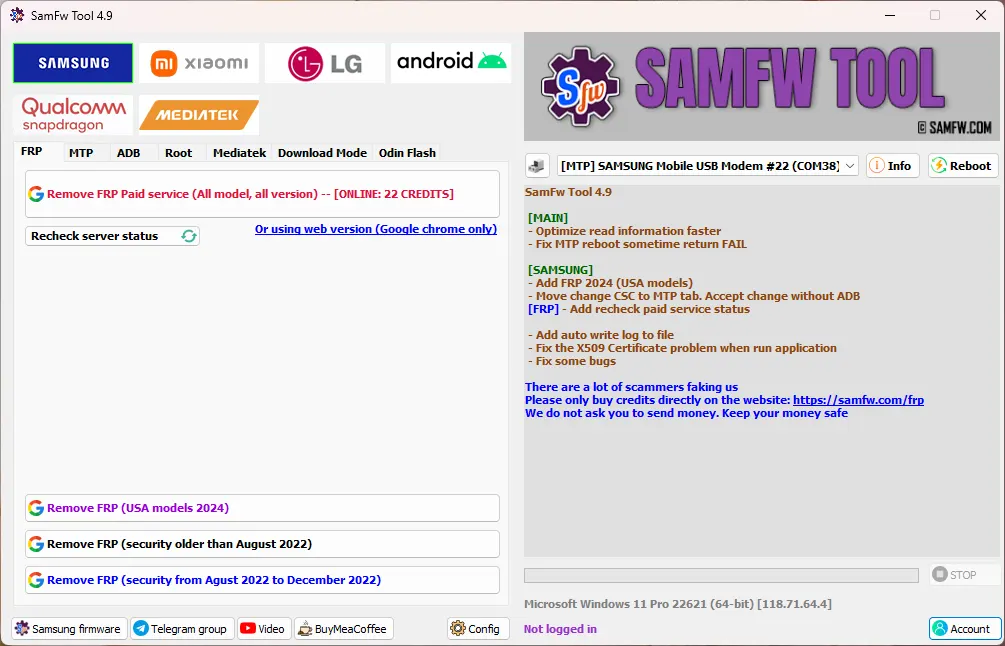
Samfw tool Features
How to Download SamFW Tool (Latest Version)
To ensure safety and access to the most up-to-date features, always download SamFW Tool from a trusted source.
SamFW Tool Download Details
| Specification | Details |
|---|---|
| Tool Name | SamFW Tool |
| Latest Version | 2025 Release |
| Platform | Windows 7/8/10/11 |
| File Size | ~150 MB |
| License | Freeware |
| Price | Free |
| Official Source | samfw.com |
| Requirements | Samsung USB Drivers |
| Release Date | September 2025 |
Official Download Link: https://samfw.com/blog/samfw-frp-tool-1-0-remove-samsung-frp-one-click
Download Compatible USB Drivers to Avoid Errors: Before proceeding with using the tool, it’s absolutely crucial to install the correct Samsung Android USB Drivers on your PC. These drivers enable your computer to properly recognize and communicate with your Samsung device. Download Official Samsung USB Drivers from Here
Pre-Requisites Before You Begin:
Battery Level: Ensure your Samsung device has at least 50% battery charge to prevent interruption during the process.
Quality USB Cable: Use a good quality, reliable USB cable for a stable and uninterrupted connection between your phone and PC. A poor cable can cause errors.
Disable Antivirus (Temporarily): Some antivirus software may incorrectly flag SamFW Tool as a threat. Temporarily disable your antivirus during download and execution, then re-enable it. Always re-enable your antivirus immediately after use.
How to Use SamFW Tool: Step-by-Step Guides
Here are detailed instructions for the most common uses of SamFW Tool:
1. How to Use SamFW Tool for FRP Bypass
Crucial Warning: This process is solely for legitimately owned devices where the Google account password has been forgotten by the rightful owner. Using this tool on stolen or found devices is illegal and unethical.
FRP Bypass Process Steps
| Step | Action | Details |
|---|---|---|
| 1 | Connect Phone | Connect Samsung phone to PC via USB at FRP lock screen |
| 2 | Enable Test Mode | Enter emergency dialer, type #0# |
| 3 | Launch SamFW Tool | Run SamFW Tool as administrator on Windows |
| 4 | Select Remove FRP | Click Remove FRP button in tool interface |
| 5 | Confirm USB Debugging | Allow USB debugging prompt on phone |
| 6 | Wait for Processing | Do not disconnect phone during process |
| 7 | Device Reboots | Phone automatically restarts after completion |
| 8 | Complete Setup | Proceed with device setup without FRP lock |
Follow these easy steps to remove FRP lock from your Samsung device using SamFW Tool:
Connect Your Phone: Connect your Samsung phone to your PC using a USB cable. Ensure the phone is powered on and at the FRP lock screen.
Enable Test Mode: On your Samsung phone, if prompted, enter the emergency dialer option (usually found at the bottom of the lock screen).
Dial
*#0*#: In the emergency dialer, type*#0*#. This special code activates the Test Mode on most Samsung devices, which is necessary for SamFW Tool to interact with your device.- Note: If
*#0*#does not work or your phone doesn’t have an emergency dialer option, you may need to try enabling USB Debugging via ADB using other methods first, then reattempt the FRP process.
- Note: If
Open SamFW Tool: Run the SamFW Tool software on your PC.
Select “Remove FRP”: In the SamFW Tool interface, locate and click the “Remove FRP” button.
Confirm USB Debugging Prompt: Your phone’s screen should display a pop-up asking to “Allow USB debugging.” Tap “Allow” or “OK” to grant permission.
Wait for Completion: The tool will begin processing the FRP bypass. Do not disconnect your phone.
Phone Reboots: Your phone will automatically reboot once the process is complete.
Setup Your Device: After restarting, complete the initial setup process. The FRP lock should now be removed, allowing you to access your device.
2. How to Change CSC Using SamFW Tool
Changing your CSC can unlock features Samsung that are hidden in your current region.
CSC Change Process Steps
| Step | Action | Details |
|---|---|---|
| 1 | Connect Phone | Connect Samsung phone to PC via USB |
| 2 | Enable USB Debugging | Activate in Developer Options |
| 3 | Launch SamFW Tool | Run tool as administrator |
| 4 | Navigate to CSC Changer | Go to MTP tab > Change CSC |
| 5 | Select New CSC | Choose desired region/carrier code |
| 6 | Apply Changes | Click Apply or Change CSC button |
| 7 | Confirm on Phone | Accept confirmation prompt on device |
| 8 | Wait and Restart | Tool processes change, device reboots |
| 9 | Verify New CSC | Check in Settings > About Phone |
Follow these steps to change CSC on your Samsung device using SamFW Tool:
Connect Your Phone: Connect your Samsung phone to the PC using a USB cable.
Enable USB Debugging: Ensure
USB Debuggingis enabled in your phone’s Developer Options. (If you haven’t enabled Developer Options, go toSettings > About Phone > Software Informationand tapBuild Number7 times. Then go toSettings > Developer Optionsto findUSB Debugging).Open SamFW Tool: Launch the SamFW Tool on your PC.
Navigate to CSC Changer: In the SamFW Tool interface, navigate to the
MTPtab and then select theChange CSCoption.Select New CSC Code: Choose the desired new CSC code from the list provided in the tool. Make sure to select a CSC known for the features you want (e.g., call recording, Samsung Wallet).
Click “Apply”: Click the “Apply” or “Change CSC” button within the SamFW Tool.
Confirm on Phone: Your phone might display a prompt to confirm the CSC change. Confirm it.
Wait and Restart: The tool will process the change, and your phone will likely restart automatically.
Verify New CSC: After rebooting, you can check your device’s CSC status in
Settings > About Phone > Software Information > Service provider software version. The new CSC should be displayed, and any newly enabled features should be accessible.
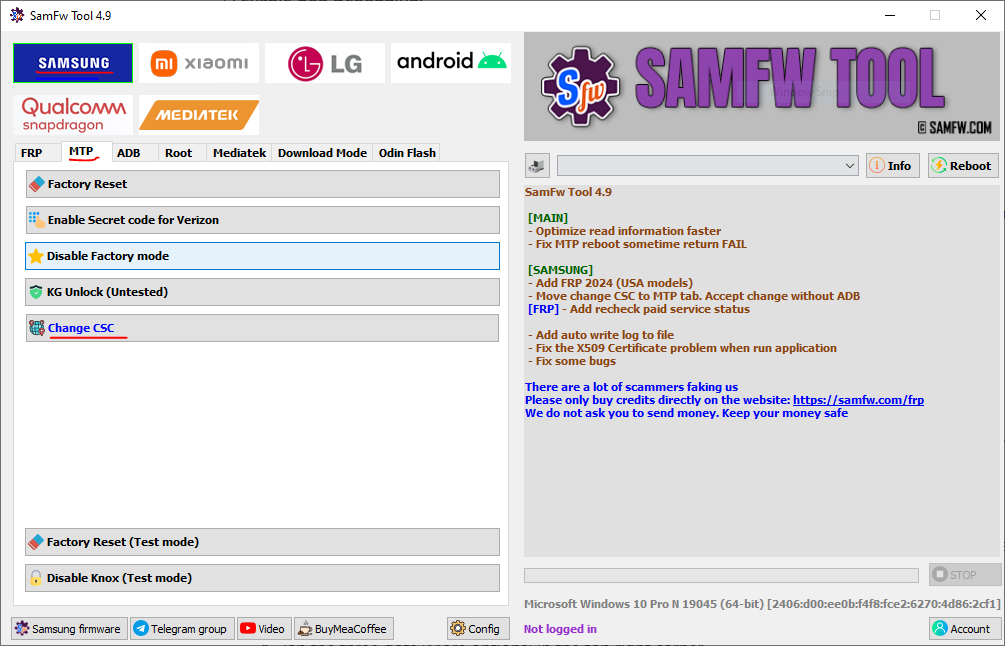
SamFW Tool change CSC screen
How to USE SamFW Tool? Step-by-step Video Guide:
Video Tutorial
Watch this guide for visual instructions
Uploaded: September 22, 2025
Important Considerations and Warnings (Please Read!)
Using powerful tools like SamFW Tool requires caution. Please be aware of the following:
Ethical & Legal Use: As stated before, the FRP bypass feature should ONLY be used on your own devices. Misuse is illegal. Call recording features enabled by CSC changes are subject to local call recording laws “ always ensure compliance and consider informing all parties.
Warranty Voidance: While SamFW Tool itself doesn’t root your device, performing a Samsung CSC change or flashing firmware can be considered a modification that may void your Samsung device’s warranty. Proceed with this understanding.
Data Loss Risk: While operations like CSC change can be data-preserving, any significant system modification carries a small risk of data loss. Always, always back up your phone completely before using SamFW Tool for any major operation.
Download SamFW tool from Trusted Sources: Only download SamFW Tool from the official developer’s website or highly reputable sources like GSM6. Avoid unverified third-party versions, which may contain malware.
Battery & Cable Quality: An interrupted process due to low battery or a faulty USB cable can lead to a soft-bricked device. Ensure optimal conditions.
“Soft-Bricking” Risk: Incorrect procedures or interruptions can render your device temporarily unusable (soft-bricked). While often recoverable, it requires additional steps.
Troubleshooting Common Issues with SamFW Tool
If you encounter problems while using SamFW Tool, here are some common solutions:
Common SamFW Tool Issues and Solutions
| Problem | Symptoms | Solution |
|---|---|---|
| Device Not Detected | Tool doesn’t recognize phone | Reinstall Samsung USB drivers, try different USB cable/port |
| FRP Bypass Failed | Error during FRP removal | Ensure Test Mode (#0#) active, run tool as admin |
| CSC Change Error | CSC change doesn’t apply | Enable USB debugging, check device compatibility |
| Connection Drops | Process interrupts mid-way | Use quality USB cable, ensure battery >50% |
| Antivirus Block | Tool flagged as threat | Temporarily disable antivirus, add exception |
| Driver Issues | Unknown device in Windows | Install correct Samsung USB drivers |
| Test Mode Not Working | #0# doesn’t activate | Try alternative methods to enable debugging |
Final Thoughts: Your Essential Samsung Companion
SamFW Tool has established itself as an indispensable, free tool for Samsung device maintenance. Whether your need is to bypass FRP, perform a Samsung CSC change to unlock hidden features, or efficiently flash firmware, this tool simplifies complex processes with its intuitive interface and often one-click solutions.
Its comprehensive features, combined with its accessibility, make it a must-have for any Samsung Galaxy owner or technician. Always remember to prioritize safety by backing up your data and adhering to all legal and ethical guidelines.
If this guide on how to download SamFW Tool and use its features has helped you, please consider sharing it with others who might benefit! Leave a comment below if you have any questions or feedback. For more essential tools and guides, stay tuned to GSM6.com!
Frequently Asked Questions
Is SamFW Tool free to use?
Yes, SamFW Tool is free and does not require any subscriptions, registration, or hidden fees.
Does SamFW Tool work on all Samsung devices?
It supports most modern Samsung Galaxy models, including popular series like S, A, M, Note, and Fold, and is continuously updated for new devices.
Can I use SamFW Tool without a PC?
No, SamFW Tool is a Windows-based software. You need a Windows PC to run the tool and connect your Samsung phone. There is currently no mobile version available.
Is SamFW Tool safe to use?
Yes, when downloaded from the official website or trusted sources like GSM6, SamFW Tool is safe to use. Always avoid third-party modified versions that may contain malware or harmful code.
Does SamFW Tool require rooting my phone?
No, most of its primary functions, including FRP bypass and CSC change, do not require rooting your Samsung phone, preserving your Knox warranty status (though the action itself might still affect it).
What Android versions does SamFW Tool support?
SamFW Tool supports a wide range of Android versions, including Android 9, 10, 11, 12, 13, 14, and newer versions, constantly being updated for compatibility.
How to Download Samfw tool latest version?
go to the official website (link given below) & download samfw tool by official link. you will find installation instructions as well.
is it necessary to use Samfw tool latest version?
yes! whenever they release a new update you will get an update notice, you can update is to the latest version by clicking on link in notice.
What is CSC in Samsung devices?
CSC (Country/Carrier Code) determines your device’s region, carrier-specific features, software updates, and available services. Changing CSC can unlock features like native call recording or Samsung Wallet.
Will changing CSC delete my data?
Usually CSC change doesn’t delete user data, but there’s always a risk. Always backup important data before changing CSC or performing any system modifications.
Can I revert back to original CSC?
Yes, you can change back to your original CSC using the same SamFW Tool process. However, some CSC changes may trigger factory reset.
What Samsung models are best supported?
Recent Galaxy S series (S21, S22, S23), A series (A52, A73), M series, and Note/Fold series have best support. Older models may have limited functionality.
Does SamFW Tool work on locked carrier phones?
Some features may work, but carrier locks can restrict certain functions. For network unlocking, you may need additional tools or carrier assistance.
How often is SamFW Tool updated?
The development team regularly updates SamFW Tool for new Samsung models, Android versions, and to fix reported issues. Check official website for latest version.
Can I use SamFW Tool on multiple computers?
Yes, you can install and use SamFW Tool on multiple Windows computers. There are no activation or license restrictions.
What if #0# doesn’t work on my phone?
Try alternative codes: ##8255##, ##2663##, or enable USB debugging via ADB if possible. Some newer models may require different methods.
Does SamFW Tool support Android 15?
As Android 15 releases, SamFW Tool will likely be updated for compatibility. Check official website for specific Android 15 support status.
Can I flash custom ROMs with SamFW Tool?
No, SamFW Tool is designed for official Samsung firmware. For custom ROMs, use tools like Odin or Heimdall specifically designed for that purpose.
Is internet required for SamFW Tool?
No, SamFW Tool works offline once downloaded. However, you need internet to download the tool and any firmware files for flashing.
What Windows versions are supported?
Windows 7, 8, 8.1, 10, and 11 (both 32-bit and 64-bit). Windows 11 may require running as administrator for full functionality.
Can SamFW Tool fix network issues?
While CSC change can enable/disable network bands, SamFW Tool isn’t primarily for network repair. For persistent network issues, check hardware or carrier settings.
How to backup before using SamFW Tool?
Use Samsung Smart Switch, Google backup, or manually transfer files to computer/cloud. For system backup, consider tools that backup EFS and important partitions.
What’s the difference between SamFW and Odin?
SamFW offers user-friendly interface with one-click solutions for common tasks. Odin is more technical, for advanced firmware flashing and requires manual file selection.
Can SamFW Tool unlock bootloader?
No, SamFW Tool doesn’t include bootloader unlocking. Use official Samsung bootloader unlock method or specific tools for your device model.
Is there a Mac version of SamFW Tool?
No, SamFW Tool is Windows-only. Mac users can use virtualization (Parallels, VMware) or Boot Camp to run Windows for using SamFW Tool.
Final Disclaimer
This guide is offered strictly for educational and informational purposes only. Any actions you take based on this information, including using SamFW Tool to modify your device’s software, bypass security features (like FRP), or enable region-locked features (like call recording), are performed entirely at your own discretion and risk.
It is your sole responsibility to understand and comply with all applicable local, national, and international laws regarding device modification, security bypass, and features like call recording. If you are uncertain about any steps, device compatibility, or legal implications, please consult with a qualified professional.


Author:
Abdul MalikMobile Software Expert and founder of GSM6.com. Specializes in FRP bypass, IMEI repair, and advanced mobile tools. All tutorials are tested on real devices for accuracy and safety.


