
• Abdul Malik (AM) • misc • 1 min
Download QCN Files for Google Pixel 3, 4, 5 Series
Download QCN Files for Google Pixel: Introduction
Let’s cut the garbage. You are here because your Google Pixel (3, 4, or 5 series with a Qualcomm modem) is useless as a phone. You are seeing one of these critical failures: Invalid IMEI / IMEI Null, a persistent ‘No Service’ error, or a completely corrupted Baseband/Modem partition.
This is not a simple settings tweak or a funny software bug. This is a core hardware identity failure where the phone has lost its digital cellular DNA. A phone without a functioning modem is just a fancy Wi-Fi tablet, and for many, the only fix is to restore the QCN (Qualcomm Calibration Network) file.
This file holds the entire operational blueprint for how your phone talks to cell towers. If you handle this process wrong, you risk a hard, permanent brick. If you follow this guide correctly, you will bring your device’s cellular function back from the grave. This process requires advanced tools like QPST/QFIL and absolute attention to detail.
1. Understanding the QCN and its Relation to EFS
A QCN file is a mandatory backup of your device’s most vital modem configuration data. On Google Pixel devices using Qualcomm chipsets, this QCN file resides within the EFS (Encrypted File System) partition. This EFS partition is isolated and protected because it contains the absolute unique identity of your device, which is non-negotiable for cellular function.
This identity includes your 15-digit IMEI (International Mobile Equipment Identity), your device’s unique Wi-Fi and Bluetooth MAC addresses, and critically, all the radio frequency (RF) calibration settings that tell the modem how to transmit and receive signals on specific 2G, 3G, 4G, and 5G bands used by carriers worldwide.
When you flash a bad custom ROM, mess up a kernel, or face a rare software glitch, the EFS partition, and therefore the QCN data, can get wiped or corrupted, resulting in the “Invalid IMEI” error. Restoring a clean, generic QCN file from an identical model and then injecting your original IMEI back into it is the surgical fix required to tell the modem, and the network, who it is again.
2. Download QCN Files for Google Pixel 3, 4, 5 Series (Baseband Repair)
Warning: Only download and flash the file that matches your exact model. Using the wrong file will introduce incompatible modem parameters and can result in severe, potentially unrecoverable network problems. These files are sourced and verified by the technical team at GSM6.
Google Pixel QCN Files Download Table
| Google Pixel Model | Codename | Download Link | Chipset | File Size |
|---|---|---|---|---|
| Pixel 3 | blueline | Download QCN | Snapdragon 845 | ~2 MB |
| Pixel 3 XL | crosshatch | Download QCN | Snapdragon 845 | ~2 MB |
| Pixel 3a | sargo | Download QCN | Snapdragon 670 | ~2 MB |
| Pixel 3a XL | bonito | Download QCN | Snapdragon 670 | ~2 MB |
| Pixel 4 | flame | Download QCN | Snapdragon 855 | ~2 MB |
| Pixel 4 XL | coral | Download QCN | Snapdragon 855 | ~2 MB |
| Pixel 4a | sunfish | Download QCN | Snapdragon 730G | ~2 MB |
| Pixel 4a 5G | bramble | Download QCN | Snapdragon 765G | ~2 MB |
| Pixel 5 | redfin | Download QCN | Snapdragon 765G | ~2 MB |
| Pixel 5a | barbet | Download QCN | Snapdragon 765G | ~2 MB |
QCN File Specifications
| Parameter | Details |
|---|---|
| File Format | .qcn (Qualcomm Calibration Network) |
| Content | IMEI, Baseband Calibration, Network Bands |
| Source | Verified working files from GSM6 archive |
| Safety | Tested on real devices, no malware |
| Compatibility | Exact model match required |
| Backup | Always backup before restoration |
3. CRITICAL Prerequisites & The Toolchain (READ THIS FIRST)
This is the non-negotiable list. If you do not meet these conditions, the process will fail, and you risk a device brick.
3.1. Device & PC Setup Checklist (Trustworthiness)
Backup Everything: Perform a full data backup. While QCN flashing is partition-specific, any major interruption can lead to data loss.
Battery Level: Your Google Pixel device must be at least 80% charged. An unexpected power-off during the write process is a guaranteed brick.
OEM Unlocking & USB Debugging: Both toggles must be ON in Developer Options (Settings > About Phone > Tap “Build Number” 7-10 times).
Bootloader State: For the necessary ADB commands to force Diagnostic Mode (Diag Mode), your bootloader must be unlocked on most Pixel models. If it is not, stop now, back up your data, and unlock it.
3.2. Essential Tools Downloads
You need three items installed on your Windows PC (64-bit recommended):
Qualcomm USB Drivers: These drivers are mandatory. They allow your PC to see the modem chip when the phone is forced into Diag Mode. Without this, your phone is invisible to the tools. Download Qualcomm USB Drivers (Recommended)
QPST Suite (Full): The main software package. We will specifically use the QFIL (Qualcomm Flash Image Loader) tool inside this suite to handle the QCN operations. Ensure you install the full package, not just a partial component. [Download QPST Tool]
ADB & Fastboot Platform Tools: Required to run the command that forces your Pixel device into Diagnostic Mode. You can’t bypass this. [Download Android Platform Tools]
4. The Core Procedure: How to Restore QCN on Google Pixel (Experience)
Follow these steps meticulously to restore the QCN file and potentially fix your Google Pixel’s network issues:
Phase I: Entering Diagnostic Mode (The Tricky Part)
This is the hardest part. You must get your phone to expose the Qualcomm modem over a COM port.
Open ADB: Navigate to your ADB folder, hold Shift, right-click, and select “Open PowerShell window here” or “Open command window here.”
Connect Device: Plug your Pixel into the PC.
Check Connection: Type
adb devicesand hit Enter. You must see your device serial number.Force Diag Mode (Root Required): If your phone is rooted, run this command to enable the diagnostic interface:
adb shell su -c "setprop sys.usb.config diag,adb"Verification: Immediately open Windows Device Manager. Look under Ports (COM & LPT). You must see a port labeled something like “Qualcomm HS-USB Diagnostics 9008”. Note the COM port number (e.g., COM3, COM10). If this port is not listed, you cannot proceed. Recheck drivers and the ADB command.
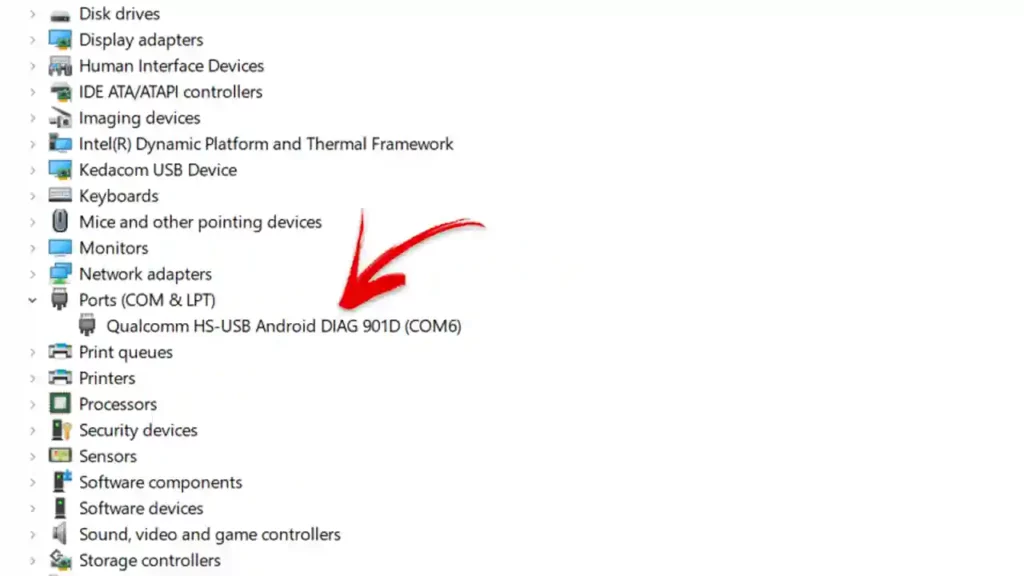
qualcomm diag port
Phase II: QCN Backup and Restore using QFIL
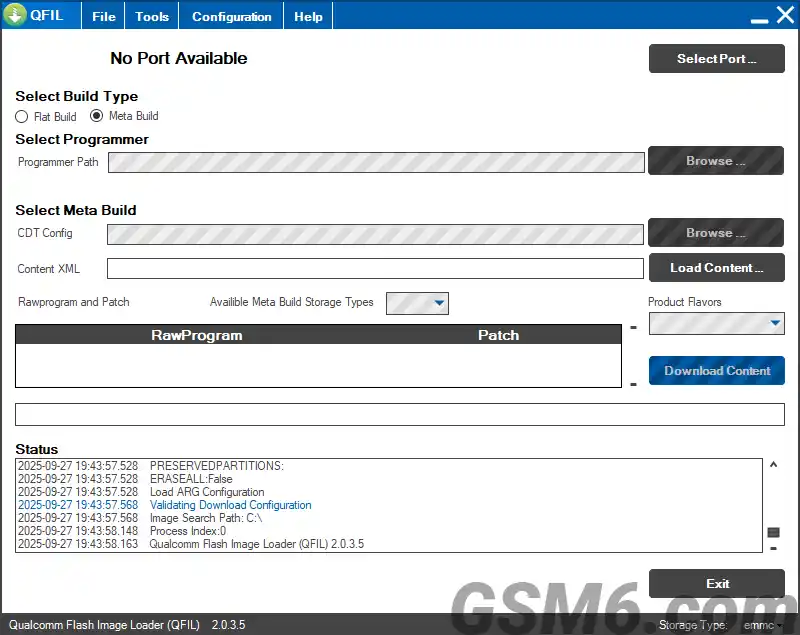
QFIL tool
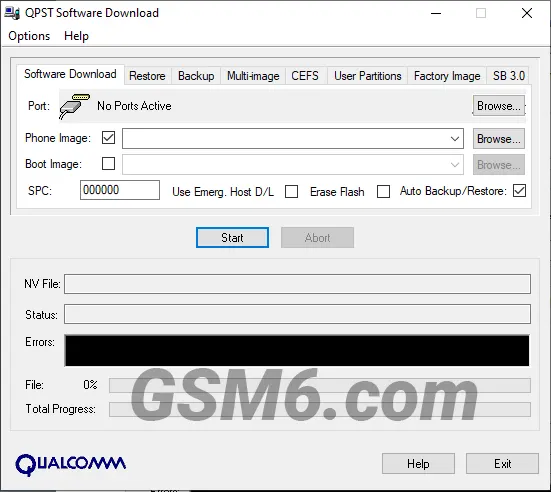
QPST Download tool
The QFIL tool is where the modem magic happens.
Step 4: Backup Your Existing QCN File (Crucial Step!)
Before you put anything new on, you must back up whatever data is currently there, even if it’s corrupted. This is your safety net.
Open QFIL (from the QPST Suite).
Verify your Qualcomm HS-USB Diagnostics COM port is selected at the top.
Go to Tools in the menu and select QCN Backup Restore.
Under the Backup QCN tab, click Browse and save your corrupted file to a safe spot on your PC.
Click Start. Wait for the “Backup QCN Succeeded” message.
Step 5: Restore the Downloaded QCN File
In the same QCN Backup Restore window in QFIL, switch to the Restore QCN tab.
Click Browse next to “QCN File” and select the verified QCN file you downloaded for your exact Pixel model (e.g.,
Pixel_5a_QCN.qcn).Ensure the correct COM port for your Pixel is still selected.
Click Start and wait. Do not disconnect your device or interrupt the process. The process is successful when the log displays “Restore QCN Succeeded.”
Step 6: Reboot and Verify Network Connectivity
Once QFIL confirms the restoration is complete, safely disconnect your Google Pixel from the PC.
Reboot your device (hold down the power button until it restarts).
After the phone boots up, open the dialer and type:
*#06#If successful, your original IMEI number should now be displayed, and the Baseband Version should also be listed.
Check Settings > Network & internet > Mobile network. You should see network signal bars and your SIM card information detected.
5. Step-by-step Video Guide (Learn With AM)
If you prefer to watch the entire, complex process performed live, your channel, Learn with AM, has a full, detailed walkthrough covering the IMEI fix, QCN files, and network repair.
Video Title: Fix IMEI, WiFi & SIM Network on Google Pixel 3/4/5 (Free , Tested QCN Files | 2025 Guide) Channel: Learn with AM Published: 2025-04-07 Length: 15 minutes, 43 seconds
The video covers rooting the phone to patch the boot image, wiping the EFS using ADB commands, enabling Diag Mode, backing up existing QCN data, writing the original IMEI, and finally restoring the QCN backup.
Video Tutorial
Watch this guide for visual instructions
Uploaded: September 16, 2025
6. Important Considerations & Troubleshooting
Common QCN Restoration Issues and Solutions
| Problem | Symptoms | Solution |
|---|---|---|
| No COM Port | Phone not showing in Device Manager | Reinstall Qualcomm drivers, use different USB cable/port, ensure Diag Mode command executed |
| QPST Connection Fail | QFIL cannot connect to device | Run QFIL as administrator, check correct COM port, verify phone remains in Diag Mode |
| Backup/Restore Failed | Error during QCN operation | Ensure battery >80%, close all other USB tools, retry with fresh driver installation |
| IMEI Still Invalid | *#06# shows null after restore | QCN file may not include IMEI, need to write IMEI separately using QPST or other tools |
| No Signal After Fix | IMEI restored but no network | QCN may lack regional band support, use EFS editor to enable correct network bands |
| Device Not Recognized | Shows as unknown device | Install Qualcomm drivers manually via Device Manager, disable driver signature enforcement |
QCN File Origin: Never use a QCN file from a different device model or even a different specific variant (e.g., Pixel 4 vs. Pixel 4 XL). This is guaranteed to cause severe network problems or render your device unusable. Stick only to the verified GSM6 files.
Driver Issues: If your PC refuses to recognize your phone in Diag Mode, driver installation is almost always the problem. Try reinstalling the Qualcomm USB Drivers, restarting your PC, and using a different, high-quality USB cable and port.
QPST Errors: If QFIL throws a “Fail” error, it means the connection was lost. Ensure your phone is still in Diag Mode, the correct COM port is selected, and QFIL is running with Administrator permissions.
Partial Fix (No Signal): If the IMEI is restored but you still have “No Service,” the generic QCN template may be missing the correct network band configuration for your region. This is an advanced fix requiring an EFS/QCN Editor tool to manually enable the necessary 4G/5G band flags. Consult a specialist guide for this step.
7. Final Thoughts
Restoring your Google Pixel’s IMEI and resolving network issues using QCN files is the nuclear option”a crucial fix for devices that have lost all cellular capabilities. This is an advanced procedure that requires you to be meticulous. You have the files, the tools, and the detailed steps. If you succeeded, you fixed a phone that was otherwise dead.
If this guide helped you successfully Download QCN Files for Google Pixel & restore your device, please share it. For more expert technical guides, firmware downloads, and troubleshooting tips, stay locked on GSM6.com.
Frequently Asked Questions
What is a QCN file for Google Pixel and why do I need it?
A QCN file is a binary backup of the EFS (Encrypted File System) partition on your Qualcomm-based Pixel. Think of it as the complete brain map for your phone’s cellular modem (Baseband). It holds the IMEI, radio calibration data, and network bands. You need this file when the EFS partition gets wiped or corrupted, which is what causes the “Invalid IMEI” or permanent “No Service” errors. Restoring a verified QCN is the only way to surgically fix the modem identity and restore cellular function, turning your dead device back into a working phone.
Can a QCN file fix my “Invalid IMEI” or “IMEI Null” error on Pixel?
Yes, absolutely. This is the primary use of a QCN file fix. When your Pixel shows “IMEI Null” or “Invalid IMEI,” it means the device has lost its unique hardware identifier, which is stored in the EFS/QCN data. By flashing a clean QCN template using a tool like QFIL, you restore the necessary modem structure. Crucially, you then follow up by manually editing and restoring your original, legally owned IMEI number back into that file to complete the repair.
Do I need to root or unlock the bootloader of my Pixel to restore a QCN file?
You almost certainly need to unlock the bootloader. For security reasons, Google Pixel devices lock down the crucial Diagnostic Mode (Diag Mode). You need an unlocked bootloader to run the required ADB commands that force the device to expose the Qualcomm modem on a COM port. Without the COM port appearing in Windows Device Manager, the QPST/QFIL tool cannot talk to the modem chip, and the QCN restore process stops dead. Root access is sometimes needed for the specific ADB command, but an unlocked bootloader is the bare minimum requirement for accessing the low-level modem functions.
Is it safe to flash a QCN file on my Google Pixel device?
“Safe” is a relative word in technical repair. The process is safe only if you follow every step perfectly, use a verified QCN file for your exact model, and do not interrupt the connection. The risk is high if you use a file from the wrong model”that will hard-brick the modem”or if the device loses power during the QFIL write process. Always backup your data first, and ensure the battery is at least 80% charged.
What tools do I need to restore a QCN file on my Google Pixel?
You need three main pieces of software:
- Qualcomm USB Drivers: To make your PC recognize the phone in Diag Mode.
- QPST Suite (with QFIL): This is the core program that handles the backup and restore operations for the QCN file.
- ADB & Fastboot Platform Tools: To run the necessary shell commands to force the phone into the required Diagnostic Mode.
Can I use a QCN file from a different Pixel model or another phone brand?
NO. DO NOT DO THIS. A QCN file is built for specific hardware and calibration settings. Flashing a QCN from a Pixel 4 onto a Pixel 5, or worse, from a Samsung or LG phone, will write totally incompatible modem parameters onto your device’s EFS partition. This leads to a permanent hardware mismatch that often requires specialized, paid repair services to fix. Stick to the exact QCN file listed in the table for your model.
After restoring the QCN, my Pixel still has no signal. What should I do?
If your IMEI is back but you still see “No Signal,” the QCN fix was only partial. The base modem structure is fixed, but the network band configuration is likely wrong. This means the phone cannot communicate on the frequencies your local carrier uses. You need to use an EFS/QCN Editor tool to go into the file, find the network band flags (NV Items), and manually enable all the 4G/LTE/5G bands needed for your region. This is an advanced, separate troubleshooting step that fixes carrier incompatibility.
How do I know if my Pixel needs a QCN file restoration?
The main symptoms are: dialing *#06# shows “Invalid IMEI” or blank, Settings > About Phone shows “Baseband Version: Unknown,” persistent “No Service” or “Emergency Calls Only” despite working SIM, and WiFi/Bluetooth MAC addresses showing as 00:00:00:00:00:00. These indicate corrupted EFS/QCN data.
Can QCN restoration fix WiFi and Bluetooth MAC address issues?
Yes, a complete QCN file contains not just IMEI but also WiFi and Bluetooth MAC addresses and calibration. Restoring a proper QCN should restore all these unique identifiers, fixing WiFi and Bluetooth connectivity issues that occurred alongside the cellular problems.
How long does QCN restoration take?
The actual QCN write process in QFIL takes 30-90 seconds. However, the entire process including driver installation, entering Diag Mode, and verification can take 15-30 minutes for first-time users. Experienced technicians can complete it in under 10 minutes.
Will restoring QCN delete my personal data?
No, QCN restoration only affects the modem/EFS partition. Your apps, photos, and user data on other partitions remain untouched. However, as a safety precaution, always backup important data before any advanced repair procedure.
What if I don’t have the original IMEI for my Pixel?
You must use your original IMEI. It’s printed on the device box, under the battery (if removable), or sometimes on the SIM tray. Using random or other device’s IMEI is illegal in most countries and can result in network bans. The QCN file provides the structure, but you must inject your legally owned IMEI.
Can I backup my current QCN even if it’s corrupted?
Yes, you should always backup your current QCN before restoring a new one. Even corrupted data might contain unique calibration values specific to your device. Use QFIL’s Backup QCN feature to save whatever data exists as a safety measure before proceeding with restoration.
Do I need internet connection for QCN restoration?
No, all tools (QPST, drivers) work offline once downloaded. The QCN file is local, and the flashing process happens directly via USB cable without internet requirement.
What Windows versions support QPST/QFIL?
QPST 2.7.497 and newer versions work on Windows 7, 8, 10, and 11 (both 32-bit and 64-bit). Windows 11 may require additional compatibility settings or running as administrator for proper functionality.
Can QCN fix hardware modem damage?
No, QCN files only fix software-level corruption in the EFS partition. If your Pixel’s modem chip has physical hardware damage (water damage, drop damage, component failure), QCN restoration will not help. Hardware issues require professional microsoldering repair.
How many times can I restore QCN files?
There’s no technical limit. You can restore QCN files multiple times as needed. However, frequent restoration might indicate underlying hardware issues that the QCN fix cannot permanently resolve.
Will this work on Pixel 6 and newer Tensor chip models?
No, this guide is specifically for Pixel 3, 4, 5 series with Qualcomm modems. Pixel 6 and newer use Google Tensor chips with different modem architecture. QCN files and QPST tools do not work on Tensor-based Pixels.
Where can I get help if QCN restoration fails?
Join the GSM6 Community Forum where technicians and experienced users can help troubleshoot specific issues. Provide details of the error, your Pixel model, and what steps you’ve already tried for best assistance.
Is there a simpler alternative to QCN restoration?
For minor baseband issues, sometimes factory reset, reflashing stock firmware via Android Flash Tool, or network settings reset can help. But for true “Invalid IMEI” cases, QCN restoration is the only effective software solution.
Can I edit QCN files to change IMEI or other values?
Yes, with specialized tools like QPST Configuration, DFS CDMA Tool, or EFS Professional. However, changing IMEI to anything other than your original is illegal in most countries. Only modify QCN files for legitimate repair purposes using your original device identifiers.


Author:
Abdul MalikMobile Software Expert and founder of GSM6.com. Specializes in FRP bypass, IMEI repair, and advanced mobile tools. All tutorials are tested on real devices for accuracy and safety.


