
• Abdul Malik (AM) • android • 1 min
How to Bypass FRP Using ADB Commands [2025 Working Method]
Bypass FRP Using ADB Commands:
Forgot your Google account after a factory reset? Learn how to bypass FRP using simple ADB commands. This 2025 guide works on Samsung, Xiaomi, Motorola, and more, all for free.
That feeling of helplessness when you’re locked out of your own Android device”we’ve all been there. You perform a factory reset, and suddenly, your phone demands the Google account details of the previous owner. Or maybe you’re the owner and you just can’t remember! That’s Factory Reset Protection (FRP) in action, and while it’s a great security feature, it can turn your device into a useless brick. But what if there was a safe and fast method to get your device back? A method that doesn’t cost a thing and doesn’t require any sketchy software or risky flashing?
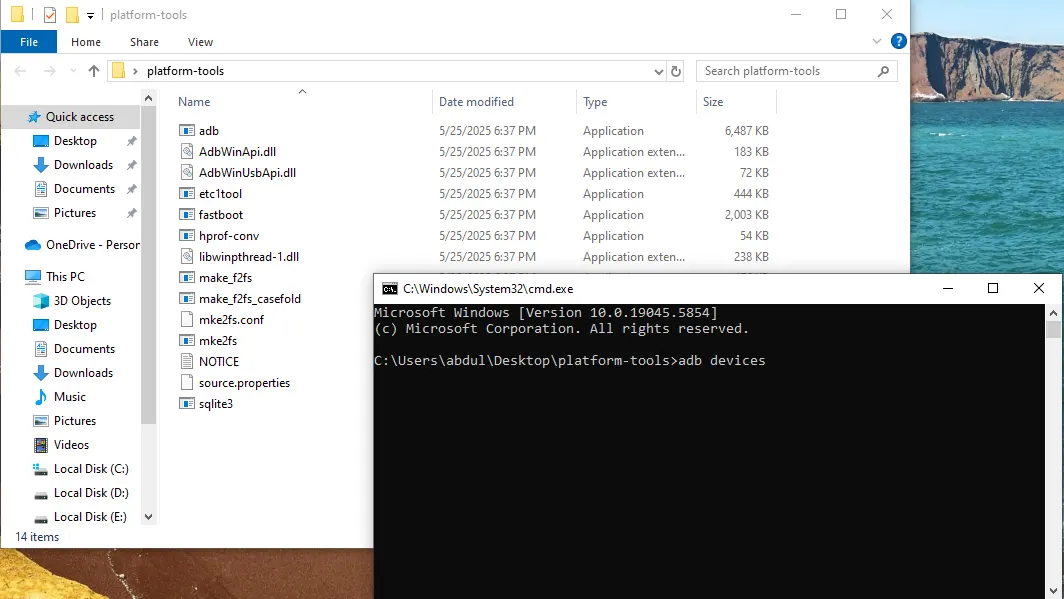
Android Platform tools - adb & fastboot binaries latest - GSM6.com
Welcome to the ultimate guide on how to bypass FRP using ADB commands. This powerful, free, and straightforward method is still a lifesaver in 2025. We’ll walk you through the entire process, using just a few simple commands, and show you how to get your phone back up and running. This guide will work on most Android devices, as long as you can get USB debugging enabled. Let’s dive in and fix that phone!
A Crucial Disclaimer: Use This Guide Wisely
This guide is for educational and ethical purposes only. You must only use it on devices that you own or have been given explicit, written permission to unlock. Bypassing Factory Reset Protection on a stolen or unauthorized device is a serious crime. We are not responsible for any misuse or illegal activities. Always ensure you are in full compliance with your local laws and regulations before proceeding. This is about fixing a problem, not creating a new one.
Requirements for ADB FRP Bypass: Getting Your Toolkit Ready
Before you dive into the commands, you need to set up your digital workbench. Don’t skip these steps! They are the foundation of a successful FRP unlock.
œ… A Windows PC or Mac: This is your command center.
œ… ADB and Fastboot: These are the essential command-line tools that act as a bridge between your computer and your Android device. You can get them for free from the official Android Platform Tools. We’ve included a download link below for your convenience.
œ… USB Debugging Enabled: This is the magic key to the whole operation. ADB commands won’t work without this setting turned on. While it’s usually disabled on a locked phone, there are often device-specific tricks or loopholes to enable it, which we’ll cover in our expert tips.
œ… A High-Quality USB Cable: A faulty or generic cable can lead to frustrating connection errors. Always use the original or a certified cable to ensure a stable connection.
œ… Your Device: The phone itself, connected in the correct state (usually the setup screen, but sometimes recovery or test mode).
ADB FRP Bypass Commands: The Step-by-Step Guide
Once your device is properly connected and your PC is set up, you’re ready to go. The process is a simple, three-step dance with ADB. Open your command prompt (or Terminal on Mac) and navigate to the folder where your ADB tools are located. Then, type in the following commands one by one, hitting Enter after each one.
Step 1: Verifying the Connection
adb devices
Before you do anything else, type this command and hit Enter. You should see your device’s serial number or device ID appear in the list. If you see it, that means your computer recognizes your phone in ADB mode, and you’re ready for the next step. If you don’t see anything, it’s a driver or connection issue. Don’t proceed until this step is successful.
Step 2: The Main Bypass Command
adb shell content insert —uri content://settings/secure —bind name:s:user_setup_complete —bind value:s:1
This is the magic line of code. It directly modifies a system setting on your Android device. It tells the operating system, “Hey, this user has already completed the initial setup process, including the Google account verification.” By toggling this setting to “complete,” it effectively tells the device to skip the FRP lock screen and let you into the home screen. After this command, your phone might briefly show an error or appear to do nothing. This is normal.
Step 3: Restarting the Setup Activity
adb shell am start -n com.google.android.gsf.login/adb shell am start -n com.google.android.gsf.login.LoginActivity
These commands are a two-part solution for a full Android FRP bypass. They launch the Google Services Framework login activity. After running these commands, you should see the login screen pop up on your device. You can then enter a new Google account and password, and the phone will let you complete the setup and access the home screen. Your FRP lock is officially gone!
Got questions or feeling stuck? You’re not alone! The best place to get help is our community forum.
Supported Devices and The USB Debugging Challenge
This method is so powerful because it taps into the core of the Android system. It has been tested and confirmed to work for FRP unlock on a wide range of devices, including:
œ… Samsung: Many models, especially if you can get into a test mode or have a tool that enables ADB.
œ… Xiaomi / Redmi: This method is effective on these devices, particularly those with an unlocked bootloader or a test mode you can access.
œ… Motorola & Lenovo: Generally speaking, these brands are often easier to work with, as their software is closer to stock Android.
œ… Tecno / Infinix: Many of these budget-friendly devices have easily accessible test or debug modes, making this method highly reliable.
œ… Nokia: Many Nokia phones running stock Android respond very well to these commands.
œ… Huawei / Honor: This can be more challenging, but on certain models, the method works perfectly.
The Golden Rule: The key is always to get USB debugging enabled. If you can do that, the brand and model don’t matter as much.
Now, getting ADB enabled on a phone locked with FRP can be tricky. You might need to use a special dialer code or a combination of button presses to get into a hidden menu. This is where you might need to find a device-specific trick. That’s why you should subscribe to our YouTube channel to stay updated on the latest tips and tricks to enable ADB on FRP-locked phones.
Device Support Matrix
| Brand | Success Rate | USB Debugging Method |
|---|---|---|
| Samsung | High | Test Mode (Dialer codes) |
| Xiaomi/Redmi | High | Fastboot/Test Point |
| Motorola | High | Recovery Mode |
| Tecno/Infinix | High | Engineer Mode |
| Nokia | Medium | Fastboot Mode |
| Huawei/Honor | Medium | Test Point Method |
| Oppo/Realme | Low | Requires special tools |
ADB Command Reference Table
| Command | Purpose | Expected Response |
|---|---|---|
adb devices | Check connection | Lists connected devices |
adb shell content insert --uri content://settings/secure --bind name:s:user_setup_complete --bind value:s:1 | Bypass FRP | No visible output (sets flag) |
adb shell am start -n com.google.android.gsf.login/adb shell am start -n com.google.android.gsf.login.LoginActivity | Launch login | Opens Google login screen |
Expert Tips for a Smooth FRP Bypass Experience
Troubleshooting Connection Issues: If ADB doesn’t detect your device, it’s almost always a driver or connection problem.
Run
adb devicesto verify the connection. If you see a serial number, you’re on the right track.Reinstall your Android USB drivers. Uninstall them, reboot your PC, and then install them again. This often works wonders.
Try a different USB port or a different cable. You’d be surprised how often a simple cable swap solves the problem.
The USB Debugging Challenge: The biggest hurdle is usually getting USB debugging enabled.
If you can’t get it to work from the initial setup screen, you may need to boot into recovery mode and look for a Test Mode or ADB Sideload option.
For some devices, you might need to use a test point method to force the device into a diagnostic mode that accepts ADB commands. This is more advanced but is often the only solution for older devices.
Is This Method Safe? A Deep Dive into FRP Bypass Safety
When you’re dealing with your phone’s software, safety is a top concern. This method is one of the safest available for FRP unlock because it doesn’t flash custom firmware or wipe your system. It’s a clean, surgical bypass that only modifies a single system setting. The commands themselves are harmless. However, like any technical process, improper use can lead to issues. For example, if you unplug the device mid-process, you could cause a soft brick or a bootloop. The key is to follow the steps carefully and ensure a stable connection throughout the process.
Download Required ADB Tools: Get ‘Em Here
Need a quick, painless way to get your ADB and Fastboot environment set up? We’ve got you covered. These are the official tools directly from Google, ensuring you have the latest and most stable binaries.
ADB Platform Tools Download
| Platform | Download Link | File Size | Version |
|---|---|---|---|
| Windows | Download Here | ~50 MB | v34.0.5 |
| macOS | Download Here | ~45 MB | v34.0.5 |
| Linux | Download Here | ~45 MB | v34.0.5 |
Quick Setup Instructions:
- Download the zip file for your platform
- Extract to a folder (e.g.,
C:\adb) - Open Command Prompt in that folder
- Type
adb devicesto test
👉 Click here to download Platform-Tools (ADB Fastboot Binaries)
Step by Step Visual Guide: How to Bypass FRP Using ADB Commands
Here is the live demo of using ADB FRP commands on Tecno Camon 20 Pro with Android security patch level April 2025.
Video Tutorial
Watch this guide for visual instructions
Uploaded: August 29, 2025
Frequently Asked Questions
Can I use this if USB Debugging is off?
Unfortunately, no. The ADB commands require a handshake with the device that can only happen if USB debugging is enabled. Without it, your PC can’t send commands. However, some devices have test or diagnostic modes you can enter from a key combination to enable it temporarily. We cover these tricks on our YouTube channel.
Does this work on Android 15, 16 and newer?
Yes. The ADB framework and the system settings it interacts with are core parts of the Android OS. As long as you can enable USB debugging, the method will work on any Android version, from Android 10, 11, 12, 13, 14, to 15 and beyond. This makes it a great solution for future FRP bypass needs.
Will this erase my data?
No. The beauty of this FRP unlock method is that it doesn’t touch your user data. It only modifies a system setting to bypass the initial setup screen. All your photos, apps, and files will remain intact. This is why it’s a much better solution than a full factory reset.
What if my phone gets stuck in a bootloop after the commands?
If your phone gets stuck or goes into a bootloop after a command, don’t panic. The safest and easiest way to recover is to perform a full factory reset from the phone’s recovery menu. This will wipe all data but will put your phone back into a working state. You can then try the ADB FRP bypass again, ensuring you follow every step carefully.
Why do some of the ADB commands fail?
The most common reasons for a command to fail are: Outdated ADB tools: Make sure you’re using the latest platform-tools from our download link. Wrong permissions: You might need to run your command prompt as an administrator. Device is in the wrong mode: Ensure your phone is at the setup screen and not in recovery or a different mode. Typo: Double-check your spelling! Even one incorrect character can cause a command to fail.


Author:
Abdul MalikMobile Software Expert and founder of GSM6.com. Specializes in FRP bypass, IMEI repair, and advanced mobile tools. All tutorials are tested on real devices for accuracy and safety.


