
• Abdul Malik (AM) • misc • 1 min
Android Platform Tools: ADB & Fastboot Binaries (Latest Version 2026)
📌 What Are Android Platform Tools? (ADB & Fastboot Explained)
Google’s Platform Tools package is a suite of essential utilities designed for Android development, modification, and debugging. It acts as a bridge between your computer and your Android device, allowing you to send commands, transfer files, and even alter the device’s system.
Here’s a breakdown of the key components:
ADB (Android Debug Bridge): This versatile command-line tool allows your computer to communicate directly with your Android device. It facilitates a wide range of operations, from installing applications and pulling logs to rebooting into different modes. ADB communication can occur via USB or even wirelessly over Wi-Fi.
Fastboot: A powerful protocol that allows you to flash (write) data directly to your device’s partitions. It’s primarily used when your device is in “bootloader mode” and is crucial for operations like unlocking the bootloader, flashing custom recoveries (like TWRP), and updating system images.
systrace: A performance analysis tool that helps developers understand and debug performance issues on Android devices by capturing and analyzing system traces.
etc1tool: A utility specifically for converting and compressing textures for Android devices using the ETC1 compression format, often used in game development.
Common Use of Android Platform Tools (adb Fastboot)
The capabilities of ADB and Fastboot open up a world of possibilities for Android users and developers:
Rooting Android devices: Gaining superuser access to your device, allowing for deeper system modifications.
Flashing custom recoveries (TWRP): Installing a custom recovery environment that enables you to flash custom ROMs, kernels, and take full system backups.
Unlocking bootloaders: A crucial first step for most advanced modifications, this process removes restrictions imposed by the manufacturer.
Debugging applications: Developers use ADB extensively to install apps, view logs, and troubleshoot issues during the development process.
Performing system-level modifications: Changing system settings, uninstalling bloatware, and customizing your device beyond what’s possible through standard Android settings.
Recovering bricked devices: In some cases, Fastboot can be used to re-flash a corrupted system image and bring a “bricked” device back to life.
Sideloading OTA updates: Manually installing official over-the-air (OTA) updates when they don’t arrive automatically.
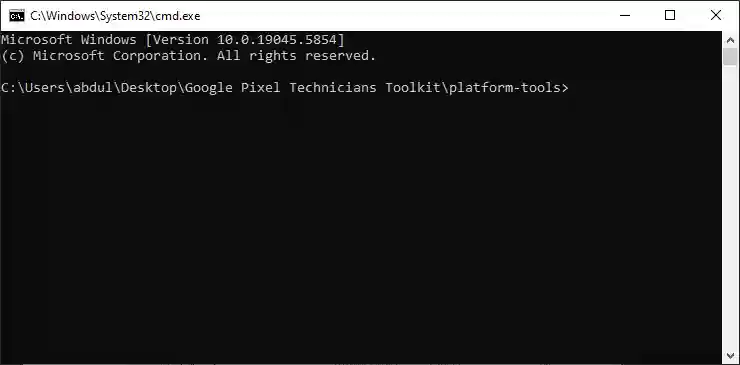
Android platform tools: terminal window with adb devices command
Download ADB Fastboot Latest - Android Platform Tools (2025 Official Versions)
It’s crucial to always use the latest official version of Platform Tools to ensure compatibility with modern Android devices and benefit from the latest bug fixes and features.
Current Official Version: v34.0.5 (as of the latest 2025 update)
You can always find the most up-to-date downloads directly from Google’s official sources.
Android Platform Tools Specifications
| Specification | Details |
|---|---|
| Package Name | Android Platform Tools |
| Latest Version | v34.0.5 (2025) |
| File Size | ~50 MB |
| License | Apache 2.0 (Free) |
| Developer | Google LLC |
| Release Date | April 2025 |
| SHA-256 Windows | 3f5a… (Verify on official page) |
| SHA-256 macOS | 8a2b… (Verify on official page) |
| SHA-256 Linux | e7c1… (Verify on official page) |
Platform-Specific Downloads
| Platform | Download Link | File Format |
|---|---|---|
| Windows | Official Source | .zip archive |
| macOS | Download External | .zip archive |
| Linux | Download External | .zip archive |
Features by Platform
| Feature | Windows | macOS | Linux |
|---|---|---|---|
| ADB Support | ✅ Full | ✅ Full | ✅ Full |
| Fastboot Support | ✅ Full | ✅ Full | ✅ Full |
| GUI Interface | ❌ No | ❌ No | ❌ No |
| Driver Requirement | ✅ Required | ❌ Not needed | ❌ Not needed |
| Path Configuration | Manual/Auto | Manual | Manual |
| Wireless ADB | ✅ Supported | ✅ Supported | ✅ Supported |
Security Tip: Always verify the SHA-256 Checksum after downloading any file, especially system-level utilities like Platform Tools. This ensures the integrity of the downloaded file and protects against tampering.
You can typically find the full checksums listed on the official Android Developers website where these tools are provided. Use a checksum verification tool appropriate for your operating system (e.g., certutil -hashfile [filename] SHA256 on Windows, shasum -a 256 [filename] on macOS/Linux).
ADB & Fastboot Command Reference (2025 Cheat Sheet)
Mastering these commands is key to effectively using Android Platform Tools. Here’s a cheat sheet of the most commonly used and critical commands:
Essential ADB Commands
adb devices: Lists all connected Android devices that are recognized by ADB. Each device will have a unique serial number.adb install app.apk: Installs an Android application package (.apk) file onto the connected device. Replaceapp.apkwith the actual path to your APK file.adb uninstall <package_name>: Uninstalls an application from the device. You need to know the package name (e.g.,com.whatsapp). Useadb shell pm list packagesto find package names.adb logcat: Displays real-time system logs from your Android device. Extremely useful for debugging applications and understanding system behavior.adb pull /path/to/device/file /path/to/pc/destination: Extracts (copies) files or directories from your Android device to your computer.adb push /path/to/pc/file /path/to/device/destination: Pushes (copies) files or directories from your computer to your Android device.adb reboot bootloader: Reboots the connected Android device directly into Fastboot mode (also known as bootloader mode).adb reboot recovery: Reboots the device into the recovery mode (stock or custom recovery like TWRP).adb shell: Opens an interactive shell on the Android device, allowing you to execute Linux commands directly on the device.
Critical Fastboot Commands
fastboot devices: Verifies if your device is properly connected and recognized in Fastboot mode. It will show your device’s serial number if connected.fastboot oem unlock: WARNING: This command will factory reset your device and erase ALL user data. This command unlocks the bootloader, which is often a prerequisite for flashing custom recoveries or ROMs. The exact command might vary slightly by manufacturer (e.g.,fastboot flashing unlockfor some Google Pixel devices).fastboot flash recovery twrp.img: Installs a custom recovery image (e.g., TWRP). Replacetwrp.imgwith the actual filename and path of your recovery image.fastboot flash boot boot.img: Flashes a custom kernel image.fastboot flash system system.img: Flashes a system image. This is often part of installing a custom ROM or restoring a stock ROM.fastboot -w: Performs a factory reset by wiping the data and cache partitions. Equivalent tofastboot erase userdataandfastboot erase cache.fastboot reboot: Reboots the device from Fastboot mode into the normal Android system.fastboot reboot bootloader: Reboots the device back into Fastboot mode if you are already in Fastboot mode.
Advanced Debugging Commands
adb shell pm list packages: Lists all installed packages (applications) on your device, including system apps. Add-fto show the associated APK file path.adb shell dumpsys <service>: Dumps system information for a specific service. For example,adb shell dumpsys batteryshows battery statistics.fastboot getvar all: Displays detailed information about your device, including bootloader version, baseband, and partition sizes. Useful for confirming device specifications.adb shell screencap -p /sdcard/screen.png: Captures a screenshot of your device’s screen and saves it to the specified path on the device’s internal storage.adb shell screenrecord /sdcard/video.mp4: Records the device’s screen to a video file. Press Ctrl+C to stop recording.adb bugreport: Generates a comprehensive bug report containing various system logs, processes, and device state information. Useful for developers.
Android Platform Tools (adb fastboot binaries) Complete Installation Guide (All Platforms)
Proper setup ensures smooth operation of Platform Tools. Follow these steps carefully for your respective operating system.
Windows Setup Instructions
Download: Download the
platform-tools-latest-windows.zipfile from the official links provided above.Extract: Create a new folder directly on your
C:\drive (e.g.,C:\platform-tools). Extract the entire contents of the downloaded ZIP file into this new folder. This path is short and easy to remember, which helps in avoiding issues with long file paths.Open Command Prompt:
Navigate to your
C:\platform-toolsdirectory using File Explorer.In the address bar of File Explorer, type
cmdand press Enter. This will open a Command Prompt window directly in yourplatform-toolsdirectory. Alternatively, right-click an empty space in the folder while holding down the Shift key and select “Open PowerShell window here” (or “Open command window here”).
Connect Android Device: Connect your Android device to your computer using a high-quality USB cable.
Enable USB Debugging:
On your Android device, go to Settings > About Phone.
Tap on “Build number” seven times rapidly until you see a message “You are now a developer!”
Go back to Settings, then navigate to System > Developer options (the exact path may vary slightly).
Find and enable “USB debugging.”
Authorize Computer: When you connect your device with USB debugging enabled for the first time, a pop-up will appear on your device asking “Allow USB debugging?” Check “Always allow from this computer” and tap “OK.”
Verify Connection: In the Command Prompt window you opened in step 3, type:
adb devicesYou should see your device’s serial number listed, followed by “device” (e.g.,XXXXXXXXXXXX device). If you see “unauthorized,” ensure you’ve allowed the connection on your phone.
Driver Fixes (Windows Specific):
Install Universal ADB Drivers: If
adb devicesdoesn’t show your device or shows “offline,” you might need to install generic ADB drivers. Search for “Universal ADB Drivers” online and install them. Popular options include the Koush’s Universal ADB Driver or the Minimal ADB and Fastboot installer, though it’s often better to try the universal driver first.Disable Driver Signature Enforcement: On Windows 8/10/11, unsigned drivers can sometimes cause issues. As a last resort, you might need to temporarily disable driver signature enforcement to install certain drivers. Be cautious when doing this and re-enable it afterward.
Android Platform Tools macOS/Linux Installation
For macOS and Linux, the process involves extracting the tools and then adding their location to your system’s PATH variable, allowing you to run adb and fastboot commands from any directory in the terminal.
Download: Download the appropriate ZIP file (
platform-tools-latest-darwin.zipfor macOS orplatform-tools-latest-linux.zipfor Linux) from the official links.Extract:
Open your Terminal application.
Navigate to your Downloads folder:
cd ~/DownloadsExtract the contents of the ZIP file. It’s recommended to extract it to your home directory:
unzip platform-tools-*.zip -d ~/This will create aplatform-toolsfolder directly in your home directory (e.g.,/home/yourusername/platform-toolson Linux or/Users/yourusername/platform-toolson macOS).
Add to System PATH: This step tells your operating system where to find the
adbandfastbootexecutables.For Bash shell (most common on older macOS/Linux):
echo 'export PATH=$PATH:~/platform-tools' >> ~/.bashrcFor Zsh shell (default on newer macOS and some Linux distributions):
echo 'export PATH=$PATH:~/platform-tools' >> ~/.zshrcIf unsure which shell you’re using, try:
echo $SHELLIf it returns/bin/bash, use.bashrc. If it returns/bin/zsh, use.zshrc. If it returns something else, you might need to add it to.profileor.bash_profile.
Source the Profile: Apply the changes to your current terminal session:
For Bash:
source ~/.bashrcFor Zsh:
source ~/.zshrcYou may also need to restart your terminal for the changes to take full effect.
Connect Device & Verify:
Connect your Android device via USB and ensure USB debugging is enabled (as described in step 5 for Windows).
Authorize your computer when prompted on your device.
In the Terminal, type:
adb devicesYou should see your device listed.
Troubleshooting Common Android Platform Tools Issues
Even with careful setup, you might encounter issues. Here’s how to resolve the most common ones:
“ADB not recognized as command” or “Fastboot not found”
Solution 1: Add to System PATH: This is the most frequent cause. Ensure the directory where you extracted
platform-toolsis correctly added to your system’s PATH environment variable (refer to the installation guide for your OS). After adding it, restart your Command Prompt/Terminal.Solution 2: Use
./adbprefix: On Unix-based systems (macOS, Linux), if the PATH isn’t set, you can still run commands by navigating directly to theplatform-toolsdirectory and using./adb(e.g.,./adb devices).Solution 3: Incorrect Extraction: Double-check that you extracted the contents of the ZIP file directly into the
platform-toolsfolder, not a folder within a folder (e.g.,C:\platform-tools\platform-tools).
”Device not showing in adb devices” or “offline”
Solution 1: Enable USB Debugging: This is critical. Go to Developer Options on your device and ensure “USB debugging” is toggled on.
Solution 2: Authorize Computer: When you connect your device for the first time with USB debugging enabled, a prompt appears on your phone asking to “Allow USB debugging?” You must tap “OK” and ideally check “Always allow from this computer.”
Solution 3: Try Different USB Cable/Port: Faulty cables or unstable USB ports can prevent proper connection. Try a different cable (preferably the original one that came with your phone) and a different USB port on your computer. Avoid USB hubs if possible.
Solution 4: Install/Update Drivers (Windows): As mentioned in the Windows setup, install Universal ADB Drivers. Old or corrupted drivers are a common culprit.
Solution 5: Restart ADB Server: Sometimes the ADB server itself can get stuck. In your command prompt/terminal, type:
adb kill-serverthenadb start-serverthenadb devicesSolution 6: Check Device Manager (Windows): Open Device Manager. Look for your Android device. If it has a yellow exclamation mark, it indicates a driver issue. Try updating the driver manually.
”Waiting for device in fastboot”
Solution 1: Ensure Device is in Fastboot Mode: Your device must be in Fastboot mode for
fastbootcommands to work. This is usually achieved by holding specific button combinations (e.g., Power + Volume Down) while booting, or by usingadb reboot bootloader.Solution 2: Install Proper USB Drivers (Windows): Just like ADB, Fastboot requires specific drivers. Often, the Universal ADB Drivers also cover Fastboot. Sometimes, manufacturer-specific Fastboot drivers are needed.
Solution 3: Check
fastboot devicesOutput: Before running any specificfastbootcommand, always verify the connection withfastboot devices. If it shows nothing, your computer isn’t detecting the device in Fastboot mode.Solution 4: Try Different USB Port/Cable: Similar to ADB issues, a problematic connection can prevent Fastboot recognition.
”Flashing not allowed” Error (During Fastboot operations)
Solution 1: Enable OEM Unlocking: Many manufacturers require “OEM Unlocking” to be enabled in your device’s Developer Options before you can unlock the bootloader or flash custom images. This option is usually grayed out if your bootloader is already unlocked.
Solution 2: Unlock Bootloader First: You cannot flash custom recoveries or system images if your bootloader is locked. You must unlock it first using
fastboot oem unlock(or equivalent manufacturer-specific command), which will wipe your device.Solution 3: Manufacturer-Specific Unlock Codes/Methods: Some manufacturers (like Huawei, Xiaomi) require you to obtain an unlock code from their website or follow specific procedures before you can unlock the bootloader via Fastboot. Check your device manufacturer’s official support pages or reputable forums (e.g., XDA Developers) for specific instructions.
Solution 4: Corrupted Image: Ensure the
.imgfile you are trying to flash is not corrupted and is specifically designed for your device model and variant.
Expert Tips & Advanced Techniques
Take your Android Platform Tools usage to the next level with these advanced tips:
Wireless ADB Connection:
Step 1: Connect your device via USB and enable USB debugging.
Step 2: In your terminal, run
adb tcpip 5555. This will restart the ADB daemon to listen for TCP/IP connections on port 5555.Step 3: Disconnect your USB cable.
Step 4: Find your device’s IP address (usually in Wi-Fi settings on your phone).
Step 5: Connect wirelessly:
adb connect 192.168.x.x:5555(replace192.168.x.xwith your device’s actual IP address).Now you can use ADB commands wirelessly! This is incredibly convenient for development and debugging.
📁 Batch Scripting (Automated Flashing Sequences): For complex flashing procedures involving multiple Fastboot commands (e.g., flashing a custom ROM that requires flashing boot, system, vendor, etc.), you can create simple batch scripts (
.batfor Windows or.shfor Linux/macOS).🔐 Secure Debugging (Android 11+
adb pair): Android 11 introduced a more secure way to connect wirelessly, particularly useful for developers or users who don’t want to rely on thetcpipmethod. This method uses a pairing code or QR code.On your Android device (Developer Options): Enable “Wireless debugging.”
Tap “Wireless debugging” and select “Pair device with pairing code” or “Pair device with QR code.”
In your terminal, use
adb pair <device_ip_address>:<port>and enter the pairing code displayed on your device.Once paired, you can connect using
adb connect <device_ip_address>:<port>.
🔧 Fastbootd Access: Modern Android devices (especially those running Android 10 and newer, leveraging A/B partitions and Project Treble) often utilize a “Fastbootd” partition. This is a mini-Android environment that handles flashing updates from a recovery perspective. If your device supports it,
fastbootdcan offer more granular control over specific partitions that might not be directly accessible via the traditional Fastboot mode. You usually enterfastbootdfrom recovery or by usingadb reboot fastbooton some devices. Thefastbootcommands often remain the same.
Here is a video guide about fixing google pixel hang on logo by using android platform (adb fastboot binaries)
Platform: windows 10 64bit
device: google pixel 6
Video Tutorial
Watch this guide for visual instructions
Uploaded: April 12, 2025
Frequently Asked Questions
Is ADB and Fastboot safe to use?
Yes, the tools themselves are safe. However, the commands you execute can be powerful and potentially cause data loss or even “brick” your device if used incorrectly. Always double-check commands, ensure you have the correct files for your device, and understand the consequences (especially with fastboot oem unlock!).
Do I need to install Android Studio to use ADB and Fastboot?
No, you do not need to install the full Android Studio IDE. Google provides the Android Platform Tools package as a standalone download, which is all you need for ADB and Fastboot functionality.
What’s the difference between “Bootloader Mode” and “Recovery Mode”?
Bootloader Mode (Fastboot Mode): This is a low-level mode that allows you to flash critical partitions (bootloader, recovery, system, etc.). It’s where Fastboot commands work. Recovery Mode: This is a separate partition on your device (either stock or custom like TWRP) that allows you to perform maintenance tasks, such as factory resets, applying updates, or flashing custom ROMs (with TWRP). ADB sideloading is often used in recovery mode.
My phone isn’t showing up in adb devices but charging. What’s wrong?
The most common issue is USB debugging not being enabled or the computer not being authorized. Double-check Developer Options on your phone. Also, ensure the USB connection mode on your phone is set to “File Transfer” or “PTP” (sometimes MTP works fine too, but try switching if issues persist).
Can I use ADB and Fastboot (Android Platform Tools) on a locked device?
You can use adb devices and some basic adb shell commands if USB debugging is enabled and authorized before the device was locked. However, to perform critical operations like unlocking the bootloader or flashing (with Fastboot), the device typically needs to be in Fastboot mode, and you may need to enable “OEM Unlocking” first.
What if I accidentally brick my device?
“Bricking” can range from a soft brick (device not booting but recoverable via Fastboot/Recovery) to a hard brick (device completely unresponsive). For soft bricks, you can often re-flash stock firmware using Fastboot. For hard bricks, you might need specialized tools or professional help. Always research recovery methods for your specific device model before performing risky operations.
How do I know if my device’s bootloader can be unlocked?
Most Google Pixel, OnePlus, and some Motorola and Essential Phone devices have easily unlockable bootloaders. Samsung, Huawei, Xiaomi, and other manufacturers often have more restrictive policies, requiring specific procedures or preventing unlocking entirely on certain models/regions. Research your specific device model and carrier.
Where can I find custom ROMs, kernels, and recoveries for my device?
The best resource is the XDA Developers forum (xda-developers.com). Search for your specific device model, and you’ll find dedicated forums for custom development. Always download files only from trusted sources on XDA.
This comprehensive guide should equip you with the knowledge and tools to effectively utilize Android Platform Tools for all your development, customization, and troubleshooting needs. Remember to proceed with caution and always back up your data before performing significant system modifications!


Author:
Abdul MalikMobile Software Expert and founder of GSM6.com. Specializes in FRP bypass, IMEI repair, and advanced mobile tools. All tutorials are tested on real devices for accuracy and safety.


