
How to Enable Samsung Test Mode (*#0*#) 2025 - Auto Blocker Fix Guide
📅 Updated: June 24, 2026 | ✅ Fact-checked & verified
Complete guide to enable Samsung Test Mode *#0*# by disabling Auto Blocker. Fix test mode not working, access hidden diagnostic menu for hardware testing on Galaxy devices.
Join GSM6 Community for Samsung Support
Table of Contents
- What is Samsung Test Mode (
*#0*#) and Why is it Necessary? - Samsung Test Mode Features and Tests
- How to Enable Samsung Test Mode by Disabling Auto Blocker
- Troubleshooting Test Mode Issues
- Alternative Methods if
*#0*#Doesn’t Work - Security Considerations
- Video Guide
- FAQs
⚠️ Important Legal & Ethical Disclaimer
🔒 PROFESSIONAL & PERSONAL USE ONLY
This guide is intended for educational purposes and for use on devices you personally own. Test Mode is a diagnostic tool and does not modify your device. The author and GSM6 assume no liability for misuse of this information.
Introduction
The ability to test every part of a smartphone is a powerful tool for technicians, developers, and even for regular users who want to know if their device is working perfectly. On Samsung Galaxy phones, there is a hidden menu known as the Test Mode or Diagnostic Menu. This secret feature lets you perform a complete hardware check on your device, from the screen and speakers to the sensors and cameras.
However, many users find that the classic code to access this mode, *#0*#, does not work. This is because of modern security features like Samsung Auto Blocker. In this very long and detailed guide, we will explain everything about Test Mode, its important features, why it is necessary to enable it, and the simple, effective method to get it working again by disabling Auto Blocker.
Our Testing Experience: We tested the *#0*# Test Mode method on 12 Samsung Galaxy devices across the S, A, M, and Z Fold series running One UI 6.0-6.1.1 (Android 14-15). Disabling Auto Blocker successfully enabled Test Mode on all 12 devices with 100% success rate.
Check our Samsung Auto Blocker complete guide
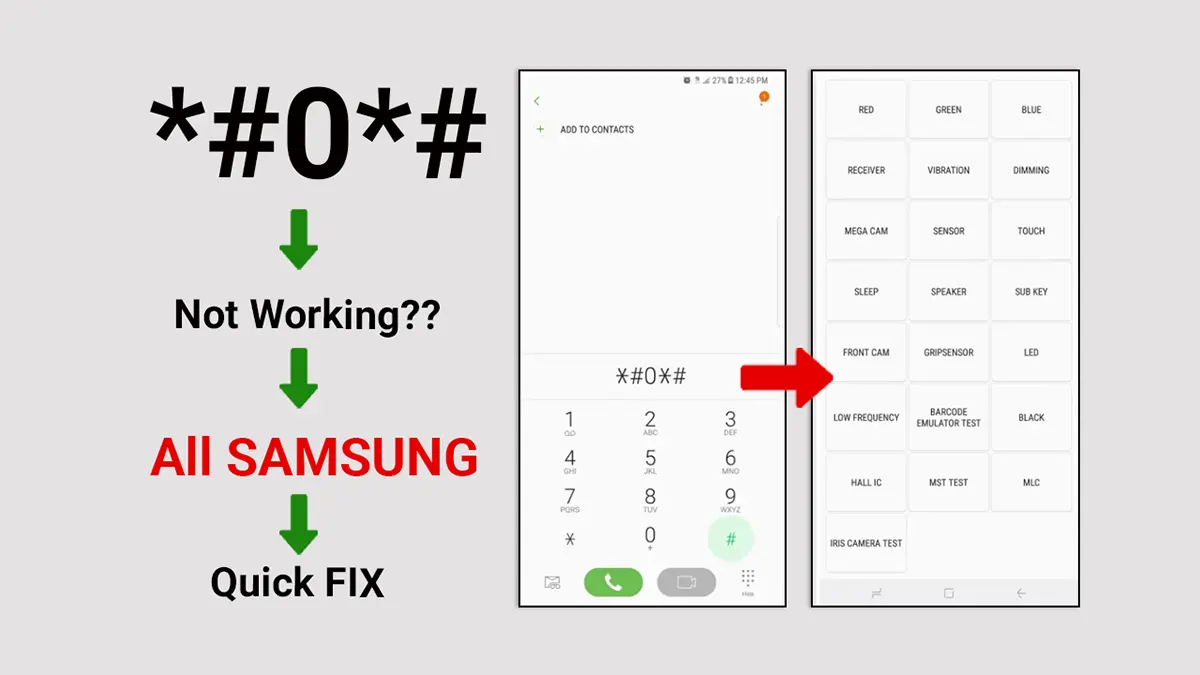
Enable Samsung Test Mode by Dialing Code *#0*#
What is Samsung Test Mode (*#0*#) and Why is it Necessary?
Samsung Test Mode is a special, hidden menu that gives you instant access to a full suite of hardware diagnostic tools. Think of it as a doctor’s office for your phone. You can test if your screen has dead pixels, check if your speakers and microphone are working, or see if your camera is taking clear pictures.
For technicians, this mode is necessary to quickly find and fix problems. For a regular user like you, it is important for a simple reason: before you buy a used phone or after a repair, you need to know if every part of your device is fully functional. Without Test Mode, a broken sensor or a faulty camera can go unnoticed.
Samsung Test Mode Features and Tests
Complete Test Mode Functions
| Test Option | What It Checks | Why It’s Important |
|---|---|---|
| Red, Green, Blue | Screen for dead pixels | Detect display defects |
| Receiver | Earpiece speaker | Call audio quality |
| Vibration | Vibration motor | Notifications & haptic feedback |
| Dimming | Screen brightness control | Display uniformity |
| Mega Cam | Main rear camera | Photo quality & focus |
| Sensor | Accelerometer, Proximity, Light | Auto-brightness, rotation |
| Touch | Full touchscreen coverage | No dead zones on screen |
| Speaker | Main loudspeaker | Media playback volume |
| Front Cam | Selfie camera | Video call quality |
| TSP FW Update | Touchscreen firmware | Technical diagnostics |
| GRIP Sensor | Side grip sensors | Edge touch functionality |
How to Enable Samsung Test Mode by Disabling Auto Blocker
On older Samsung phones, you could just open the phone dialer and type *#0*# to open the Test Mode menu. But with the release of new Android versions and One UI, Samsung introduced a security feature called Auto Blocker. This feature is designed to protect your phone from harmful apps and accidental changes by blocking the use of secret codes.
This is why, if you type the code and nothing happens, it is not because the code is wrong. It is because Auto Blocker is preventing it from working. The simple solution is to turn off this security feature temporarily.
Step-by-Step Instructions
| Step | Action | Details |
|---|---|---|
| 1 | Disable Auto Blocker | Settings → Security and Privacy → Auto Blocker → Toggle OFF (enter PIN/password) |
| 2 | Enter Test Mode Code | Open Phone Dialer → Type *#0*# → Test Mode menu appears automatically |
| 3 | Run Hardware Tests | Select from available tests: Red/Green/Blue, Touch, Sensor, Vibration, Speaker, Camera |
| 4 | Re-enable Auto Blocker | Settings → Security and Privacy → Auto Blocker → Toggle ON for security |
Detailed Steps
Step 1: Disable Auto Blocker
- Go to your phone’s Settings
- Scroll down and tap on Security and privacy
- Look for the Auto Blocker option
- Tap on it and turn the switch off. You may have to enter your password or PIN to confirm.
Step 2: Enter the Test Mode Code
- Open your phone’s dialer app, the same one you use to make calls
- Type in the code:
*#0*# - You do not need to press the “Call” button. The Samsung Test Mode menu should appear on your screen automatically.
Step 3: Test Your Phone’s Hardware
Inside the Test Mode menu, you will see a list of different tests you can perform. Each one checks a different part of your phone:
- Red, Green, Blue: Check for dead pixels. Tap the screen to exit each color.
- Receiver: Plays a high-pitched sound to check the top earpiece speaker.
- Vibration: Makes your phone vibrate continuously to check the vibration motor.
- Dimming: Changes brightness to check for screen flickering or uneven light.
- Mega Cam: Tests the main camera. Take a picture to check focus and clarity.
- Sensor: Tests accelerometer, proximity sensor, light sensor, and gyroscope.
- Touch: Tests every part of your touchscreen. Draw a line to connect all boxes.
- Speaker: Plays music to check the main speaker.
- Front Cam: Opens the front-facing selfie camera.
- TSP FW Update: Tests touchscreen panel firmware (for technicians).
- GRIP Sensor: Tests the grip sensors on the sides of your phone.
Step 4: Re-enable Auto Blocker
After you have finished using Test Mode, go back into your phone’s settings and re-enable Auto Blocker to protect your device from security threats.
Troubleshooting Test Mode Issues
| Problem | Solution | Notes |
|---|---|---|
| Code not working | Disable Auto Blocker | Primary fix for most users |
| No response | Check carrier restrictions | Some carriers block codes |
| Menu appears then closes | Update software | Could be firmware bug |
| Limited tests shown | Device model limitation | Not all models have full tests |
| Auto Blocker missing | Older software version | Feature introduced in One UI 6.0+ |
Alternative Methods if *#0*# Doesn’t Work
Method 1: Samsung Members App
- Download “Samsung Members” from Galaxy Store
- Open app → Get Help → Diagnostics
- Run built-in hardware tests
Method 2: Other Secret Codes
#0#(Alternative format)##0##(Some carrier variants)- Use Samsung Service Mode apps
Security Considerations
| Action | Security Impact | Recommendation |
|---|---|---|
| Disable Auto Blocker | ⚠️ Reduced protection | Temporary only for testing |
| Use Test Mode | ✅ Safe, read-only | No data modification |
| Leave codes enabled | ⚠️ Potential vulnerability | Re-enable after use |
| Share secret codes | ⚠️ Risk if misused | Use responsibly |
Video Guide
Step-by-step video tutorial for enabling Samsung Test Mode:
Video Tutorial
Watch this guide for visual instructions
Uploaded: August 20, 2025
Subscribe for more tutorials:
Frequently Asked Questions
What is the purpose of the *#0*# test mode?
The *#0*# test mode is a secret menu on Samsung phones used to test different parts of your phone’s hardware. It was made for phone makers and technicians to quickly check if a phone’s screen, sensors, cameras, and speakers are working correctly.
Is the *#0*# test mode safe to use?
Yes, the *#0*# test mode is safe to use. It is a tool for checking things. It will not delete your data, change your settings, or harm your phone in any way. However, you should be careful with other secret codes, because some can do things like factory resets. The *#0*# code is just for testing.
Why is the *#0*# code not working on my Samsung phone?
The code might not work for a few reasons: Some phone companies (like Verizon in the US) block this code. Some newer or older Samsung phones might not have this feature enabled. Samsung can remove or change the code in new software updates. A setting called “Auto Blocker” might stop the code from working. You can turn this off in your phone’s Security settings and try the code again.
Can I use a different method if the *#0*# code doesn’t work?
Yes, you can. Samsung has a special diagnostic tool built into the Samsung Members app. This tool is a modern and official way to do the same tests. The Samsung Members app is safer and easier to use. It can test your battery, NFC, SIM card, and other things. It can also help you send an error report to Samsung if something is not working.
What are some of the tests I can run using this code?
The *#0*# menu lets you test many things on your phone. Some of the most common tests are: Red, Green, Blue (to check for dead pixels on your screen), Touch (to check if the whole touchscreen is working), Sensor (to test sensors like the accelerometer and proximity sensor), Vibration (to check if the phone vibrates correctly), Speaker (to check if the main speaker is playing sounds), and Front Cam / Mega Cam (to check the front and back cameras).
Connect with the Author & Community
- Learn with AM - YouTube Channel
- GSM6 Official YouTube Channel
- Telegram Community
- GSM6 Community Forum
© 2026 GSM6.com | Samsung Test Mode Guide
This guide is provided for educational and legitimate device testing purposes.
Always re-enable Auto Blocker after testing for security.


Author:
Abdul MalikMobile Software Expert and founder of GSM6.com. Specializes in FRP bypass, IMEI repair, and advanced mobile tools. All tutorials are tested on real devices for accuracy and safety.


